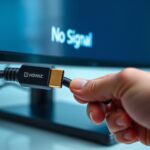
To stop guessing, follow a systematic HDMI handshake checklist. First, make sure you’re using high-speed HDMI cables that support your devices’ standards and check for visible damage. Power off all devices before connecting, then turn them on in the correct sequence. Verify your display input matches the connected port, and update firmware if necessary. Test different ports and swap cables or devices to pinpoint the issue. More detailed steps can help you resolve persistent problems efficiently.
Key Takeaways
- Verify all HDMI cables are high-speed, undamaged, and properly connected before troubleshooting.
- Update firmware on source devices and displays to ensure compatibility with current HDMI standards.
- Power off all devices, connect cables in the correct order, then power them back on for a proper handshake.
- Confirm display input settings match the HDMI port connected to the source device.
- Test different HDMI ports, cables, and devices systematically to isolate and resolve handshake issues.
HDMI Handshake Troubleshooting Checklist

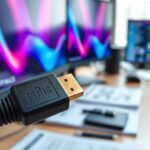
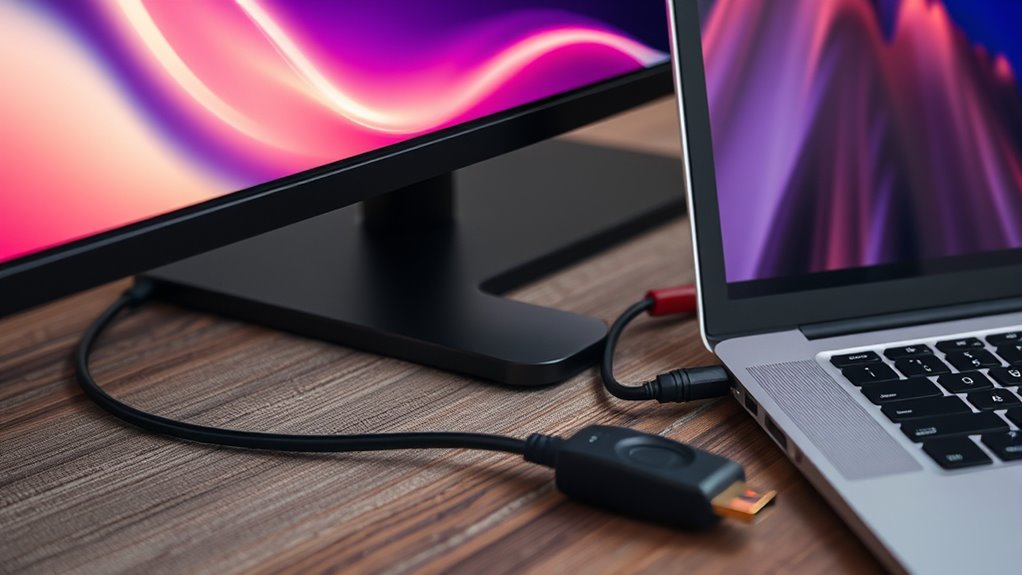
Dealing with HDMI handshake issues can be frustrating, but many problems are easy to troubleshoot with a clear checklist. The first step is to check cable compatibility. Not all HDMI cables are created equal, and using the wrong type can cause handshake failures. For example, older HDMI cables might not support the latest high-bandwidth features, leading to signal drops or black screens. Make sure you’re using a high-speed HDMI cable that meets current specifications, especially if you’re transmitting 4K or HDR signals. If your cable is outdated or damaged, replacing it with a certified HDMI cable can resolve many handshake problems. Also, inspect your cable for visible damage or bent connectors, as these can interfere with proper communication between devices.
Next, consider your device firmware. Firmware updates are essential because manufacturers often release patches that improve HDMI compatibility and fix known handshake issues. Check your TV, monitor, or AV receiver manufacturer’s website for the latest firmware updates. Updating your device firmware ensures your hardware can handle newer HDMI standards and resolves bugs that might cause handshake failures. Once updated, restart your devices and reconnect everything to see if the problem persists. Sometimes, outdated firmware can cause incompatibility, especially after system updates or new device additions. Additionally, firmware compatibility plays a crucial role in establishing a stable connection, so ensure your devices support the same HDMI features. Being aware of AI security concerns related to firmware updates can help you stay informed about potential vulnerabilities.
Another key aspect is the order in which you connect your devices. Power off all devices before connecting the HDMI cable. Connect your source device—such as a Blu-ray player or game console—to the display, then power everything on. This sequence helps devices establish a handshake more smoothly. If issues still occur, try disconnecting all HDMI cables, restarting your devices, and reconnecting them in the proper order. Sometimes, a simple reset can resolve handshake hiccups caused by temporary glitches.
Additionally, check your display settings. Ensure your display input is set to the correct HDMI port and that the input mode matches your device. Sometimes, selecting the wrong input or setting the display to a different mode can prevent a proper handshake from establishing. Adjust your display settings if necessary, and see if that clears up the issue. Also, be aware that retail hours may influence when you can get in-store support if needed. Confirming that your display is configured correctly can often prevent or resolve connection issues.
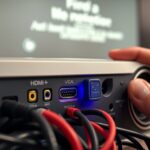
Finally, if you’ve tried all these steps and still face problems, consider testing with a different HDMI port or device. This helps isolate whether the issue lies with a specific port, cable, or device. By systematically addressing cable compatibility, firmware updates, connection order, and display settings, you can troubleshoot HDMI handshake problems effectively. With patience and a methodical approach, you’ll often find the fix without needing extensive technical support.
Frequently Asked Questions
How Long Does an HDMI Handshake Typically Take to Resolve?
An HDMI handshake typically resolves within a few seconds to a minute, but it can take longer if cable quality or device compatibility issues are involved. If your devices struggle to sync, make certain you’re using a high-quality cable and that all devices support the same HDMI standards. Sometimes, simply unplugging and reconnecting the cable or restarting devices speeds up the process. Patience and proper setup usually fix handshake delays quickly.
Can HDMI Handshake Issues Cause Audio Problems Only?
It’s like stepping into a time machine, but HDMI handshake issues can indeed cause only audio problems. You might experience audio sync issues or sound distortion without losing video. These problems happen because the handshake sometimes fails to properly communicate audio formats between devices. Troubleshooting the handshake can resolve these issues, ensuring your sound is clear and synced perfectly, without affecting your video display.
Does Replacing HDMI Cables Always Fix Handshake Errors?
Replacing HDMI cables doesn’t always fix handshake errors, but it can help if the cable quality is poor or damaged. First, check and clean the ports to guarantee a solid connection. Sometimes, dust or debris causes handshake issues. If problems persist, try a high-quality cable and ensure both devices support the same HDMI standards. This approach often resolves the handshake errors without unnecessary replacements.
Are There Specific Devices More Prone to Handshake Failures?
You might notice some devices are more prone to handshake failures, especially older models or those with device incompatibilities. These gadgets often struggle to communicate properly with newer tech, causing frustrating disruptions. Keep in mind, as technology evolves, some devices just can’t keep up, making handshake errors more common. Recognizing this can help you troubleshoot effectively and avoid unnecessary cable replacements or upgrades.
Can Firmware Updates Improve HDMI Handshake Stability?
Firmware updates can greatly improve HDMI handshake stability by enhancing HDMI compatibility across your devices. When you update your device firmware, it often includes bug fixes and performance improvements that address handshake issues. Regularly check for firmware updates, especially for your TV, receiver, or source devices, to guarantee smoother connections and reduce handshake failures. Keeping firmware current helps maintain ideal HDMI compatibility and overall system reliability.
Conclusion
By following this HDMI handshake troubleshooting checklist, you can identify issues quickly, resolve problems efficiently, and enjoy seamless connections every time. Check your cables, verify your devices, update your firmware, and reset your settings—don’t guess, troubleshoot. Stay proactive, stay persistent, and stay connected. With these simple steps, you’ll troubleshoot effectively, restore your entertainment, and eliminate frustration. Remember, clear connections lead to smooth viewing—so keep your HDMI handshake healthy, and enjoy your media without interruptions.