Common projector connection errors often stem from incompatible cables, incorrect input selection, or damaged wires. You might be using the wrong cable type or need an adapter to match device and projector ports. Make sure you select the correct input source manually if auto-detection fails. Checking cable integrity and matching specifications can also solve many issues. To fix these problems effectively, understanding these key points can help you troubleshoot and get your projector working smoothly.

Get your home office setup delivered free — and shop member deals
- Fast, free delivery on millions of items
- Access to Prime Big Deal Days deals on October 6–7
- Prime Video, Amazon Music and more included
Key Takeaways
- Verify cable compatibility and inspect for damage before connecting to ensure proper signal transmission.
- Manually select the correct input source on the projector if automatic detection fails.
- Use appropriate adapters and matching ports to avoid connection mismatches and image issues.
- Check and adjust device output settings to ensure the signal is correctly sent to the projector.
- Regularly inspect cables and settings to maintain reliable connections and optimal image quality.
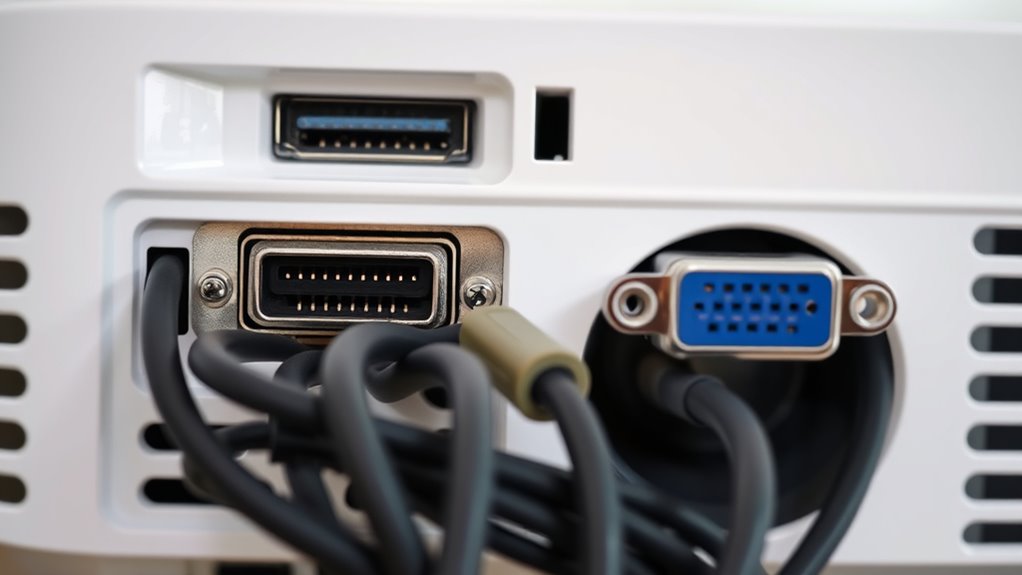
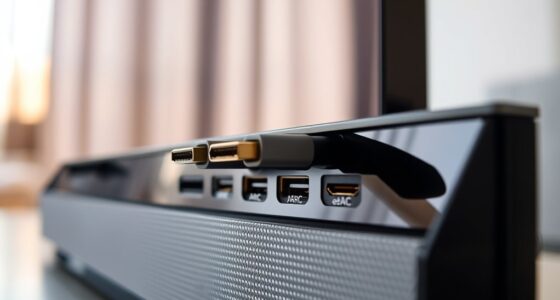
Connecting a projector can sometimes be frustrating due to various errors that prevent it from functioning properly. One common issue involves cable compatibility. Not all cables are created equal, and using the wrong type can easily cause connection problems. For example, trying to connect a VGA cable to an HDMI port won’t work unless you have an adapter, and even then, not all adapters support the necessary signals. Before you start, check that your projector and device support the same connection type. If you’re using a cable that isn’t compatible, you’ll likely see no image or experience a flickering display. Making sure you have the right cable that matches both your device’s output port and the projector’s input port is essential. Sometimes, even if the cables physically fit, they might not be compatible with your setup, so verify specifications beforehand. It’s also vital to inspect the cables for damage—frayed wires or bent connectors can cause signal loss or interference, resulting in a blank screen or poor image quality.
Another frequent problem relates to input source selection. Even after establishing a cable connection, your projector might not display the image from your device if it’s set to the wrong input. Many projectors have multiple input ports—HDMI 1, HDMI 2, VGA, DisplayPort, etc.—and you need to manually select the correct source. If you don’t, the projector will remain on its default input, which might be blank or showing another device. To fix this, access the projector’s menu or input button and cycle through the available options until you find the one corresponding to your device. Sometimes, the remote control makes this easier, but if not, the onboard buttons will do the trick. Remember, some projectors automatically detect input signals, but this feature isn’t always reliable, especially with certain cables or older models. Double-checking the input source guarantees your device’s signal reaches the projector properly. Additionally, understanding the importance of a high contrast ratio can help you troubleshoot image quality issues, especially in dark scenes. By paying attention to these details—using compatible cables, selecting the correct input, and configuring your device’s output—you can troubleshoot and resolve most common projector connection errors efficiently.
Frequently Asked Questions
How Do I Connect My Projector to a Wi-Fi Network?
To connect your projector to a Wi-Fi network, start with Wi-Fi setup by accessing the projector’s menu. Navigate to network settings, then select your Wi-Fi network from the list. Enter your network credentials for network configuration, ensuring you input the correct password. Once connected, your projector should display your device’s content wirelessly. If issues arise, double-check your network details and restart your devices to refresh the connection.
Can I Use a Smartphone as a Projector Display?
Think of your smartphone as a tiny window to the world, capable of transforming into a projector display. Yes, you can use your phone for display mirroring if it’s compatible with your device and supports screen sharing options. Simply connect your smartphone to the projector via Wi-Fi or cables, enabling the mirror function. This turns your device into a versatile portal, bringing images and videos to a bigger stage effortlessly.
What Should I Do if the Projector Screen Is Flickering?
If your projector screen flickering, you should start troubleshooting display issues by checking the cable connections and ensuring they’re secure. Adjust the refresh rate or resolution settings on your device, as incompatible settings can cause flickering. Also, try repositioning the projector or reducing ambient light. If problems persist, test with a different cable or source. These steps help resolve projector screen flickering efficiently, improving your viewing experience.
How to Troubleshoot Audio Issues With My Projector?
To troubleshoot audio issues with your projector, start by checking the sound settings and ensuring the volume is up. Use audio troubleshooting steps like verifying the input source, testing with different cables, and confirming the speakers are properly connected. Perform sound calibration if needed to optimize audio quality. If problems persist, update your projector’s firmware or reset the audio settings to factory defaults to resolve any configuration issues.
Is It Possible to Connect Multiple Devices Simultaneously?
Did you know that over 60% of users want to connect multiple devices simultaneously? Yes, you can set up multiple device connections with your projector, but it depends on your model’s ports and technology. Most projectors support a multiple device setup through HDMI switchers or wireless options. Check your projector’s specifications to enable seamless simultaneous connections, so you can switch between devices easily without unplugging and replugging.
Conclusion
Remember, troubleshooting is part of the journey, not just the destination. By understanding common projector connection errors and their fixes, you’re better equipped to handle any hiccups that come your way. Stay patient and keep a calm mindset—after all, a problem shared is a problem halved. As the saying goes, “A problem shared is a problem halved.” With a little patience and know-how, you’ll have your projector up and running smoothly in no time.
Fall Picks
fall essentials
As an affiliate, we earn on qualifying purchases.