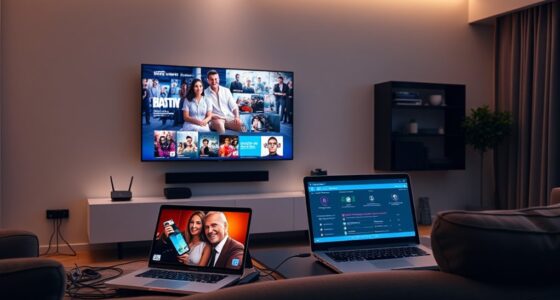
To set up a streaming device for hotel and portable use, start by plugging it into the TV’s HDMI port and powering it on. Connect the device to hotel Wi-Fi, following any login instructions provided. Pair your remote or use a smartphone app if needed. Make sure your batteries are fresh, and keep the device close to the router for a better signal. If issues pop up, there are simple troubleshooting steps to follow—keep going to learn more.
Key Takeaways
- Ensure the streaming device supports hotel Wi-Fi and HDMI connections; use adapters if needed.
- Use a remote control app or Bluetooth remote for easier setup in restricted environments.
- Restart the Wi-Fi router and move the device closer to improve connectivity.
- Follow pairing instructions carefully, replacing remote batteries if remote issues occur.
- Complete necessary software updates and log into streaming accounts for seamless use.

Setting up a streaming device is a straightforward process that lets you access your favorite shows and movies quickly. Whether you’re in a hotel room or using a portable setup, getting your device up and running shouldn’t be complicated. The key is understanding how to troubleshoot remote issues and guaranteeing your device is compatible with the streaming platform and your existing equipment. These factors can make or break your viewing experience, especially when you’re on the go.
Setting up a streaming device is simple, focusing on remote troubleshooting and device compatibility for smooth viewing everywhere.
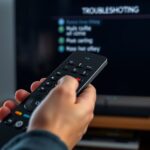
When you first power on your streaming device, you’ll likely need to pair the remote. If you encounter issues with remote troubleshooting, don’t panic. Make sure the remote has fresh batteries and is within range of the device. Sometimes, the remote simply needs to be re-paired or reset to establish a proper connection. Follow the device’s instructions for pairing—usually, pressing and holding specific buttons or entering a pairing mode. If the remote still isn’t responding, check for physical obstructions or interference from other electronic devices. Most streaming devices also offer alternative control options, like smartphone apps, which can be especially handy in hotel environments where remote signals might be obstructed or inconsistent.
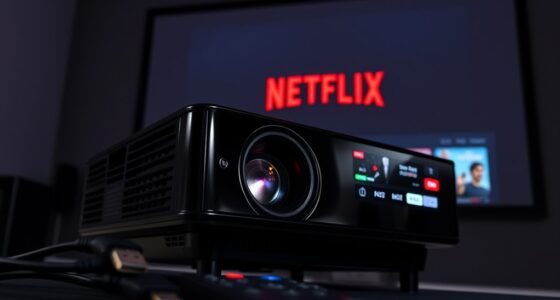
Device compatibility is another vital aspect. Not all streaming devices work seamlessly with every TV or display, especially if you’re using older models or specialized setups. Before setup, verify that your device supports the input options on your TV—most use HDMI, but some older models may have different ports. It’s also essential to confirm that your device supports the streaming services you want, such as Netflix, Hulu, or Disney+. In hotel rooms, you might encounter limitations like incompatible TVs or restrictions on connecting external devices. In such cases, adapters or portable HDMI converters can help guarantee your device functions correctly. Also, check that your Wi-Fi network meets the device’s requirements; a stable connection is vital for streaming without interruptions. Being aware of device compatibility can save you time and frustration during setup and use.
During setup, you’ll connect your device to the internet, usually via Wi-Fi. If you experience connectivity issues, try troubleshooting your network first. Restart your router, move the device closer to the Wi-Fi source, or switch to a more stable network if available. If you’re in a hotel, ask the staff if there are any restrictions or special instructions for connecting your device to the hotel’s Wi-Fi. Some networks require additional login steps or have firewall settings that block certain streaming services. Once connected, complete the account setup and download any necessary updates to guarantee your device operates smoothly.
Frequently Asked Questions
How Do I Update the Firmware on My Streaming Device?
To update the firmware on your streaming device, first check for firmware updates in the device settings or app. Make certain your device is compatible with the latest firmware version. If an update is available, follow the prompts to download and install it. Keep your device connected to Wi-Fi during the process to avoid interruptions. Regular firmware updates improve device compatibility, fix bugs, and enhance performance, ensuring smooth streaming.
Can I Connect Multiple Devices Simultaneously?
Connecting multiple devices simultaneously is like juggling, but it depends on your device compatibility. Many streaming devices support multiple connections, allowing you to switch between screens or use different gadgets at once. Keep in mind, though, that streaming quality may decline if your network isn’t strong enough. Check your device’s specifications to verify it supports multiple streams without sacrificing performance, so everyone stays entertained seamlessly.
Is There a Way to Secure My Streaming Connection in Hotels?
Yes, you can secure your streaming connection in hotels by using VPN security and enabling network encryption. A VPN encrypts your data, protecting your privacy on public networks. Make sure to choose a reliable VPN service before connecting, and activate it on your device. Additionally, use secure Wi-Fi networks whenever possible, and avoid sharing sensitive information. These steps help safeguard your streaming activities and personal data during hotel stays.
What Should I Do if My Device Doesn’T Recognize the Wi-Fi Network?
If your device doesn’t recognize the Wi-Fi network, start by checking your Wi-Fi connectivity, ensuring you’re within range and the network is active. Restart your device and router to resolve any temporary glitches. Perform network troubleshooting by forgetting the network and reconnecting with the correct password. If still unsuccessful, manually enter the network details or update your device’s software to improve compatibility.
How Do I Troubleshoot Audio or Video Lag Issues?
Facing audio or video lag? Don’t worry, you can fix it. First, check for buffering issues by pausing and letting it load. Then, adjust your resolution settings to a lower quality—this often reduces lag. If problems persist, restart your device and verify your Wi-Fi connection is strong. These simple steps can make a big difference, giving you smooth streaming and a better viewing experience.
Conclusion
So, there you have it—your ultimate guide to streaming on the go. Who knew setting up a device in a hotel or portable spot could be so simple? Now you’re all set to binge guilt-free, no matter where life takes you. Just remember, it’s almost too easy—soon you’ll be the envy of all your friends, or at least, the one with Wi-Fi in every hotel room. Happy streaming, world traveler!