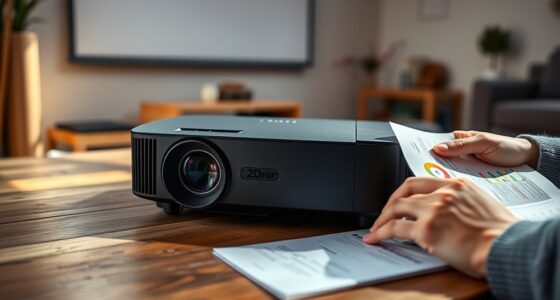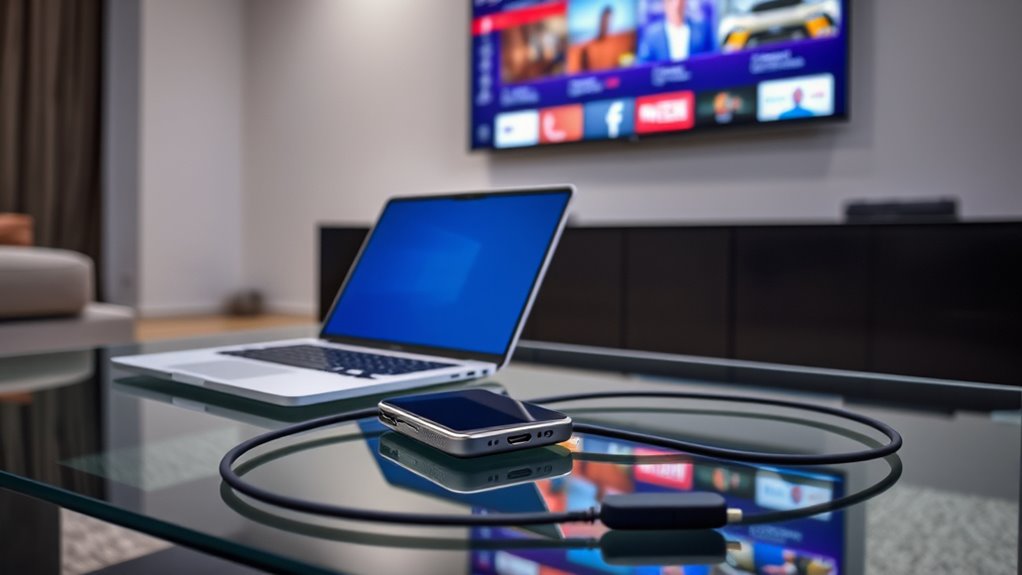

To connect your laptop or phone to your TV or projector for streaming, you can use an HDMI cable and the appropriate adapters for a stable wired connection, or opt for wireless options like Chromecast, AirPlay, or Miracast if both devices support them. Make sure your devices are on the same Wi-Fi network and select the correct input or streaming method. For detailed steps and tips, you’ll find more helpful guidance ahead.

Get business pricing on your home office setup
- Business-only prices and quantity discounts
- Tax-exempt purchasing
- Multiple users, one account, clear invoices
Key Takeaways
- Use an HDMI cable with adapters if needed, then select the correct input on your TV or projector.
- For wireless streaming, connect both device and TV/projector to the same Wi-Fi network.
- On smartphones, access casting options like AirPlay or Cast, then select your TV or streaming device.
- On laptops, use Miracast or connect via Windows Settings or Chrome’s cast feature for wireless display.
- Ensure devices are updated and compatible for smooth streaming with optimal resolution and minimal lag.
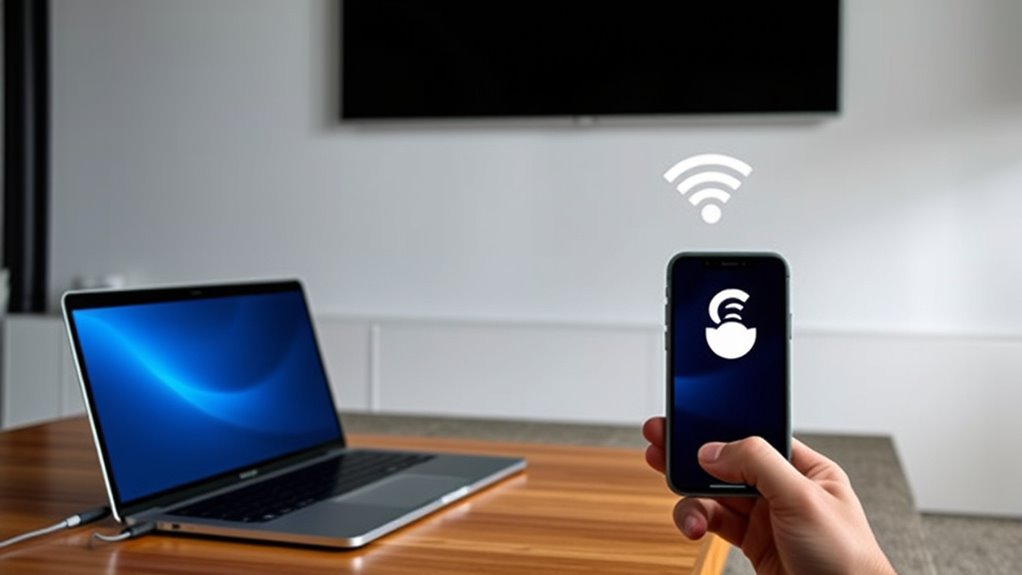
Connecting your laptop or phone to a TV or projector is a straightforward way to enjoy your favorite movies, shows, or presentations on a larger screen. The process varies depending on the devices and connections available, but most setups are simple and quick. First, determine what ports or wireless options your devices support. Modern laptops and phones often include HDMI, DisplayPort, USB-C, or wireless technologies like Miracast, AirPlay, or Chromecast. Check your device specifications to identify the best connection method.
If your laptop or phone has an HDMI port, connecting is easy. You’ll need an HDMI cable and, if necessary, an adapter to match the port types. For example, many phones require a USB-C to HDMI adapter. Plug the device into the adapter, then connect the adapter to the HDMI cable and insert the cable into the TV or projector’s HDMI port. Once connected, switch your TV or projector to the corresponding HDMI input. Your device should automatically detect the connection, and your screen will be mirrored or extended to the larger display. You might need to adjust display settings on your laptop to enhance resolution or orientation.
Wireless connections are even more convenient and eliminate cable clutter. If you have a smart TV or a compatible streaming device, like Chromecast, Apple TV, or Amazon Fire TV, you can connect your phone or laptop over Wi-Fi. For Chromecast, open the app or the Chrome browser, click the cast icon, and select your device. Your content will stream wirelessly. On Apple devices, use AirPlay by swiping down from the top right corner (or up from the bottom on older models) and tapping the AirPlay icon, then selecting your Apple TV or AirPlay-compatible device. For Windows laptops supporting Miracast, open the “Connect” app or go to Settings > Devices > Bluetooth & other devices, and choose “Add a device” to find your TV or projector. On Android phones, you may see “Cast” in quick settings; tap it and select your device.
Ensure your devices are on the same Wi-Fi network for wireless streaming. Also, check for firmware or software updates to maximize compatibility and performance. Keeping your devices updated supports secure payment methods if you plan to stream content from services requiring login. Additionally, reviewing the video resolutions supported by your devices can help you optimize picture quality and prevent lag or buffering issues. Using wireless display protocols, such as Miracast or AirPlay, can improve streaming stability and image quality. It’s also helpful to be aware of device compatibility across different brands and models to ensure a seamless connection. Once connected, you might need to tweak display settings on your TV or projector for ideal picture quality. Keep in mind that some older devices or non-smart projectors may require additional adapters or external hardware, but most setups are straightforward and user-friendly. With a little setup, you’ll be streaming your favorite content on a big screen in no time.
Products Worth Considering

Bose TV Speaker Compact Soundbar with Bluetooth and HDMI-ARC, Black

Bose TV Speaker (2nd Gen) Compact Soundbar with Bluetooth and HDMI-ARC, Black

Dyson V8 Cordless Vacuum
As an affiliate, we earn on qualifying purchases.
Frequently Asked Questions
Can I Connect Multiple Devices to My TV Simultaneously?
You can connect multiple devices to your TV simultaneously, but it depends on your TV’s ports and features. If your TV has multiple HDMI or USB ports, you can switch between devices easily. Using an HDMI switch or splitter allows you to connect several devices at once and select which one to display. Just make sure your TV supports multiple inputs, and you’ll be able to enjoy content from all your devices effortlessly.
What Are the Best Settings for Optimal Streaming Quality?
Imagine your streaming setup as a finely tuned orchestra—every setting must play in harmony. To achieve ideal quality, start by adjusting your resolution to match your device and TV or projector capabilities. Enable HDR if available for vibrant colors, and set your refresh rate to reduce lag. Guarantee your internet connection is steady and use high-quality cables or wireless standards. These tweaks turn your viewing into a cinematic symphony.
How Do I Troubleshoot Connection Issues?
When troubleshooting connection issues, start by checking all cables and wireless connections for stability. Make certain your devices are on the same Wi-Fi network if using wireless streaming. Restart your laptop, phone, and the TV or projector. Update device firmware and app software. If problems persist, try reconnecting or using different ports or cables. These steps help resolve common connection glitches and restore smooth streaming.
Is There a Difference Between Wired and Wireless Connections?
While the subtle art of choosing between wired and wireless setups can seem nuanced, it’s quite straightforward. Wired connections offer a stable, high-quality signal, ideal for uninterrupted streaming and gaming. Wireless options provide convenience and flexibility, allowing you to move freely without cables. Your choice depends on your environment and preferences; wired suits stable, high-demand use, while wireless is perfect for quick, clutter-free setups.
What Compatibility Issues Should I Be Aware Of?
When checking compatibility, you should confirm your device supports the connection type you plan to use, like HDMI, USB-C, or wireless standards such as Miracast or AirPlay. Confirm your TV or projector has the necessary ports or built-in features. Also, verify that your device’s operating system and software are compatible with the connection method. Updating firmware or drivers can prevent issues and ensure smooth streaming.
Conclusion
Now that you’ve got the tools to connect your devices, think of your TV or projector as a magic window, transforming your space into a personal cinema. With a simple cable or wireless link, you’re the director of your own streaming show, seamlessly bringing movies, photos, or games to life. So, go ahead—plug in, tap, and enjoy a vivid, immersive experience that turns any room into your favorite theater, all with a few easy steps.