
To connect wireless headphones to your projector, first check if your projector has built-in Bluetooth or connect an external Bluetooth transmitter to its audio output. Put your headphones into pairing mode, then access the projector’s Bluetooth settings, turn on Bluetooth, and select your headphones from the list. Make sure codecs like aptX Low Latency are supported for minimal delay. If you’re unsure how to set this up, more details below can guide you through the process.
Key Takeaways
- Ensure your projector has Bluetooth or connect an external Bluetooth transmitter to its audio output.
- Put your wireless headphones into pairing mode and enable Bluetooth on the projector.
- Select and pair your headphones from the projector’s Bluetooth device list.
- Use headphones supporting aptX Low Latency to minimize audio delay during playback.
- Test audio quality and stability, and troubleshoot interference or distance issues for optimal connection.

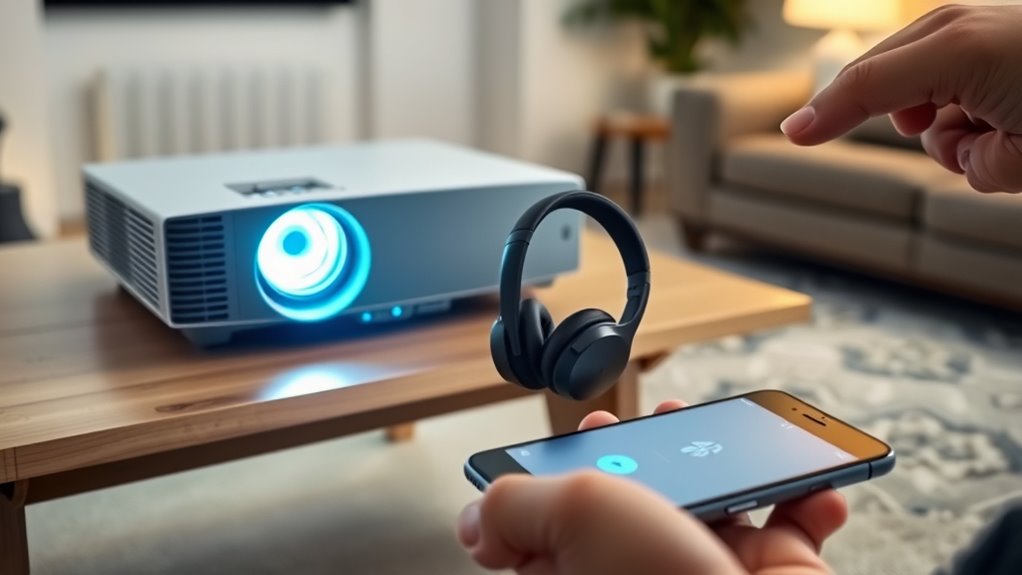
Connecting wireless headphones to a projector can markedly enhance your viewing experience by allowing you to enjoy audio privately and without cables cluttering your space. To get started, you’ll need to guarantee your projector supports Bluetooth connectivity or has an external Bluetooth transmitter. Many modern projectors come equipped with Bluetooth capabilities, making the process straightforward. If yours doesn’t, you can connect a Bluetooth transmitter to the projector’s audio output, such as the headphone jack or audio out port. Once you have the right hardware, the next step is to pair your headphones with the projector or transmitter.
Connecting wireless headphones to a projector enhances your viewing with private, cable-free audio.
Bluetooth pairing is typically simple but requires some attention to detail. First, put your wireless headphones into pairing mode. Usually, this involves holding a power or Bluetooth button until an LED flashes or a sound indicates it’s ready. Then, access your projector’s menu system to find the Bluetooth settings. Turn Bluetooth on, and your projector should begin scanning for nearby devices. When your headphones appear on the list, select them to establish the connection. Some projectors might require you to confirm a pairing code, but most modern devices will connect automatically once paired.
While pairing is straightforward, you should be aware of potential audio latency issues. Audio latency refers to the delay between the visual content and the sound reaching your headphones. If this delay is significant, it can disrupt the synchronization, making dialogue or on-screen actions seem out of sync. To minimize latency, look for headphones that support aptX Low Latency or similar codecs, which are designed to reduce delay. Additionally, some projectors or transmitters have settings to improve audio sync; adjusting these can help achieve a more seamless experience.
Once your headphones are paired, test the connection by playing a video or audio content. Keep an eye on the audio quality and latency; if you notice a lag, you might need to switch to headphones with better latency performance or tweak your device settings. Also, ensure your Bluetooth connection remains stable throughout your viewing session. If you experience dropouts, check for interference from other wireless devices or move your headphones closer to the projector or transmitter. Being aware of audio synchronization issues can help you maintain a smooth viewing experience.

XHF 120 PCS Adhesive Cable Wire Clips Black, Outdoor Christmas Light Clips, Cable Management Wire Organizer Cord Holder for Under Desk, Car, Wall, TV PC Ethernet Cable
- High quality material:XHF Adhesive Cable Clips are manufactured...
- Widely used: USB Cable, Ethernet Cable, Outdoor...
- Size: Base 5/8" x 5/8", inner...
As an affiliate, we earn on qualifying purchases.
Frequently Asked Questions
Do All Projectors Support Bluetooth Connectivity?
Not all projectors support Bluetooth connectivity, so you need to check for Bluetooth compatibility first. If your projector has Bluetooth, you can connect your wireless headphones easily, guaranteeing seamless audio synchronization. If it doesn’t, you might need a Bluetooth transmitter. Keep in mind that even with compatibility, some projectors might experience slight delays, so ensure your setup provides good audio synchronization for the best listening experience.
Can I Connect Multiple Wireless Headphones Simultaneously?
Yes, you can connect multiple wireless headphones simultaneously if your projector supports multi-user audio and has the necessary headphone compatibility. Check if your projector has Bluetooth version 5.0 or higher, as it often allows multiple connections. You might also need a Bluetooth transmitter that supports multi-point pairing. Make certain your headphones are compatible with this setup, so everyone can enjoy audio without disturbing others.
What Is the Typical Range for Wireless Headphones With a Projector?
The typical range for wireless headphones with a projector is about 30 feet, depending on the Bluetooth version and obstacles. You’ll want to guarantee good Bluetooth pairing to maintain reliable audio synchronization. Keep your headphones within this range to avoid audio lag or disconnection. Walls or furniture can reduce the effective distance, so stay within the ideal range for the best experience.
Will Connecting Headphones Affect the Projector’s Audio Output?
Connecting wireless headphones generally doesn’t affect your projector’s main audio output, but it can impact audio quality if there are compatibility issues. When you pair headphones, the projector may switch to the wireless device as the audio source, which might introduce slight delays or reduce sound clarity. To avoid this, make sure your headphones are compatible and use high-quality Bluetooth or wireless tech for the best audio experience.
Are There Any Latency Issues When Using Wireless Headphones With a Projector?
You might experience some latency when using wireless headphones with a projector, but it’s usually minimal—like a tiny hiccup in an otherwise smooth symphony. Audio delay can cause synchronization issues, especially during fast-paced scenes or dialogue. To minimize this, choose headphones with low-latency features or connect via Bluetooth aptX or similar protocols. This way, your viewing experience stays seamless, without annoying lag disrupting your immersion.

SOULWIT 50Pcs Self Adhesive Cable Management Clips - Black
- 🔷SUPER EASY TO USE: Stick to clean surface, open...
- 🔷PREMIUM MATERIAL: Made from eco-friendly Polyamide66 material,...
- 🔷STICKY IN MANY SURFACES: Works on all clean surfaces...
As an affiliate, we earn on qualifying purchases.
Conclusion
Now that you know how to connect your wireless headphones to your projector, you’re all set for a private, immersive viewing experience. Think of your setup as a bridge, seamlessly linking sound and picture for the perfect movie night. With just a few simple steps, you turn a shared screen into your personal theater. So, go ahead—enjoy your favorite films without disturbing others, and let the sound flow like a gentle river, just for you.

120PCS XHF Adhesive Cable Wire Clips White, Cable Staples Outdoor Cable Management Wire Organizer Cord Holder for Under Desk, Car, Wall, TV PC Ethernet Cable
- High quality material:XHF Adhesive Cable Clips are manufactured...
- Widely used: USB Cable, Ethernet Cable, Outdoor...
- Size: Base 5/8" x 5/8", inner...
As an affiliate, we earn on qualifying purchases.

ULTIMEA 5.1CH Surround Sound Bar System with Dolby Atmos, Poseidon M60
- Simplified 5.1ch Dolby Atmos Setup: Enjoy immersive 4D sound with...
- Voice Clarity Enhancement: VoiceMX technology uses advanced DSP...
- 300W Output with 6-Driver System: Featuring five precision-tuned full-range drivers...
As an affiliate, we earn on qualifying purchases.