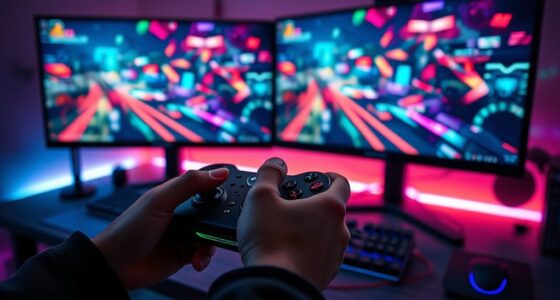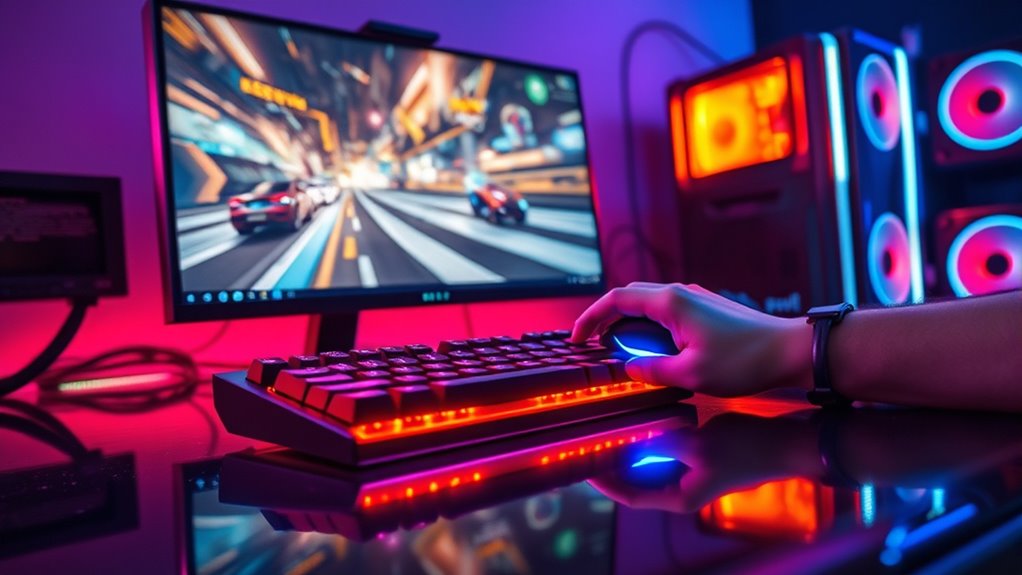

To reduce input lag during gameplay, you should calibrate your monitor by adjusting refresh rate, response time, and enabling gaming modes like G-SYNC or FreeSync. Use an Ethernet connection instead of Wi-Fi, close background apps, and prioritize gaming traffic through your router’s QoS settings. Connecting directly to your router and choosing nearby servers also helps. Keep your drivers updated and tweak settings regularly. Continue exploring for more tips to sharpen your gaming responsiveness.
Key Takeaways
- Calibrate your monitor by adjusting refresh rate, response time, and enabling gaming modes for minimal visual delay.
- Use a high refresh rate monitor (120Hz or higher) and enable adaptive sync like G-SYNC or FreeSync.
- Connect your gaming device directly via Ethernet and choose nearby servers to reduce network latency.
- Close background applications and prioritize gaming traffic through QoS settings to optimize bandwidth.
- Keep system drivers and firmware updated, and regularly review hardware and network configurations for best performance.

Input lag can considerably impact your gaming experience, making gameplay feel sluggish or unresponsive. When every millisecond counts, it’s essential to optimize your setup to minimize delays. Two critical factors are monitor calibration and network optimization. Properly calibrating your monitor ensures that what you see on screen accurately reflects your inputs, reducing visual delays that can make control feel disconnected. If your monitor isn’t calibrated correctly, you might notice delayed responses or ghosting effects, which can throw off your timing and precision. Adjust your monitor’s settings—such as refresh rate, response time, and color calibration—to ensure smooth, accurate visuals. Using a high refresh rate monitor, ideally 120Hz or higher, can also reduce motion blur and improve responsiveness, making your inputs more immediate. Additionally, setting your monitor to a low response time mode, often labeled as “gaming mode,” can help cut down on input lag caused by pixel transition delays.
Furthermore, enabling adaptive sync technology like G-SYNC or FreeSync can help synchronize the monitor’s refresh rate with the GPU, reducing screen tearing and input lag during fast-paced gameplay. Network optimization plays an equally crucial role in reducing input lag, especially during online gaming. Your internet connection can introduce latency, packet loss, or jitter, all of which disrupt the seamless flow of data between your device and the game server. To combat this, connect your gaming device directly to your router via an Ethernet cable rather than relying on Wi-Fi, which is more prone to interference and fluctuations in signal quality. Prioritize your gaming traffic through Quality of Service (QoS) settings on your router to ensure your game data gets the bandwidth it needs without interruption. Closing background applications that consume bandwidth can also free up resources, reducing overall network congestion. Make sure your router’s firmware is up to date, as manufacturers often release updates that improve performance and stability. If possible, choose servers closer to your location, since reduced geographical distance shortens the data travel time, lowering latency.
Combining proper monitor calibration with effective network optimization creates a more responsive gaming environment. Regularly check your system settings, update drivers, and fine-tune your network to stay ahead of latency issues. Remember, every tweak makes a difference in how swiftly your actions are reflected on-screen. By paying attention to both hardware and network factors, you’ll experience smoother gameplay, sharper reactions, and an overall more satisfying gaming session. Reducing input lag isn’t about a single fix but rather a holistic approach that ensures your setup is tuned for optimal performance.

Yaber K300s Ultra Short Throw Projector, 4K Support Triple Laser Projector, 100" Image at 9", Dolby Vision, 150% NTSC, Google TV, 30W JBL Speaker, for Home Theater Gaming
[Ultra Short Throw & Space-Saving Design] Experience a 100-inch giant screen from just 9 inches away with the...
As an affiliate, we earn on qualifying purchases.
Frequently Asked Questions
Does Overclocking My GPU Reduce Input Lag?
Yes, GPU overclocking can reduce input lag by providing a performance boost, resulting in faster frame rendering. When you overclock your GPU, it processes graphics more quickly, which can make your gameplay feel more responsive. Keep in mind, though, that overclocking can increase heat and power consumption, so verify your cooling system is adequate to avoid any stability issues. Overall, it’s a useful way to enhance your gaming experience.
Can Changing My Mouse or Controller Settings Impact Input Delay?
Think of your input devices as the bridge between you and the game. Changing your mouse sensitivity can make your movements feel more responsive, while adjusting controller dead zones reduces the delay between your input and on-screen action. These settings fine-tune your experience, cutting down on input delay and making your gameplay smoother. So yes, tweaking these factors can profoundly impact how swiftly and accurately you respond to game prompts.
How Does Network Latency Affect In-Game Input Responsiveness?
Network latency directly impacts your in-game input responsiveness. When network jitter causes inconsistent delays, your actions may feel delayed or unresponsive. Packet loss further worsens this by dropping essential data packets, leading to delayed or missed inputs. To improve responsiveness, guarantee a stable internet connection, reduce network jitter, and minimize packet loss. This helps your commands reach the game server faster and more reliably, giving you a smoother gaming experience.
Are There Specific Gaming Monitors Optimized for Low Input Lag?
Imagine you’re wielding a lightsaber—some monitors are specially fashioned for you. Yes, there are gaming monitors optimized for low input lag, featuring fast response times and high refresh rates. These screens diminish delay, making your gameplay more responsive. Look for models with a response time of 1-2ms and a refresh rate of 144Hz or higher. This combo ensures you experience smoother visuals and quicker reactions, giving you that competitive edge.
Does Enabling V-Sync Increase or Decrease Input Lag?
Enabling V-sync generally increases input lag because it waits for the monitor to display a full frame, which can delay your input response. However, if your monitor supports adaptive sync or frame pacing, enabling V-sync can reduce screen tearing without adding as much lag. These technologies synchronize the frame rate, providing smoother gameplay, but be aware that traditional V-sync tends to introduce more latency compared to these advanced options.

Hisense PL2, Ultra Short Throw Home Theater Laser Projector, 80” – 150”, 4K UHD, 2,700 Lumens, 3000:1 Contrast, Dolby Vision & Atmos, 3D, Google TV, WIFI 6E
【X-Fusion Technology】With X-Fusion laser light, Laser Cinema has a uniquely cinematic feel. X-Fusion Laser Technology utilises a precise...
As an affiliate, we earn on qualifying purchases.
Conclusion
Just like a master archer tunes their bow for perfect aim, you can fine-tune your setup to minimize input lag. By adjusting your settings and using quality equipment, you guarantee your actions hit the mark instantly. Remember, every millisecond counts—think of it as the difference between victory and defeat. With these tips, you’ll be ready to step into the arena, where precision and responsiveness turn the tide in your favor.

Official Licensed Google TV Smart Projector, HAPPRUN 4K UHD Home Theater with Dolby Sound, Wi-Fi & Bluetooth, Built-in Streaming Apps, Compatible with Games Consoles & Smartphone, Indoor & Outdoor Use
[ Built-in Official Licensed Google TV ] - Without additional equipment, the smart projector can directly access Netflix,...
As an affiliate, we earn on qualifying purchases.

BenQ TK710 4K Laser 3200 Lumens Movie and Gaming Projector with 4ms Response Time | 240Hz Refresh Rate | HDR10 & HLG | ARC/eARC Support | Vertical Lens Shift | 3D Keystone | 1.3x Zoom | HDR Game Modes
BRIGHTEN YOUR LIVING ROOM: This Tv projector is great addition to your home theater set up. Experience movies...
As an affiliate, we earn on qualifying purchases.