To troubleshoot your new projector, start by checking all cables for secure connections and inspecting the lens for dust or smudges. Adjust the focus and resolution settings to guarantee a sharp image. Make sure the projector and connected device are on the same Wi-Fi network if using wireless. Also, verify power stability and keep cables and ports in good condition. If issues persist, there are simple steps you can follow to resolve common problems and improve performance.
Key Takeaways
- Verify all cables are securely connected and undamaged; use compatible ports and correct input sources.
- Adjust focus and clean the lens to ensure a sharp, clear image.
- Match the device and projector resolution settings for optimal display quality.
- Check power connections and avoid extension cords to ensure stable power supply.
- Use built-in diagnostics or indicator lights to identify and troubleshoot specific issues.

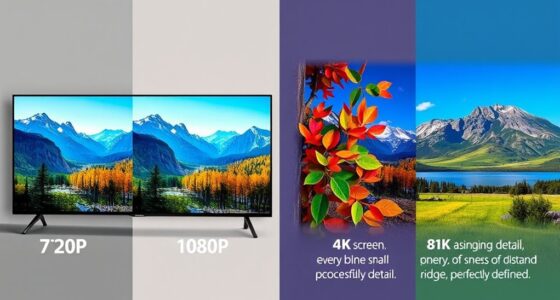
Getting a new projector up and running can sometimes be tricky, but most issues are easy to troubleshoot with a few simple steps. When you first power it on, one of the most common problems you might encounter involves image quality. Blurry images, poor resolution, or uneven brightness can be frustrating, but they’re often caused by straightforward issues. Start by checking the projector’s lens. Make sure it’s clean and free of dust or smudges, as dirt can markedly degrade image clarity. Adjust the focus ring until the image sharpens to your satisfaction. If the image still looks distorted or pixelated, verify that the resolution settings on your connected device match the projector’s native resolution. Mismatched resolutions can cause blurry or stretched images, so setting both devices to the same resolution usually resolves this problem.
Check and clean the lens, then adjust focus and resolution settings for clear, sharp images.
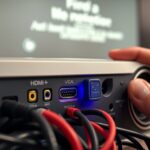
Connectivity issues are another frequent source of frustration for new projector owners. If your projector isn’t displaying anything at all, double-check the connection cables. Loose or damaged HDMI, VGA, or USB cables are common culprits. Make sure all connections are secure and that you’re using compatible ports. If you’re using wireless connectivity, ensure your projector is connected to the correct Wi-Fi network, and that your device and projector are on the same network. Sometimes, the problem lies with the source device—not the projector—so switching to a different cable or port can help identify where the issue is. Also, confirm that your projector’s input source matches the port you’re using. For instance, if you’re connecting via HDMI, select the HDMI input on your projector’s menu.
If you’re experiencing intermittent image display or flickering, check the power supply and signal strength. Power fluctuations can cause instability, so plug your projector into a reliable outlet and avoid extension cords if possible. For wireless issues, proximity matters; ensure your device is within a good range of the projector and that there are minimal obstacles interfering with the signal. Sometimes, restarting both your device and the projector can refresh the connection and resolve minor glitches. Additionally, pay attention to the contrast ratio, as a low contrast ratio can lead to images that lack depth and clarity, making troubleshooting more effective.
Finally, consult the user manual for specific troubleshooting tips related to your projector model. Many projectors have built-in diagnostic tools or indicator lights that can give clues about what’s wrong. With patience and a systematic approach, most image quality and connectivity issues can be fixed swiftly, helping you enjoy your new projector without frustration.

Dual 2K, 4K, 8K HDMI Signal Generator, Analyzer, and Cable Tester (TE460-402, TE460-138)
❤ EASY AND ADVANCED MODE OPTIONS: The TE460-402 is designed with EASY and ADVANCED modes of operation. EASY...
As an affiliate, we earn on qualifying purchases.
Frequently Asked Questions
How Do I Update My Projector’s Firmware?
To update your projector’s firmware, first visit the manufacturer’s website and download the latest projector software. Connect your projector to your computer using a USB or Ethernet cable, then follow the on-screen instructions or the manual for your model. Make sure the projector stays powered on during the firmware update process to prevent any issues. This guarantees your projector runs smoothly with the latest features and fixes.
What Should I Do if the Projector Makes Strange Noises?
Strange noises from your projector often result from loose parts, fan issues, or dust buildup. First, investigate the noise causes by gently inspecting the vents and fan area for debris or loose components. Use noise troubleshooting tips like cleaning the vents, ensuring all screws are tight, and avoiding obstructions. If the noise persists, consult the user manual or contact support, since persistent strange sounds could indicate hardware problems needing professional repair.
Can I Connect My Projector to a Wi-Fi Network?
Yes, you can connect your projector to a Wi-Fi network. First, verify your projector has wireless connectivity capabilities. Then, access the network setup menu through the projector’s on-screen display. Select your Wi-Fi network, enter the password if prompted, and connect. Once connected, you can stream content wirelessly, use network features, and enjoy a more flexible setup without tangled cables.
How Long Does a Typical Projector Bulb Last?
You’ll find that a typical projector bulb lasts around 1,500 to 3,000 hours, which is roughly 2-3 years of regular use. To maximize bulb lifespan, follow replacement tips like avoiding frequent on/off cycles and keeping the projector in cool, well-ventilated areas. When it’s time for a replacement, buy authentic bulbs and handle them carefully to guarantee peak performance and avoid early burnout.
Is It Safe to Leave the Projector Plugged in All the Time?
It’s generally safe to leave your projector plugged in, but you should consider power outlet safety and energy consumption. Leaving it constantly connected can drain energy and pose risks if there’s a power surge. To protect your device, unplug it when not in use, especially during storms or long periods of inactivity. This helps reduce energy waste and minimizes potential electrical hazards, keeping both your projector and your home safer.

2K, 4K, 8K HDMI Signal Generator and Analyzer (TE460-138)
❤ EASY AND ADVANCED MODE OPTIONS: The TE460-138 is designed with EASY and ADVANCED modes of operation. EASY...
As an affiliate, we earn on qualifying purchases.
Conclusion
Remember, most projector issues are easy to fix with a little troubleshooting. Nearly 60% of new projector owners find solutions within minutes, saving time and frustration. Keep your connections secure, check your power source, and make certain your settings are correct. With a bit of patience, you’ll enjoy clear, bright visuals in no time. Don’t worry—you’re already on your way to becoming a pro at keeping your projector running smoothly!
![HDMI Test Signal Generator Analyzer Up to 8K 60Hz HDR 40Gbps, 64 Video Resolution 33 Patterns, HDMI 2.1 HDCP 2.3 CEC, Portable Design [JTECH-40GA]](https://m.media-amazon.com/images/I/41SNdcPmqvL._SL500_.jpg)
HDMI Test Signal Generator Analyzer Up to 8K 60Hz HDR 40Gbps, 64 Video Resolution 33 Patterns, HDMI 2.1 HDCP 2.3 CEC, Portable Design [JTECH-40GA]
✅ 8K HDMI 2.1 Test Generator: Supports 8K@60Hz (4:2:0, 10-bit), 40Gbps bandwidth, HDR, and RGB/YCbCr color formats for...
As an affiliate, we earn on qualifying purchases.
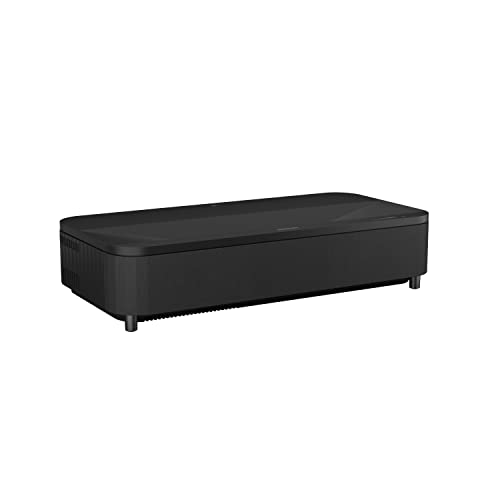
Epson EpiqVision Ultra LS800 Ultra Short Throw 3-Chip 3LCD Smart Streaming Laser Projector, 4,000 Lumens, 4K PRO-UHD, HDR, 150" Class, Android TV, 2.1ch Yamaha Built-in Speakers - Black (Renewed)
Item Package Quantity - 1
As an affiliate, we earn on qualifying purchases.