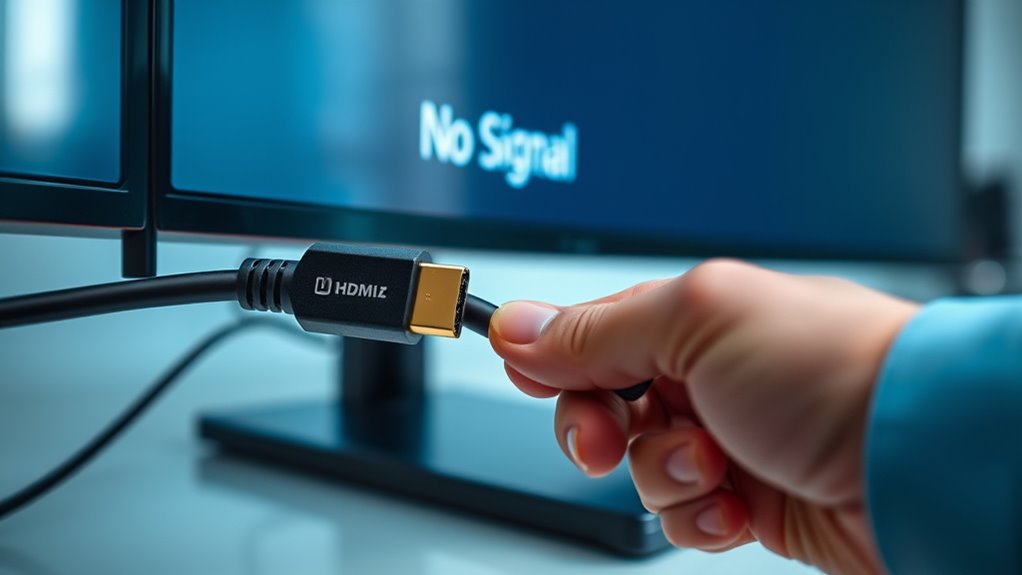
To resolve HDMI no signal errors, start by checking your cables and connections for visible damage or loose ends. Make certain you’re using a certified HDMI cable and try reconnecting both ends securely. Switch to different HDMI ports and verify your display is set to the correct input. Adjust the device resolution if needed, making sure it matches your display’s capabilities. If issues persist, updating your device and display firmware often helps. Keep exploring for more tips to fix the problem effectively.
Check and replace damaged HDMI cables; ensure all connections are secure and ports are functioning properly.
Verify the correct input source is selected on the display and match resolution settings between device and screen.
Update device graphics drivers and display firmware; reset settings to default if necessary.
Test different HDMI ports and cables to identify if a specific port or cable is faulty.
Systematically troubleshoot by disconnecting and reconnecting cables, and adjusting resolution to resolve signal issues.
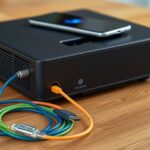
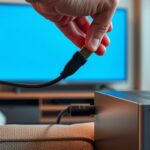
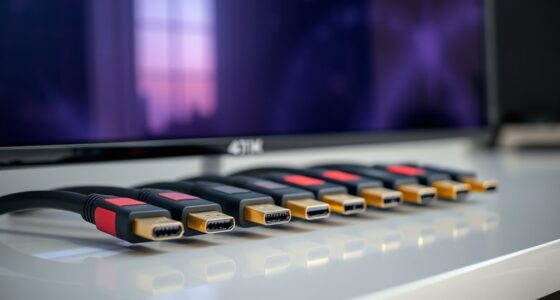
HDMI no signal errors can be frustrating, especially when you’re trying to enjoy your favorite content or complete an important project. These issues often stem from problems with your cables or display settings, so addressing these areas should be your first step. When troubleshooting cable issues, start by inspecting your HDMI cable closely. Look for visible damage like frayed ends or bent pins. If the cable appears damaged or worn out, replacing it with a high-quality, certified HDMI cable can often resolve the problem. Sometimes, even a good cable can have a loose connection. Make sure both ends are securely plugged into your device and display, whether that’s a monitor, TV, or projector. Disconnect and reconnect the cable to guarantee a tight fit, and try using a different port if your device has multiple HDMI inputs.
Next, consider the display settings. Sometimes, your device may not automatically detect the HDMI connection, or the output might be set incorrectly. Check your device’s display settings to confirm that the HDMI output is enabled and set to the correct input source. On a computer, go to display settings and manually select the HDMI output if necessary. On TVs or monitors, use the remote to navigate to the input/source menu and switch to the HDMI port you’re using. If your display has multiple HDMI inputs, try connecting to a different one to rule out a faulty port. Ensuring your device’s resolution compatibility is crucial, as mismatched resolutions can prevent a signal from displaying properly.
Check and select the correct HDMI input source on your device or display.
Another common cause related to display settings is resolution mismatch. If your device is set to a resolution that your display can’t handle, it might not show any signal. Adjust the resolution to a standard setting, like 1080p, and see if that restores the signal. Sometimes, a simple restart of both your device and display after adjusting these settings can help establish a stable connection.
If these steps don’t work, consider updating your device’s graphics drivers or firmware, as outdated software can interfere with HDMI signal detection. Additionally, resetting your display settings to default can clear any misconfigurations that might be causing the issue. Keep in mind that troubleshooting HDMI signal problems often involves a process of elimination—testing different cables, ports, and settings until you identify the root cause. By systematically checking your cable connections and display configurations, you’re more likely to resolve the issue quickly and get back to enjoying your content or working efficiently.
Frequently Asked Questions
Can Using a Longer HDMI Cable Cause No Signal Issues?
Using a longer HDMI cable can cause no signal issues because longer cable lengths increase the risk of signal degradation. As the cable length extends, the quality of the digital signal may weaken, leading to intermittent or lost signals. To avoid this, consider using high-quality cables designed for longer runs or employ signal boosters or repeaters. Always test your setup with the specific cable length to guarantee reliable transmission.
Do Different HDMI Versions Affect Signal Transmission Reliability?
Think of HDMI versions as different languages for your devices. Newer HDMI versions, like 2.1, are more fluent, offering better Signal compatibility and faster data transfer. Using an outdated version can cause miscommunication, leading to no signal. To guarantee reliable transmission, match your HDMI cable and port to the latest supported version of your device. Upgrading ensures your connection speaks the same language for seamless, high-quality signal transmission.
How Does HDMI Handshake Impact No Signal Errors?
The HDMI handshake directly impacts no signal errors by establishing signal compatibility between your devices. When this process works smoothly, it confirms both devices can communicate correctly, ensuring a stable connection. If the handshake fails, you might see a no signal message. You can fix this by restarting devices, using high-quality cables, or updating firmware, all aimed at improving the HDMI handshake and preventing signal compatibility issues.
Can Third-Party HDMI Adapters Cause Connectivity Problems?
Third-party HDMI adapters can definitely cause connectivity problems. Compatibility issues often arise if the adapter isn’t designed to work with your devices, leading to no signal errors. Additionally, poor adapter quality can result in unstable connections, degraded video quality, or complete signal loss. To avoid these problems, choose high-quality adapters from reputable brands and verify they’re compatible with your devices, reducing the chances of encountering HDMI connectivity issues.
Does Firmware Update Fix Persistent HDMI No Signal Errors?
A firmware update can often be the magic wand you need for stubborn HDMI no signal errors, boosting HDMI stability like a sturdy bridge over turbulent waters. By updating your device’s firmware, you guarantee compatibility and fix bugs that cause signal drops. Regular updates keep your connection strong, preventing future issues and making sure your entertainment flows smoothly, like a well-oiled machine. Don’t overlook this simple step for a more reliable HDMI experience.
Conclusion
When troubleshooting HDMI no signal errors, remember that patience is key. Sometimes, a simple restart or replugging your cables can do the trick. If issues persist, don’t be afraid to explore other fixes or seek professional help. After all, you don’t want to put all your eggs in one basket, so stay persistent and open-minded. With a little effort, you’ll have your display up and running smoothly again.
With HDMI handshake problems often caused by compatibility issues, understanding key solutions can save your setup—here’s what pros wish you knew to fix them.
The No‑Nonsense Guide to Advanced HDMI Handshake Problems
Better understanding advanced HDMI handshake issues can save you time, but discovering the root cause often requires exploring key troubleshooting steps.