To fix audio delay effectively, start by adjusting the sync settings on your TV, soundbar, or streaming device. Use calibration tools or delay adjustments to match the audio with video. Make certain your hardware is compatible and updated with the latest firmware or drivers. Proper speaker placement and minimizing Bluetooth interference also help. For persistent issues, external devices like AV receivers can fine-tune sync. Keep exploring for detailed ways to restore perfect audio-visual harmony.

Get business pricing on your home office setup
- Business-only prices and quantity discounts
- Tax-exempt purchasing
- Multiple users, one account, clear invoices
Key Takeaways
- Use built-in device settings or calibration tools to manually adjust audio delay for precise sync.
- Ensure all hardware connections (HDMI, optical) are secure and compatible to minimize latency.
- Update firmware and media app software regularly to fix bugs affecting audio synchronization.
- Place speakers at ear level and optimize room acoustics to reduce processing delays.
- Utilize external audio delay correction features in soundbars or AV receivers for accurate lip sync.
What Is Audio Delay and Why Does It Matter?

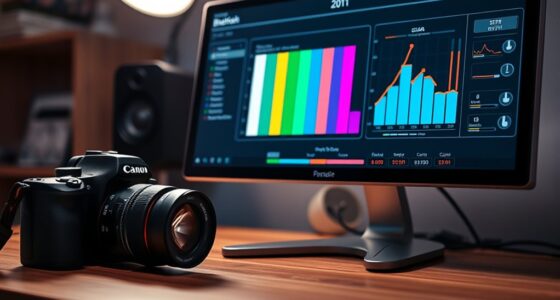
Have you ever noticed that the sound from your TV or speakers lags behind the picture? That’s called audio delay, and it’s caused by audio latency. This sound lag can disrupt your viewing experience, making dialogues and on-screen actions feel out of sync. When audio doesn’t match the visuals, it can be distracting or even frustrating. Audio delay happens for various reasons, like processing time differences between your TV, streaming device, or media player. It’s especially noticeable during fast-paced scenes or when watching content with dialogue-heavy scenes. Understanding what causes the sound lag helps you recognize when an audio delay occurs and why fixing it is essential for seamless entertainment. Proper setup and calibration can also significantly reduce audio delay issues, especially when considering audio processing delays that occur in modern entertainment systems. Additionally, exploring advanced audio settings can further optimize synchronization for a better viewing experience. Another helpful step is to evaluate your audio equipment quality, as higher-grade components tend to handle audio processing more efficiently. Recognizing and addressing these factors can help you achieve more precise and synchronized audio during your viewing sessions.
How to Detect Audio Delay on Your TV, Streaming Devices, and Media Players
Wondering if your audio is out of sync with the picture? You’re likely experiencing lip sync issues or audio lag. To detect it, start by playing a scene with clear lip movements and sounds. Watch for any delay between the actor’s lips and the spoken words. You can also use a smartphone app designed for audio delay testing or a dedicated lip sync test video. If the audio seems to trail behind or jump ahead of the video, you’ve identified an audio delay. Keep in mind, some devices show signs of audio lag more noticeably during fast-paced or dialogue-heavy scenes. Detecting these delays early helps you decide whether adjustments are needed or if you should proceed to fix the problem. Additionally, being aware of support breakfast options can help ensure your setup includes user-friendly features that assist in troubleshooting audio issues. Staying informed about security in payment processing can also help protect your devices from cyber threats that could impact your streaming or media setup. For example, using hardware calibration tools can improve overall audio-visual synchronization for a better viewing experience. Incorporating Indonesian decor masks can also add a cultural touch to your entertainment space, creating a more personalized environment that enhances your viewing experience. Furthermore, understanding the importance of proper device setup can prevent many common audio delay issues before they occur.
How to Fix Audio Delay by Adjusting Settings on Your TV or Streaming Device
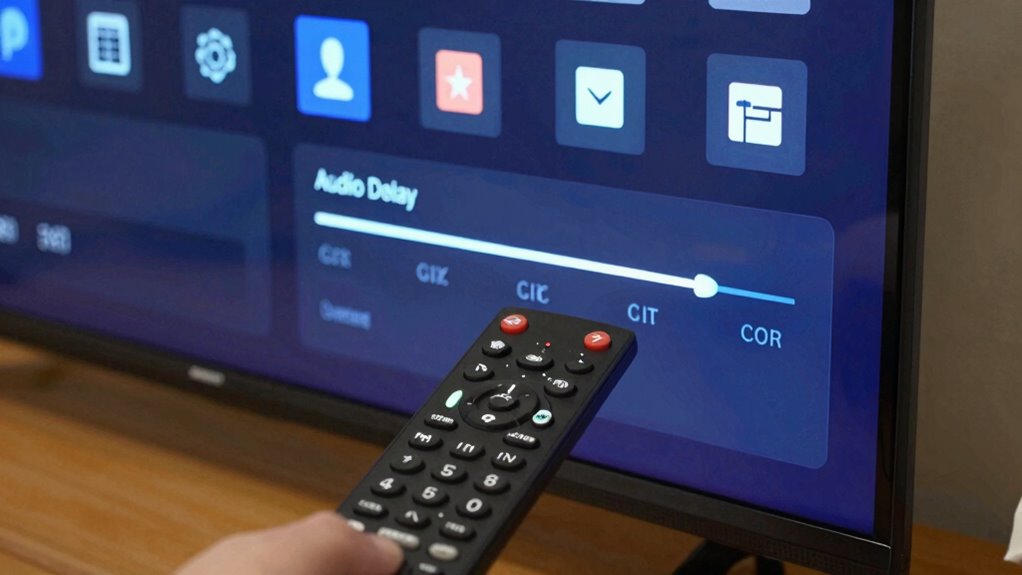
To fix audio delay, start by adjusting the audio settings on your TV or streaming device. Begin with audio calibration, which fine-tunes your sound for ideal sync. Many TVs have built-in settings to automatically sync audio with video, so explore these options first. Next, consider speaker placement; positioning your speakers or soundbar correctly can reduce delay. Place speakers at ear level and avoid obstructions, ensuring clear sound delivery. Some TVs allow you to manually adjust audio delay in the settings menu—use this feature to fine-tune synchronization. Additionally, understanding digital asset technologies can help you troubleshoot compatibility issues between devices. Proper device compatibility settings can prevent audio lag and improve overall performance. Being aware of microplastics in dust and other indoor air quality factors can also impact your overall electronics performance and longevity. Proper calibration and audio synchronization techniques can also help you identify and correct underlying hardware issues. By carefully calibrating audio and enhancing speaker placement, you can markedly reduce or eliminate audio delay, resulting in a more seamless viewing experience.
How to Resolve Audio Sync Issues in Media Players and Apps

When your audio and video aren’t in sync in media players or apps, you can fix it by adjusting playback settings or using built-in audio delay tools. Updating your media applications can also help resolve compatibility issues that cause lag. Try these steps to improve your viewing experience quickly and effectively. Ensuring software quality and compliance through proper updates can prevent recurring issues with audio delay. Additionally, understanding audio synchronization principles can help you diagnose and address delays more effectively. Recognizing signs of timely connection can also aid in troubleshooting and maintaining optimal playback, especially when considering the network environment that impacts streaming performance.
Adjust Playback Settings
Adjusting playback settings is often the quickest way to fix audio sync issues in media players and apps. Start by reviewing your speaker placement—ensure they’re at ear level and evenly spaced for ideal sound. Poor speaker placement can create delays, making audio seem out of sync. Additionally, consider your room acoustics; hard surfaces reflect sound, causing echo and timing problems. Adding soft furnishings like rugs or curtains can absorb excess reflections and improve audio timing. Many apps let you tweak audio delay or sync settings directly—explore these options to fine-tune timing. Proper speaker setup and understanding your audio environment are essential for achieving better synchronization. Also, ensuring that your device’s software is up to date can prevent compatibility issues that cause audio delays. Furthermore, some media players incorporate AI-powered features that automatically adjust audio-video sync for a smoother experience. Regularly testing and calibrating your audio equipment can help identify and resolve persistent timing discrepancies, especially when combined with environmental adjustments that optimize sound quality.
Use Audio Delay Tools
Many media players and apps include built-in audio delay tools that allow you to correct sync issues quickly. Using these tools for lip sync correction helps you enjoy content without frustration. To get the best sound calibration, you’ll often find an adjustable delay slider or numerical input. Adjust it slowly until the audio aligns perfectly with the video. Being aware of tax law changes can also help you optimize your overall media and financial planning strategies.
| Sync Issue | Solution |
|---|---|
| Audio ahead | Increase delay for audio |
| Audio behind | Decrease delay for audio |
| Lip sync mismatch | Fine-tune for perfect sync |
| Sound calibration | Use delay tools for clarity |
These tools make fixing audio delay straightforward, giving you control over your viewing experience and restoring harmony between sound and picture.
Update Media Applications
Updating your media applications can often resolve lingering audio sync issues caused by outdated software or bugs. Developers regularly release updates that fix bugs, improve compatibility, and enhance performance, which can directly impact audio timing. If you’re experiencing sync problems, check for updates in your media players or streaming apps. Additionally, outdated applications may struggle with wireless connectivity or Bluetooth pairing, leading to delays. Updating guarantees better communication between your device and audio peripherals, reducing lag. Make sure your media apps are current, especially if you’re using Bluetooth headphones or speakers. Keeping everything up-to-date minimizes compatibility issues and ensures your audio stays in sync with video, offering a smoother viewing experience. Regular updates are a simple, effective step towards resolving audio delay problems.
Using External Hardware to Correct Audio Delay (Soundbars, AV Receivers)

Connecting external devices like soundbars or AV receivers can help fix audio delay issues effectively. You’ll need to adjust synchronization settings to align sound with picture properly. Make sure the hardware you choose is compatible and offers quality performance for the best results.
Connecting External Devices
Using external hardware like soundbars or AV receivers can effectively fix audio delay issues by processing and synchronizing sound with your video. To guarantee optimal performance, avoid Bluetooth interference by keeping wireless devices away from your setup, as it can cause latency. Additionally, check your power supply connections; unstable or insufficient power can lead to audio synchronization problems. Properly connecting these devices involves using high-quality HDMI or optical cables, ensuring secure connections. If your device has a dedicated audio output, use it to minimize latency. Keep in mind that external hardware can introduce delays if not set up correctly, so double-check all connections and avoid sources of interference. This setup helps you achieve a clearer, more synchronized audio experience.
Synchronization Settings Adjustment
Once you’ve properly connected your external hardware, adjusting the synchronization settings can fine-tune the audio delay. This process improves lip sync and ensures the audio matches the on-screen action. Start by accessing your soundbar or AV receiver’s audio calibration menu. Here, you can:
- Adjust the lip sync delay to align audio with video
- Use test tones to identify the perfect delay setting
- Fine-tune the audio delay in small increments
- Save your settings once the lip sync looks perfect
- Repeat the process if you notice any lag or mismatch
Quality and Compatibility
External hardware like soundbars and AV receivers vary in quality and compatibility, which can markedly impact your ability to correct audio delay effectively. Higher-quality devices typically offer better audio quality and more precise synchronization features. Compatibility issues may arise if your hardware isn’t designed to work seamlessly with your TV or source devices, limiting delay adjustments or causing degraded sound. Before purchasing, check compatibility specifications and reviews to ensure smooth operation. Consider the following:
| Device Quality | Compatibility Features |
|---|---|
| High | Advanced delay adjustment |
| Medium | Basic sync options |
| Low | Limited or no delay controls |
| Wide range | Compatible with multiple devices |
| Narrow range | Limited device support |
Choosing compatible, quality hardware ensures you can effectively address audio delay without sacrificing sound clarity.
When to Update Firmware or Drivers for Better Audio Sync
If you’re experiencing persistent audio sync issues, it’s a good idea to contemplate updating your firmware or drivers. Firmware updates can fix bugs and improve compatibility, which may resolve timing problems. Driver updates often enhance audio performance and stability, reducing lag. Consider updating when:
Updating firmware or drivers can resolve persistent audio sync issues and improve overall performance.
- Audio delays appear after system or device updates
- You notice new features that could improve sync
- Compatibility issues with your current hardware
- The manufacturer releases a specific update addressing audio problems
- You’re troubleshooting persistent or worsening sync issues
Regularly checking for firmware and driver updates guarantees your devices run smoothly. Keeping software current can prevent future problems and improve overall audio-visual synchronization, making your viewing experience more seamless.
Additional Tips and Tools to Achieve Perfect Audio-Visual Sync
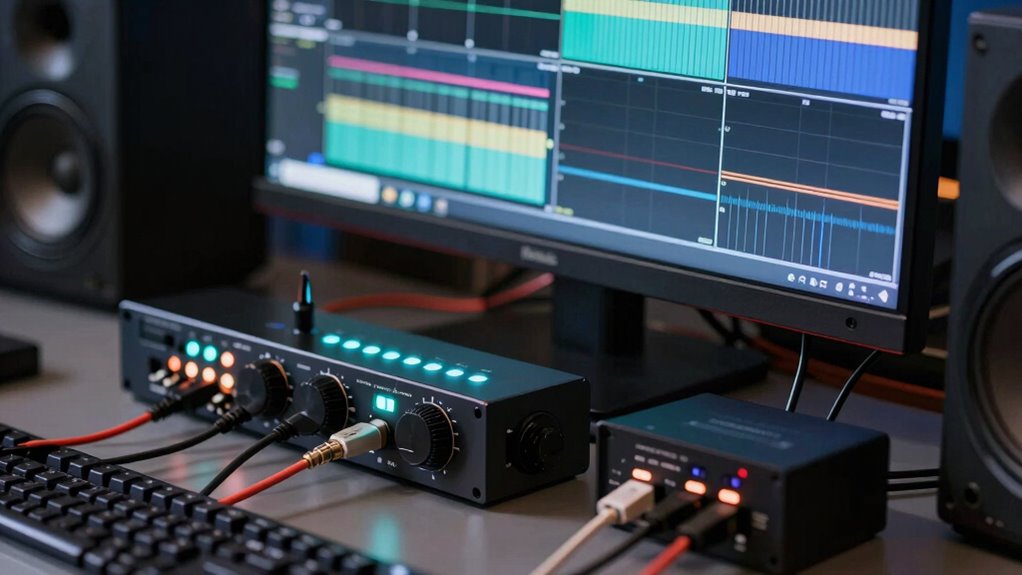
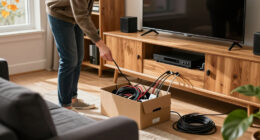
Achieving perfect audio-visual sync can sometimes require more than just updates; using dedicated tools and simple tips can make a noticeable difference. To improve lip sync and reduce audio lag, consider using calibration tools like audio delay adjusters or lip sync correction settings available on many TVs and sound systems. External devices such as audio processors or lag correction apps can also help fine-tune sync in real-time. Additionally, keeping cables organized and ensuring your hardware supports low-latency modes can prevent unnecessary delays. Regularly check audio settings and disable any unnecessary sound effects, which can exacerbate audio lag. By combining these tips with your existing fixes, you’ll get closer to perfect lip sync and eliminate distracting audio lag during your viewing experience.
What to Do If Your Audio Delay Persists After Trying These Fixes
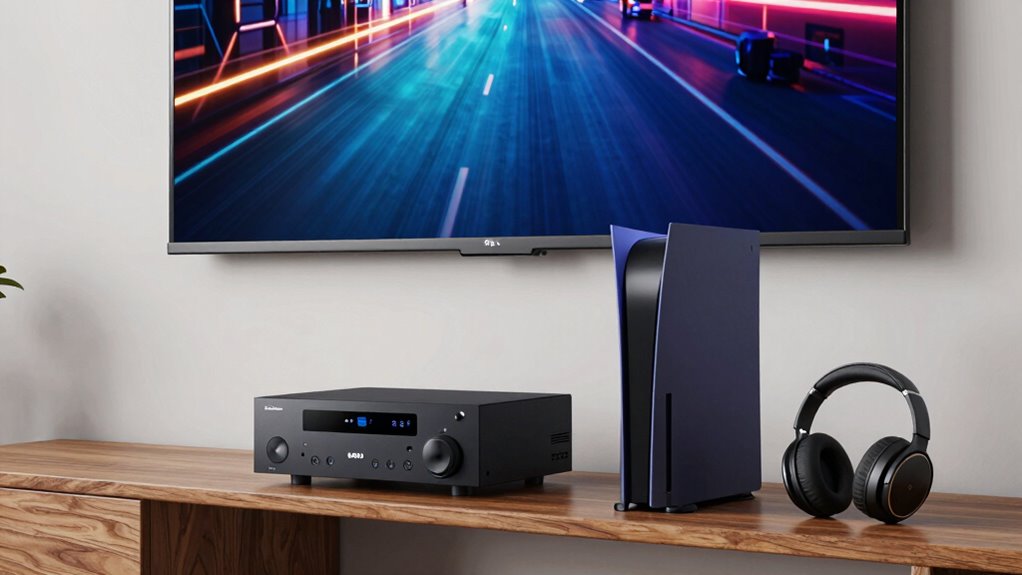
Sometimes, despite trying various fixes, your audio delay still persists. If that’s the case, don’t give up. Start by checking your remote controls—sometimes, they interfere with audio settings or cause delays. Next, ensure your device firmware is up to date; manufacturers often release updates that improve audio-video sync. You might also want to:
- Restart your device and TV to clear minor glitches
- Reset audio settings to default
- Reconnect or replace cables if they’re faulty
- Use external audio sync tools or soundbars with adjustable delay features
If these steps don’t work, consider consulting the device’s support or replacing outdated hardware. Persistent delay could be a hardware issue, so staying current with firmware updates and managing remote controls is key.
Frequently Asked Questions
Can Audio Delay Affect Different Audio Formats Differently?
Yes, audio delay can affect different audio formats differently due to audio format compatibility and codec variations. When you play various formats, some may have inherent processing delays or compatibility issues, causing synchronization problems. Codec differences influence how quickly audio data is decoded and transmitted, which can lead to inconsistent delays across formats. To minimize these issues, make certain your devices support your preferred formats and adjust delay settings accordingly.
Does HDMI ARC or eARC Impact Audio Delay Issues?
Yes, HDMI ARC and eARC can impact audio delay issues. You might notice noticeable nuisance due to compatibility concerns, especially if your device doesn’t support certain audio formats or isn’t from a reliable brand. Reliable brands tend to streamline signals smoothly, minimizing lag. Ensuring your devices support compatible audio formats and use high-quality HDMI cables can markedly reduce delay, delivering seamless sound synchronization and a satisfying viewing experience.
Are There Specific Brands More Prone to Audio Delay Problems?
Certain brands are more prone to audio delay problems because of inconsistent brand reliability and equipment compatibility issues. For example, some cheaper or less reputable brands might not synchronize well with high-end TVs or sound systems, leading to noticeable audio lag. To avoid this, stick with well-known brands known for reliable equipment compatibility, ensuring smoother audio performance and fewer delay problems. Always check reviews and compatibility specs before making a purchase.
Can Ambient Room Noise Influence Perceived Audio Sync?
Ambient noise can definitely influence your perception of audio sync. When there’s a lot of background sound, your brain may struggle to accurately judge whether the audio matches the visuals, making delays seem more noticeable or less obvious. You might find that in quieter environments, audio sync issues stand out more, while ambient noise can mask minor delays, affecting your overall sound perception. This is why managing room noise helps improve your listening experience.
Is It Possible to Prevent Audio Delay During Content Recording?
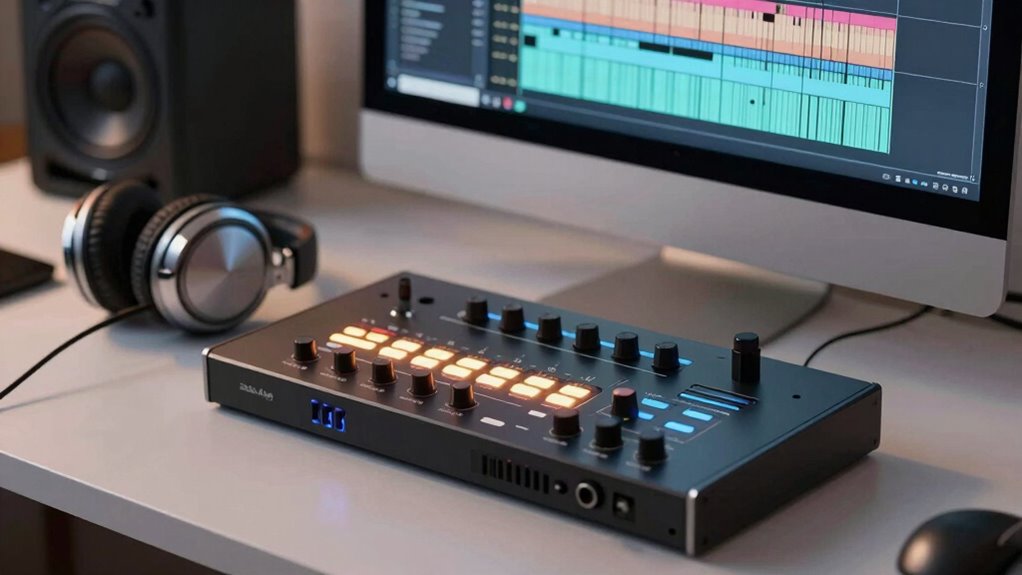
Yes, you can prevent audio delay during content recording by performing proper audio calibration and upgrading your hardware. Start by calibrating your audio equipment to guarantee synchronization between audio and video signals. Consider investing in higher-quality microphones, audio interfaces, and cables to reduce latency. Regularly testing and adjusting your setup helps maintain sync and prevents delays, resulting in clearer, more professional recordings.
Conclusion
With these proven fixes, you’ll tame even the most stubborn audio delays, restoring perfect sync like a maestro conducting an orchestra. Don’t let audio lag ruin your viewing experience—think of it as an ancient curse that’s finally broken. By adjusting settings, updating firmware, or using external hardware, you’re well-equipped to conquer audio delays once and for all. Say goodbye to frustrating mismatches and enjoy seamless, crystal-clear sound that elevates your entertainment to new heights.
Halloween Picks
halloween
As an affiliate, we earn on qualifying purchases.