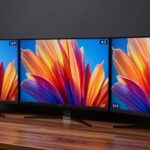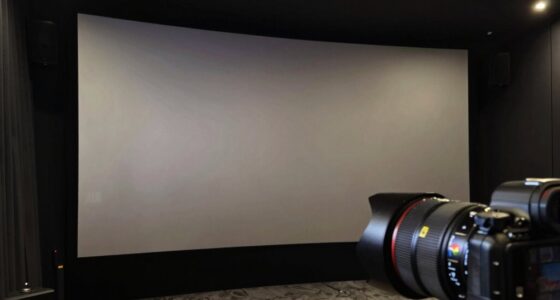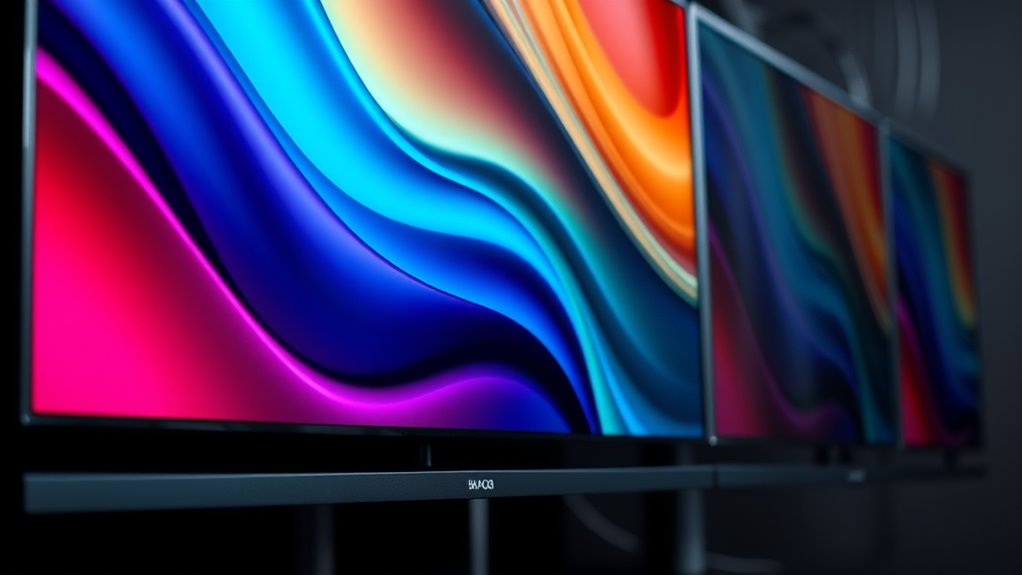

Screen borders and aspect ratios determine how your content fits your display. When aspect ratios don’t match, the device uses scaling or letterboxing—adding black bars—to preserve image quality and avoid distortion. Borders can be visual cues of this adjustment, and settings often allow you to choose how content is scaled or cropped. Understanding these concepts helps you optimize your viewing experience, and exploring more will reveal even better ways to control how your screen presents visuals.
Key Takeaways
- Screen borders, such as black bars, often result from aspect ratio differences to prevent image distortion.
- Aspect ratios define the proportional relationship between a screen’s width and height, affecting how content fits.
- Display scaling adjusts content size to match screens, maintaining image clarity and preventing stretching.
- Letterboxing adds black borders around videos to preserve original aspect ratios on screens with different ratios.
- Managing display settings allows users to choose between stretching images or maintaining aspect ratio for optimal viewing.

Have you ever wondered how screen borders and aspect ratios affect what you see on your device? It’s more than just aesthetics; these factors influence how content fits and appears on your screen. When you watch a movie or play a game, your device’s display scaling settings and the aspect ratio determine whether everything fits perfectly or if you notice black bars around the edges. Display scaling adjusts how content is resized to fit your screen, helping to maintain image clarity without stretching or compressing visuals. If the aspect ratio of the content doesn’t match your device’s native ratio, your device often employs letterboxing, which adds black bars at the top and bottom or sides of the screen. This prevents distortion but can sometimes reduce the immersive experience or leave you with unused screen space.
Different devices have varying aspect ratios, such as 16:9 for most modern monitors and TVs, or 4:3 for older screens and some tablets. When you view content designed for a different ratio, your device’s display scaling kicks in to adapt the image. Sometimes, this results in stretching or squishing the picture, which can distort visuals or make text hard to read. To avoid this, many systems automatically add letterboxing, which preserves the original aspect ratio by adding black borders instead of altering the image’s proportions. While letterboxing can feel like wasted space, it guarantees you see the content as intended without distortion. You might notice this when watching widescreen movies on a standard monitor or viewing older videos on a newer device. The black bars at the top and bottom or sides are a visual cue that your device is maintaining aspect ratio integrity through letterboxing.
Understanding how display scaling and letterboxing work helps you get the most out of your device’s screen. If you prefer a full-screen experience, you can often adjust display settings to stretch the image, but this may compromise quality. Conversely, letting your device handle scaling automatically often results in the best balance between image clarity and correct proportions. It’s worth noting that some apps and platforms offer options to switch between scaled and original aspect ratios, giving you more control. So, next time you notice black borders or wonder why images look a bit different, you’ll know that display scaling and letterboxing are working behind the scenes to deliver the best viewing experience possible, even if it means leaving some unused space on your screen.
![Projector with 5G WiFi and Bluetooth, Native 1080P Projector[Projector Screen Included], Full HD 18000LM Movie Projector, 100" Display Home Theater, Compatible with Phone/Laptop/TV Stick](https://m.media-amazon.com/images/I/51tJ+dTl5qL._SL500_.jpg)
Projector with 5G WiFi and Bluetooth, Native 1080P Projector[Projector Screen Included], Full HD 18000LM Movie Projector, 100" Display Home Theater, Compatible with Phone/Laptop/TV Stick
【2.4G/5G Dual-Band Wifi & Bluetooth Connection】 Roconia projector supports screen mirroring on iOS, Android and Windows devices without...
As an affiliate, we earn on qualifying purchases.
Frequently Asked Questions
How Do I Adjust My Monitor’s Aspect Ratio Settings?
To modify your monitor’s aspect ratio settings, first access your display settings through your operating system or monitor menu. You might need to calibrate your monitor for ideal image quality. Check resolution settings to verify they match your preferred aspect ratio, typically 16:9 or 4:3. If your monitor has a dedicated aspect ratio option, select it to get the best fit. Remember to save your changes for a proper display.
What Causes Black Bars on My Screen During Video Playback?
Ever wonder why black bars appear during your video playback? It’s usually because of letterboxing, which happens when your video’s aspect ratio doesn’t match your screen’s. These bars are there to preserve the original frame, preventing distortion. To fix this, you need aspect ratio correction, adjusting your display settings or video player to match the content’s aspect ratio. This way, your viewing experience becomes seamless, free of those distracting black borders.
Can Aspect Ratios Affect Gaming Performance?
Yes, aspect ratios can affect your gaming performance. When you change the aspect ratio, your system might use resolution scaling to fill the screen, which can impact frame rates. Additionally, improper aspect ratios may cause visual distortion, making the game look stretched or squished. These issues can lead to decreased performance and a less immersive experience, so it’s best to choose the correct aspect ratio for your display and game settings.
Are There Standard Aspect Ratios for Professional Photography?
Yes, there are standard aspect ratios for professional photography, such as 3:2 for DSLR cameras and 4:5 for portraits. You’ll find these ratios align with camera sensors, optimizing image quality. When printing your photos, understanding these ratios helps you choose the right print sizes, ensuring your images look their best without cropping or distortion. This knowledge enables you to plan your shots better and produce professional results.
How Do I Know if My Display Supports Ultrawide Formats?
To know if your display supports ultrawide formats, check its specifications for aspect ratio calibration and display compatibility. Look for labels like 21:9 or 32:9, which indicate ultrawide support. You can also review the manufacturer’s website or user manual. If you’re unsure, connect the monitor to your computer and see if the settings allow you to select or display ultrawide resolutions.

Epson Home Cinema 980 3-Chip 3LCD 1080p Projector 4,000 Lumens Color and White Brightness, Streaming/Gaming/ Media Room, Built-In Speaker, Auto Picture Skew, 16000:1 Contrast, 2 HDMI Ports
Exceptional Picture Quality — Provides stunning, detailed 1080p images and fast data processing that’s optimized for fast-action sports,...
As an affiliate, we earn on qualifying purchases.
Conclusion
Understanding screen borders and aspect ratios helps you choose the right display for your needs. Did you know that 16:9 is now the most common aspect ratio, accounting for over 80% of new monitors and TVs? This standard offers a great balance between wider views and compatibility. By mastering these concepts, you can make certain your screens look perfect for gaming, movies, or work, making your viewing experience clearer and more immersive every time.

Official Licensed Google TV Smart Projector, HAPPRUN 4K UHD Home Theater with Dolby Sound, Wi-Fi & Bluetooth, Built-in Streaming Apps, Compatible with Games Consoles & Smartphone, Indoor & Outdoor Use
[ Built-in Official Licensed Google TV ] - Without additional equipment, the smart projector can directly access Netflix,...
As an affiliate, we earn on qualifying purchases.
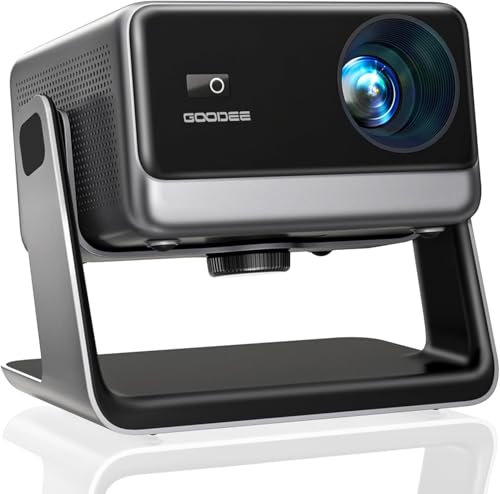
GooDee Video Projector With Wifi And Bluetooth, Smart Portable Projector Movie System Compatible With Netflix/Dolby Audio/Auto Focus & Keystone, 4k Video Decode & 1080p Native For Home Theater/Outdoor
「Smart TV Projector」The Goodee AC321 4K projector is officially licensed by mainstream streaming platforms such as Netflix/YouTube/Prime Video,...
As an affiliate, we earn on qualifying purchases.