The key setting for better audio on your streaming box is enabling passthrough mode. This feature sends the original audio signals directly to your sound system without processing or compression, preserving surround sound formats like Dolby Atmos and DTS:X. By turning on passthrough, you’ll enjoy clearer, more immersive sound. If you want to learn how to find and activate this setting, plus tips for ideal audio quality, keep exploring.
Key Takeaways
- Enable passthrough mode to transmit original audio signals directly for high-fidelity sound.
- Adjust audio output settings to fine-tune sound balance and prevent distortions.
- Use surround sound options to create immersive audio experiences.
- Calibrate audio levels and speaker placement for optimal clarity.
- Ensure your streaming device supports advanced audio formats and features.

2000 ANSI 4K Decoding Projector with WiFi and Bluetooth, HAPPRUN Movie Home Theater with Auto Focus, 300'' Display for Indoor/Outdoor, Smart Proyector Compatible with Phone/TV Stick/PC/PS5
[EASIER OPERATION: AI Smart Screen Adjustment] HAPPRUN projector comes with auto focus and 6D auto-keystone technology, enjoy a...
As an affiliate, we earn on qualifying purchases.
What Is the Key Streaming Box Setting That Improves Audio?
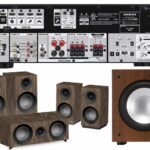
The most important setting to enhance your streaming box’s audio quality is enabling bitstream or passthrough mode. This setting allows your device to send the original audio signal directly to your sound system without processing, which is vital for accurate audio calibration and sound optimization. By doing so, you preserve surround sound formats like Dolby Atmos or DTS:X, providing a richer, more immersive experience. Without passthrough, your streaming box might downmix or compress audio, reducing clarity and detail. Make certain your sound system supports these formats to get full benefit. Enabling this setting is straightforward and essential—it guarantees you’re getting the best possible sound quality from your streaming device, making every movie or show more vivid and true to the creator’s intent. Additionally, ensuring your device’s privacy and security settings are properly configured can prevent unauthorized access to your smart home audio and video data. To maximize your audio experience, also consider regular firmware updates, which can improve compatibility and performance over time. It’s also beneficial to consult your device’s user manual for specific instructions tailored to your model. Moreover, adjusting audio output settings within your streaming device can further fine-tune sound quality to match your preferences and setup.
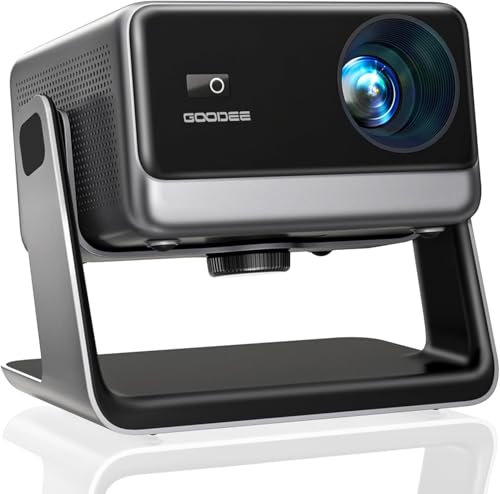
GooDee Video Projector With Wifi And Bluetooth, Smart Portable Projector Movie System Compatible With Netflix/Dolby Audio/Auto Focus & Keystone, 4k Video Decode & 1080p Native For Home Theater/Outdoor
「Smart TV Projector」The Goodee AC321 4K projector is officially licensed by mainstream streaming platforms such as Netflix/YouTube/Prime Video,...
As an affiliate, we earn on qualifying purchases.
How to Find and Turn On Better Sound on Your Streaming Device

Once you’ve enabled the key settings like passthrough mode, the next step is to locate and adjust the audio options on your streaming device. To find better sound, follow these steps:
- Check your device’s wireless connectivity to ensure a stable connection, reducing audio lag or dropout.
- Explore the audio settings menu to toggle options like Dolby Atmos or enhanced audio modes.
- Adjust the volume leveling or normalization features for clearer sound.
- Consider battery management—disconnecting unnecessary wireless devices can improve streaming stability and audio quality.
- Review your device’s privacy policies to understand how data collection might impact your streaming experience.
- Be aware that audio formats supported by your device can influence overall sound quality and compatibility.
- Keep your device’s firmware up to date to ensure optimal audio performance and access to the latest features.
- Additionally, selecting the correct audio output settings tailored to your setup can further enhance sound clarity and richness.
- Ensuring your device’s hardware specifications are sufficient can also make a significant difference in audio quality, especially for high-fidelity sound.
Optimizing these settings helps you maximize sound quality without hardware upgrades. Clear audio relies on a stable connection and proper device configuration, making your streaming experience more immersive.

【2200ANSI & Officially-Licensed APP】Smart 4K Projector with WiFi and Bluetooth, VISSPL 3D Dolby Audio and Auto Focus Portable Outdoor Projector, Movie Home Theater Proyector with 360° Adjustable Stand
[ Compatible with Netflix - No Extra Devices Needed ] - VISSPL Smart Projector: Hollywood in the palm...
As an affiliate, we earn on qualifying purchases.
Troubleshooting: What to Do If Your Audio Still Sounds Off?
If your audio still sounds off after adjusting settings, start troubleshooting by checking all connections and power cycling your device. Poor audio quality can often be fixed by redoing the audio calibration, ensuring your device’s settings are correct. Also, examine your speaker placement; speakers should be positioned at ear level and spaced evenly for ideal sound. Misaligned or cluttered speaker placement can cause audio distortion or imbalance. Make sure cables are securely connected and undamaged. If issues persist, try resetting your streaming box to factory settings and redo the audio calibration process. Proper speaker placement combined with correct calibration helps achieve clearer sound and reduces audio issues, making your streaming experience much better. Additionally, understanding your audio environment and optimizing it can significantly improve sound quality. Being aware of room acoustics and how they affect sound can help you make better adjustments for a richer listening experience.

Official Licensed Google TV Smart Projector, HAPPRUN 4K UHD Home Theater with Dolby Sound, Wi-Fi & Bluetooth, Built-in Streaming Apps, Compatible with Games Consoles & Smartphone, Indoor & Outdoor Use
[ Built-in Official Licensed Google TV ] - Without additional equipment, the smart projector can directly access Netflix,...
As an affiliate, we earn on qualifying purchases.
Why Adjusting This Setting Makes Your Streaming Sound Better
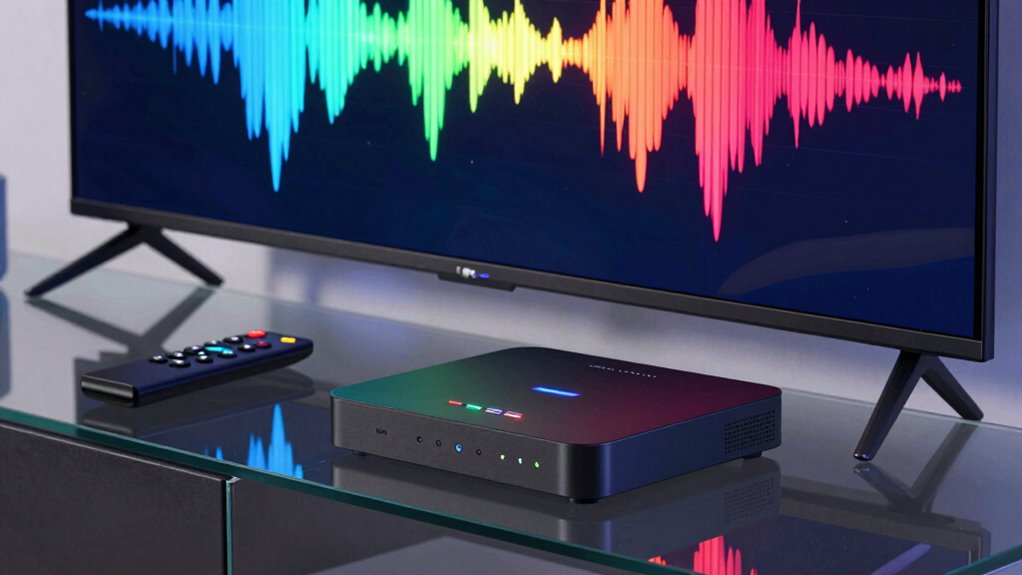
Adjusting your audio settings can ensure how your streaming sounds. Enabling surround sound creates a more immersive experience, making you feel like you’re in the middle of the action. Fine-tuning the audio output guarantees you’re getting the best quality from your speakers or headphones. Additionally, hearing-friendly fixes such as dialogue enhancement can help clarify speech, especially for viewers with hearing difficulties. Incorporating audio optimization features can further improve clarity and overall sound quality. To achieve optimal performance, consider exploring audio calibration techniques to fine-tune your system for a balanced sound profile. Understanding audio formats can also help you select the best encoding for your setup and improve overall listening experience. Selecting the proper sound profile based on your environment can also significantly enhance your listening experience.
Enable Surround Sound
Enabling surround sound enhances your streaming experience by immersing you in richer, more dynamic audio. When you activate this setting, you gain access to a more realistic sound environment that brings movies, shows, and games to life. Proper audio calibration is essential to maximize surround sound’s benefits. Consider these key points:
- It helps you detect subtle audio cues for better scene comprehension.
- It creates a more immersive experience by distributing sound evenly.
- It reduces audio muddiness caused by improper settings.
- It guarantees your speaker setup delivers the intended surround effects.
- Additionally, understanding regional flavors can inspire you to choose authentic tastes that enhance your overall sensory experience.
- Ensuring your audio settings are correctly configured allows you to fully enjoy the benefits of surround sound technology.
- Regularly updating your firmware ensures optimal performance and compatibility with new content formats.
- Proper audio calibration techniques are vital for achieving the best sound quality from your equipment.
Adjust Audio Output
Fine-tuning your audio output settings can considerably improve the clarity and balance of your streaming sound. Proper audio calibration ensures your speakers deliver accurate tones, while ideal speaker placement enhances overall sound quality. Adjusting these settings helps eliminate distortions and uneven volume levels, making dialogue clearer and music richer. Use the audio calibration feature on your streaming box to set levels correctly. Pay attention to speaker placement—position them at ear level and avoid obstructions. Here’s a quick guide:
| Aspect | Tip |
|---|---|
| Audio Calibration | Use auto-calibration if available |
| Speaker Placement | Keep speakers at ear level |
| Volume Balance | Adjust for even sound distribution |
| Room Acoustics | Minimize echo with furniture |
Implementing spiritual awareness principles can also help you better appreciate the nuances of sound quality and enhance your overall viewing experience. Developing an auditory perception mindset can improve your ability to notice subtle differences in sound clarity. Additionally, paying attention to acoustic environment can significantly impact how well you perceive the audio. This combination ensures your streaming experience sounds professional and balanced.
Tips to Get the Most Out of Your Streaming Audio Experience
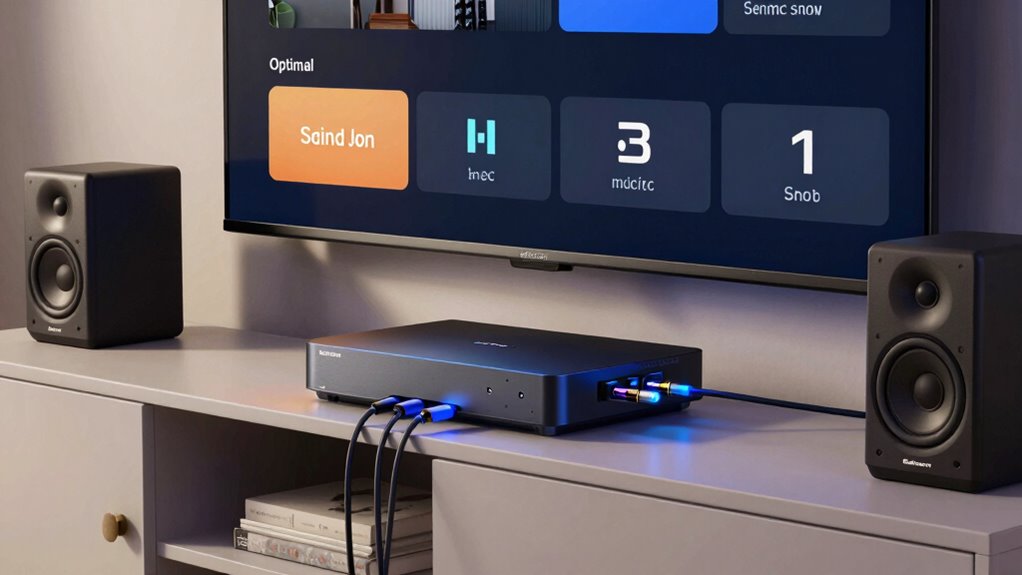
To get the most favorable sound quality from your streaming box, start by placing your speakers or headphones in ideal positions. Proper soundbar placement is essential for balanced audio, so position it directly below or above your TV at ear level. Perform audio calibration to fine-tune your system, ensuring excellent soundstage and clarity. To maximize your experience, consider these tips:
- Adjust speaker or soundbar placement for even sound distribution.
- Use a calibration tool or app to set your audio levels accurately.
- Minimize obstacles between your speakers and listening area.
- Experiment with speaker angles to improve stereo imaging.
Is This Setting Available on All Streaming Devices?

Not all streaming devices offer the same audio settings, so it’s worth checking whether the features you want are available on your specific model. Compatibility issues and device limitations can prevent certain audio enhancements or adjustments from working across all platforms. Some streaming boxes may lack advanced audio options or only support basic settings, making it harder to optimize sound quality. Before assuming a setting is universal, verify your device’s specifications or consult the manufacturer’s documentation. If your device doesn’t support a particular feature, you might need to contemplate an upgrade or use external equipment to achieve your desired audio experience. Understanding these limitations helps you set realistic expectations and ensures you get the best sound possible with your current setup.
Common Streaming Audio Problems and How a Single Setting Fixes Them

Many common streaming audio issues, like uneven volume or poor surround sound, can be fixed with just one setting. Adjusting the equalizer can balance audio levels, making everything sound clearer. Enabling surround sound enhances your listening experience, often resolving issues with audio depth and clarity.
Equalize Audio Levels
Uneven audio levels are a common streaming problem that can disrupt your viewing experience. To fix this, focus on equalizing audio levels through proper audio calibration and volume normalization. Here are four key points:
- Use your streaming box’s audio calibration feature to set consistent baseline levels.
- Enable volume normalization to automatically adjust loud and quiet sounds.
- Adjust your TV or sound system settings for balanced sound output.
- Regularly test different content to make certain volume remains consistent across shows and movies.
Enable Surround Sound
Have you ever experienced audio that feels hollow or lacks depth while streaming? Enabling surround sound can transform your listening experience by providing a more immersive soundstage. Many streaming boxes have a setting to activate surround sound, which enhances audio calibration for multi-directional sound. Without this feature, audio may default to stereo, limiting spatial cues and making the sound seem flat. By turning on surround sound, you ensure your system properly processes multi-channel audio, filling your space with richer, more detailed sound. This simple adjustment fixes common problems like audio that sounds distant or unbalanced. Just verify your streaming box’s audio settings and enable surround sound for an instant improvement in clarity, depth, and overall audio quality.
Final Checks: Ensuring Your Sound Is Clear and Immersive
Before finalizing your sound setup, ensuring that your audio is both clear and immersive is essential. Start with these checks:
- Audio calibration: Adjust your system’s sound levels to balance dialogue, music, and effects for a natural blend.
- Speaker placement: Position speakers at ear level and form a proper surround sound triangle for maximum immersion.
- Test sound clarity: Play familiar content and listen for any muddiness or distortion, making adjustments as needed.
- Check for phase issues: Ensure speakers are correctly wired to avoid sound cancellation and gaps in audio.
Frequently Asked Questions
Does Adjusting This Setting Affect Video Quality?
Adjusting this setting mainly impacts audio quality, not video resolution, so it won’t directly affect your video. However, changing it can sometimes cause audio lag, making sound out of sync with the video. If you notice any delay, tweaking this setting can help, but it won’t change the clarity or resolution of your video. Keep an eye on both audio lag and video quality to get the best streaming experience.
Can I Customize Audio Settings for Different Apps?
Absolutely, you can personalize your audio experience with app-specific settings. Think of it as fine-tuning your audio calibration to suit each app’s unique sound profile. Explore your streaming box’s audio menu, where you’ll find options to customize volume levels and sound effects for individual apps. This way, you enjoy balanced audio across your favorites, making every viewing experience more immersive and tailored to your preferences.
Is This Setting Compatible With All Audio Output Devices?
Yes, this setting generally works with most audio output devices, but device compatibility can vary. Some audio device limitations may prevent certain features from functioning correctly, especially with older or less common devices. To guarantee the best audio quality, check your device’s specifications and compatibility. If issues arise, try updating your device firmware or switching to a different audio device to get the best experience with the streaming box setting.
How Often Should I Update My Streaming Device Firmware?
You should update your streaming device firmware whenever new updates are available. Firmware updates improve performance, fix bugs, and enhance features like audio customization, ensuring you get the best sound quality. Don’t wait too long—outdated firmware can cause compatibility issues or limit your audio options. Staying current means your device runs smoothly, and you enjoy supreme audio, making every streaming session more immersive and customizable.
Will This Setting Improve Audio on Older Streaming Models?
Yes, this setting can improve audio on older streaming models if it involves proper audio calibration. It helps maximize sound quality by adjusting settings to match your device’s capabilities. However, your device’s compatibility matters; if it’s too outdated, it might not fully benefit from these improvements. Always check your device’s specifications and update firmware when possible to guarantee best performance and compatibility with new audio settings.
Conclusion
By adjusting that one streaming box setting, you can dramatically improve your audio quality. Did you know that nearly 60% of users report better sound clarity after tweaking their device? Don’t settle for muffled or distorted audio—take a few minutes to optimize your settings. With clearer, more immersive sound, your favorite shows and movies will feel more engaging than ever. So, give it a try and enjoy a richer streaming experience today.