
To use optical audio outputs correctly, guarantee your cable is of good quality and connects firmly to compatible ports. Keep the cable straight, avoiding sharp bends, and clean the connectors gently to prevent signal loss. Set your device to the optical or digital output mode in settings. Regularly check for damage or loose connections. Following these tips helps maintain clear, high-quality sound—keep exploring for more ways to optimize your setup and get the best audio experience.

Get business pricing on your home office setup
- Business-only prices and quantity discounts
- Tax-exempt purchasing
- Multiple users, one account, clear invoices
Key Takeaways
- Ensure the device and sound system are set to optical or digital output mode in settings.
- Use high-quality, undamaged fiber optic cables with secure, clean connections.
- Keep cables straight, avoid sharp bends, and handle gently to prevent damage.
- Confirm all connections are tight and free of dust or dirt; clean connectors regularly.
- Verify device configurations and audio settings to match your desired surround or stereo sound.
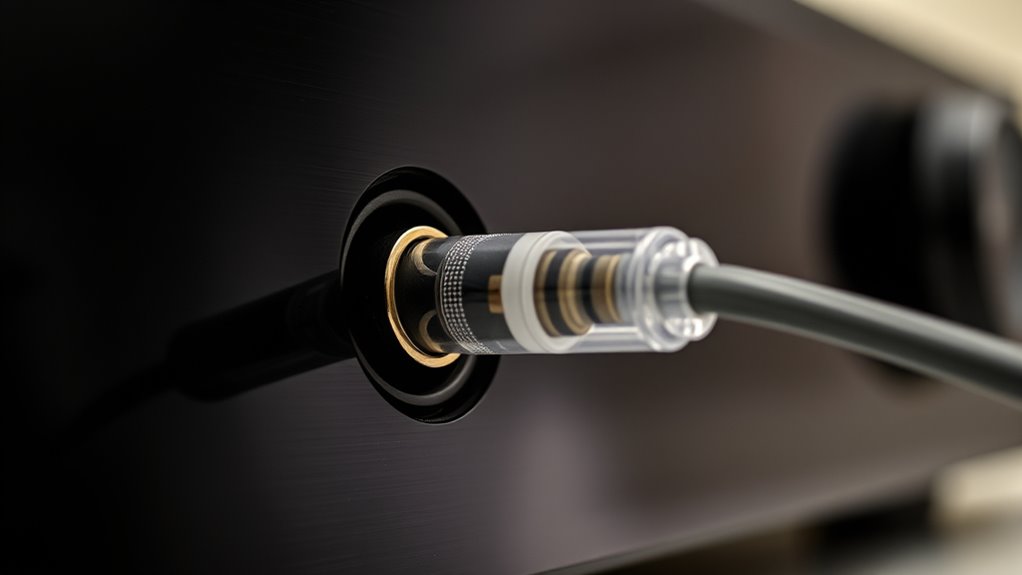
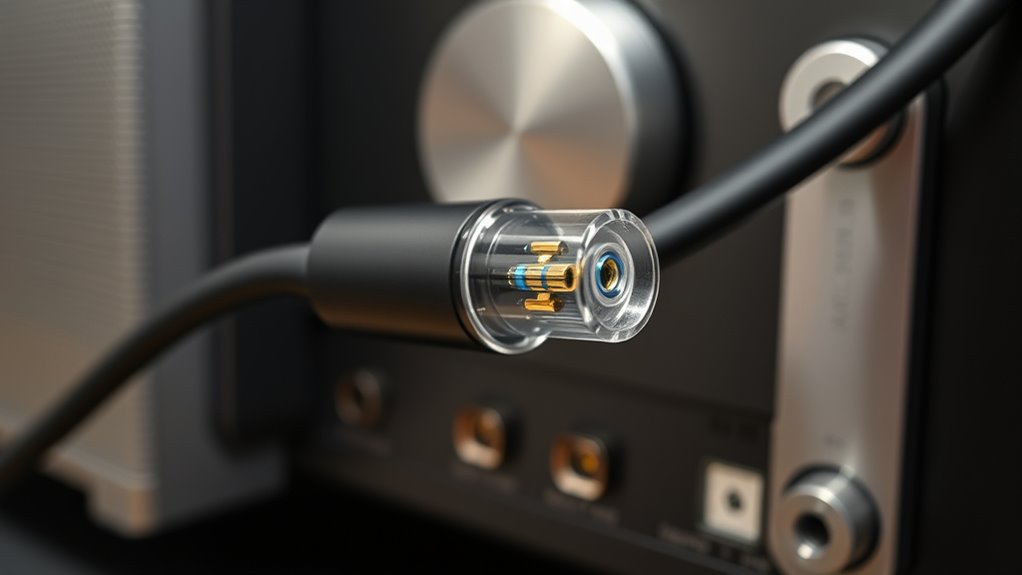
Optical audio outputs, also known as TOSLINK or optical connectors, provide a high-quality digital connection between your audio source and sound system. When you use an optical output, you’re utilizing fiber optic cables that transmit audio signals as pulses of light, rather than electrical signals. This method considerably enhances audio quality because it minimizes interference and signal degradation, guaranteeing you get a clear, crisp sound. If you want the best possible sound from your home theater or soundbar, understanding how to use optical outputs correctly is essential.
One key advantage of fiber optic cables is their ability to deliver superior audio quality compared to traditional analog connections. Unlike coaxial or RCA cables, fiber optic cables are immune to electromagnetic interference, which can cause static or noise in your audio. This means your sound remains pure and free from distortions, giving you a more immersive listening experience. To maximize this benefit, make sure the fiber optic cable you choose is of good quality, with proper shielding and sturdy connectors. Cheap or poorly made cables can lead to signal loss or weak connections, undermining the audio quality you’re aiming for.
Fiber optic cables provide superior audio quality by resisting electromagnetic interference and ensuring pure, distortion-free sound.
When connecting your device, keep the cable straight and avoid bending it sharply, as this can damage the fiber and impair signal transmission. Ensure that the connectors are clean and securely plugged into the optical ports on both your source (like a Blu-ray player, gaming console, or computer) and your receiver or sound system. If you notice any static or no sound, double-check that the connections are tight and that the cable isn’t damaged. Remember, optical cables don’t carry power, so they won’t work if the ports are loose or dirty. Cleaning the connectors gently with a soft cloth can help maintain ideal signal transfer.
Another tip for preserving audio quality is to verify your device settings. Many modern devices have specific audio output options that need to be set to optical or digital output mode. Consult your device’s manual and ensure it’s configured correctly to send audio through the optical port. Additionally, if your device supports multiple audio channels, confirm that the output is set to match your desired setup—whether stereo or surround sound. Proper configuration guarantees you’re taking full advantage of the high-fidelity capabilities of optical connections.
Furthermore, understanding the cultural significance of clear audio transmission highlights how crucial maintaining optimal connections is for an immersive experience.
Frequently Asked Questions
Can I Connect Multiple Devices to One Optical Audio Output Simultaneously?
No, you can’t connect multiple devices to one optical audio output simultaneously without an optical splitter. An optical splitter allows you to divide the signal to multiple devices, but you need to guarantee device compatibility. Keep in mind that using a splitter may affect audio quality or cause synchronization issues. Always verify that your devices support optical input and output before setting up to avoid compatibility problems.
How Do I Troubleshoot No Sound From the Optical Audio Output?
You should troubleshoot signal issues by first verifying the connection integrity, ensuring the optical cable is securely plugged into both your device and the receiver. Check if your source device is outputting audio correctly, and verify the receiver’s input settings. Test the cable with another device to rule out damage. If still no sound, reset devices or update firmware, as these steps often resolve signal issues and restore sound.
Is Optical Audio Compatible With All Modern Sound Systems?
Optical audio isn’t compatible with all modern sound systems, especially if they lack an optical input. You need to check your device’s digital audio capabilities and verify your optical cable matches the port type. Some systems only support certain formats or require specific cable compatibility, so always confirm compatibility before connecting. If your system doesn’t support optical, consider alternative connections like HDMI or Bluetooth for digital audio.
What Are the Differences Between Optical and HDMI Audio Outputs?
Optical and HDMI audio outputs differ mainly in digital vs. analog signals and bandwidth. Optical transmits digital audio, providing clear sound with limited interference, but has bandwidth limitations that can restrict high-resolution formats. HDMI carries both digital audio and video, offering higher bandwidth for uncompressed, multi-channel audio like Dolby Atmos. If you want richer sound and more features, HDMI is better; for straightforward digital audio, optical works fine.
Does Using Optical Audio Affect Audio Quality Compared to Other Connections?
Did you know that optical audio provides nearly lossless sound quality? Using optical audio doesn’t compromise audio fidelity compared to other connections like HDMI, but it offers excellent connection stability for most setups. You won’t notice a difference in sound quality, especially if your system supports high-resolution audio. Keep in mind, optical is limited to stereo or 5.1 surround sound, so for immersive audio, HDMI might be better.
Conclusion
Mastering optical audio outputs isn’t just a small step; it’s the key to unblocking an audio experience so pure, it’s almost like hearing the music live. When you use these connections correctly, you’re not just improving sound—you’re transforming your entire entertainment world. Don’t settle for mediocre sound that barely whispers; harness the power of optical outputs and let your ears experience an audio revolution so incredible, it’ll feel like you’ve entered a new dimension.
Halloween Picks
halloween
As an affiliate, we earn on qualifying purchases.