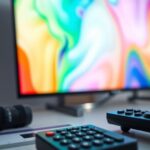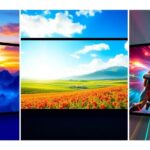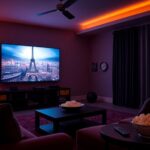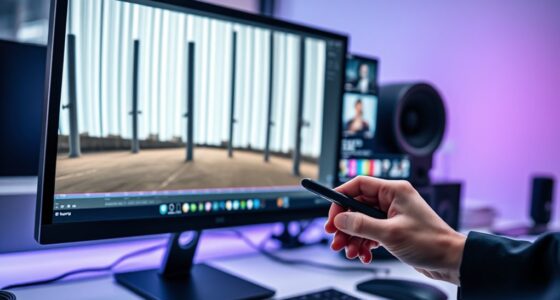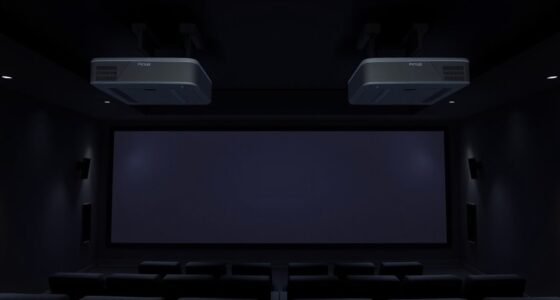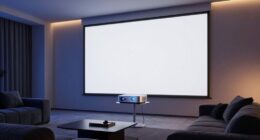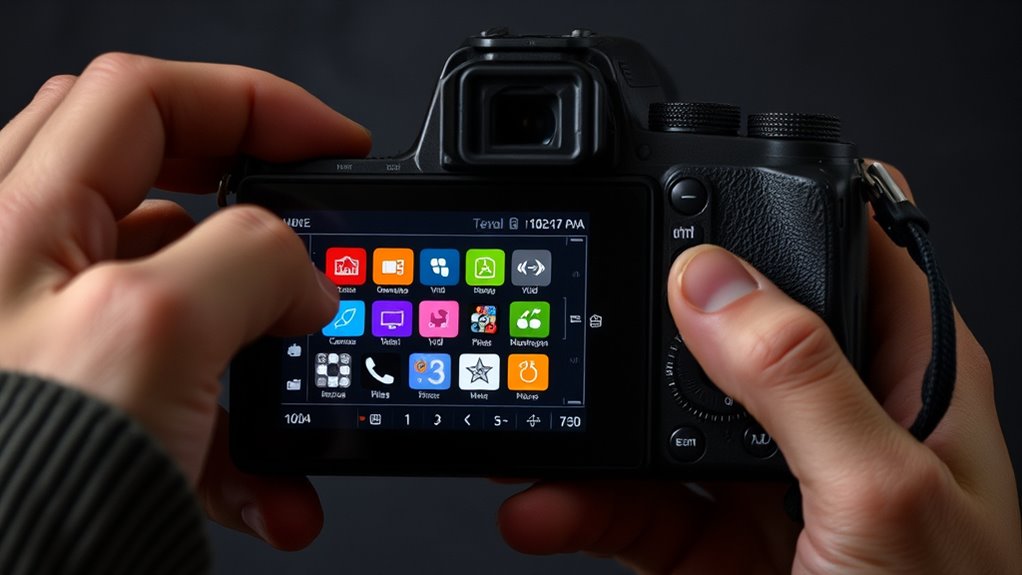

To customize picture modes for different media, start by choosing preset modes like Cinema, Sports, or Gaming as a base. Adjust key settings such as contrast, brightness, color, and sharpness to match your environment and preferences. Use calibration tools or test patterns for precision. Remember that ambient light influences your choices—bright rooms need higher brightness, while dark rooms benefit from warmer tones. Keep experimenting to optimize each mode and reveal the best viewing experience.
Key Takeaways
- Use preset modes like Cinema, Sports, or Game as a starting point for customization.
- Adjust contrast, brightness, color, and sharpness to suit specific media types and room lighting.
- Fine-tune settings for motion clarity and low latency in gaming modes.
- Modify color temperature and backlight levels based on ambient light conditions.
- Save personalized profiles for quick switching between media-specific picture settings.

Customizing picture modes allows you to maximize your TV’s display for different viewing situations, ensuring you get the best picture quality whether you’re watching movies, sports, or playing games. The key to achieving this lies in understanding calibration techniques and how to adjust preset settings effectively. Many modern TVs come with various preset adjustments such as Cinema, Sports, Game, and Vivid modes, each designed to enhance specific types of content. However, these presets are often a good starting point, and fine-tuning them to suit your preferences can greatly improve your viewing experience.
When customizing picture modes, start by exploring calibration techniques that help you adjust parameters like contrast, brightness, color, and sharpness. For movies, you might want to reduce brightness and contrast slightly to achieve a more cinematic look, while sports may benefit from increased sharpness and vivid colors to make fast-moving action clearer. Gaming modes, on the other hand, usually emphasize low latency and enhanced motion handling, so you’d want to adjust settings that enhance response time without sacrificing picture quality. Using calibration tools or test patterns can help you make precise adjustments, ensuring your TV displays images accurately and vibrantly. Additionally, understanding display calibration techniques can help you achieve more accurate and natural colors, further enhancing your viewing experience.
Preset adjustments serve as a foundation, but don’t hesitate to customize further based on your environment and personal taste. For instance, if your room has a lot of ambient light, increasing the brightness or enabling a specific mode designed for bright rooms can make a noticeable difference. Conversely, in a dark room, lowering the backlight and adjusting the color temperature for warmer tones can create a more immersive experience. Remember, the goal is to tailor each mode to enhance the specific media type while maintaining a natural, balanced picture.
Switching between modes regularly is essential to find what works best for each scenario. When watching a movie, switch to Cinematic mode and fine-tune it with calibration techniques to achieve a film-like quality. For sports, choose a mode that emphasizes motion clarity, and for gaming, select a setting that minimizes input lag while keeping visuals sharp. Keep in mind that some TVs allow you to save custom profiles, making it easier to switch settings depending on what you’re watching. Regularly reviewing and adjusting these presets ensures your TV always delivers ideal picture quality tailored to your media consumption.

HAPPRUN Native 1080P Projector, Bluetooth Home Theater Movie Projector with Built-in Speaker, Compatible with Smartphone, HDMI, Fire Stick, PS5, Indoor & Outdoor Use -With Google TV System
[ Built-in Official Licensed Google TV ] - Without additional equipment, the smart projector can directly access Netflix,...
As an affiliate, we earn on qualifying purchases.
Frequently Asked Questions
How Can I Save Custom Picture Mode Settings for Different Media?
You can save custom picture mode settings for different media by adjusting the settings to your preference and then saving those preferences directly on your device. Most TVs or monitors let you create media-specific settings, which you can save as presets. Simply customize the picture mode for each media type, then select the save or memory option to store those preferences. This way, your preferred picture settings are automatically applied when you switch media.
Are There Recommended Picture Mode Settings for Gaming Versus Movies?
Did you know that 85% of gamers prefer a higher contrast setting for immersive gameplay? For gaming, you should use calibration techniques that enhance contrast and response time, making fast movements clearer. For movies, opt for settings that boost color accuracy and reduce motion blur, suited for display technology like OLEDs or LED screens. Adjust picture modes accordingly—gaming for sharper visuals, movies for more natural, cinematic quality.
Can I Customize Picture Modes Using Third-Party Calibration Tools?
Yes, you can customize picture modes using third-party calibration tools. These tools allow you to fine-tune settings like brightness, contrast, and color balance beyond standard options. By connecting calibration devices to your TV or monitor, you can make precise picture mode adjustments for maximum image quality tailored to your preferences. Just ensure compatibility with your device and follow calibration instructions carefully for the best results.
Do Picture Modes Affect the Longevity of My Display?
Like a marathon runner pacing themselves, your picture modes can influence your display’s longevity. Poor calibration or static images may cause screen burn-in, reducing the display lifespan over time. However, well-optimized picture modes help prevent this, ensuring your screen stays vibrant longer. So, yes, your choice of picture mode impacts your display’s health, just as a wise runner preserves their energy for the finish line.
How Often Should I Recalibrate My Picture Modes for Optimal Quality?
You should recalibrate your picture modes every 6 to 12 months to maintain peak picture quality. Regular calibration frequency helps guarantee colors, contrast, and brightness stay accurate, preventing image degradation over time. By consistently fine-tuning your display, you improve picture quality maintenance, making your viewing experience more vibrant and true-to-life. If you notice color shifts or dullness, recalibrate sooner to keep your media looking its best.

2000 ANSI 4K Decoding Projector with WiFi and Bluetooth, HAPPRUN Movie Home Theater with Auto Focus, 300'' Display for Indoor/Outdoor, Smart Proyector Compatible with Phone/TV Stick/PC/PS5
[EASIER OPERATION: AI Smart Screen Adjustment] HAPPRUN projector comes with auto focus and 6D auto-keystone technology, enjoy a...
As an affiliate, we earn on qualifying purchases.
Conclusion
Now that you know how to customize your picture modes for different media, you can truly tailor your viewing experience. Don’t be afraid to experiment and find what works best for you; after all, variety is the spice of life. When you take the time to adjust settings to suit each media type, you’ll enjoy sharper images, richer colors, and less eye strain. It’s a small change that can make a big difference—so go ahead and make your screen work for you!

【2200ANSI & Officially-Licensed APP】Smart 4K Projector with WiFi and Bluetooth, VISSPL 3D Dolby Audio and Auto Focus Portable Outdoor Projector, Movie Home Theater Proyector with 360° Adjustable Stand
[ Compatible with Netflix - No Extra Devices Needed ] - VISSPL Smart Projector: Hollywood in the palm...
As an affiliate, we earn on qualifying purchases.

GooDee 4K Smart Projector with WiFi 6 & Bluetooth - UHD Movie Projector, ToF Auto Focus & Keystone, MEMC, Built-in Streaming Apps, Dolby Audio Home Theater for Outdoor Movie Night & Bedroom Cinema
【Smart Projector with Built-in Streaming Apps】 GooDee’s outdoor projector features an intelligent system deeply integrated with the global...
As an affiliate, we earn on qualifying purchases.