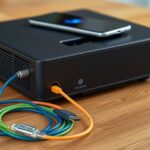
To connect multiple inputs to your projector, use an HDMI switcher or a projecting multiplexer. These devices allow you to connect several sources like laptops, gaming consoles, or media players and switch between them easily, often with a remote or control button. Make certain the switcher supports high resolutions and audio formats compatible with your devices. Proper setup keeps your space organized and your media experience smooth—exploring the options further can help you optimise your setup.
Key Takeaways
- Use an HDMI switch or multiplexer to connect multiple sources to a single projector input.
- Connect each device’s HDMI output to the switch/multiplexer inputs.
- Connect the switch/multiplexer output to the projector’s HDMI input.
- Use remote control or control panel to switch between sources easily.
- Ensure the device supports your desired resolution and audio formats for optimal performance.
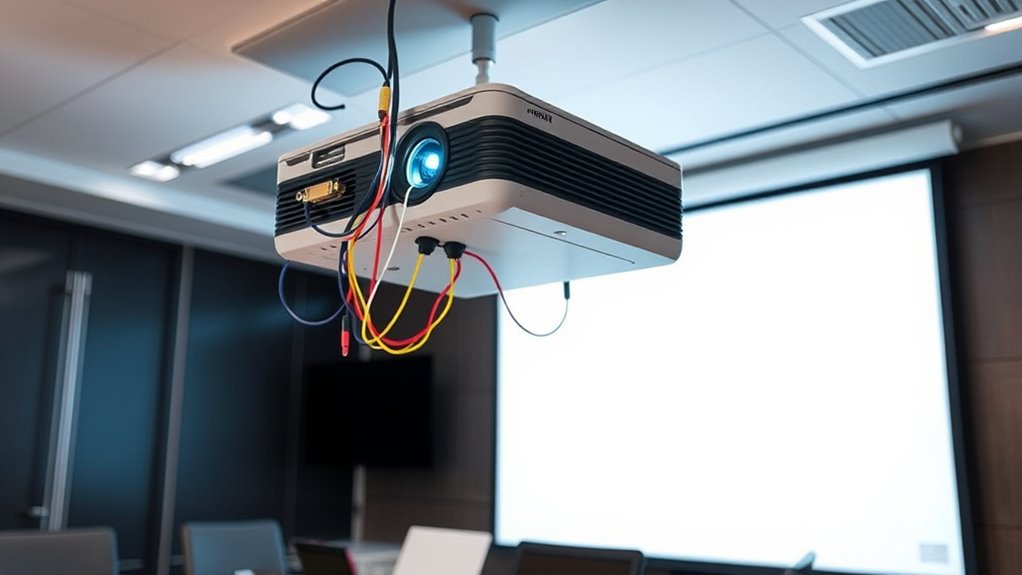
Connecting multiple inputs to a projector allows you to seamlessly switch between different devices, such as laptops, Blu-ray players, and gaming consoles, without constantly plugging and unplugging cables. This setup simplifies your entertainment or presentation experience, saving you time and effort. To achieve this, you need a reliable method for managing multiple signals, and that’s where audio switching and HDMI multiplexers come into play.
Seamlessly switch between devices with HDMI multiplexers and audio switching for a streamlined setup.
Audio switching ensures that your audio signals stay synchronized with video output, regardless of which device you select. When you switch inputs, you want the sound to transition smoothly without delays or loss of quality. Many modern HDMI switches and multiplexers support integrated audio switching, which manages both audio and video signals through a single device. This integration makes it easier to control everything from one remote or interface, enhancing your overall experience. If you’re using multiple devices with different audio formats, look for HDMI multiplexers that support audio extraction or re-embedding. This way, you can route audio to external speakers or sound systems while keeping the video feed to the projector.
HDMI multiplexers are especially useful for complex setups because they combine multiple HDMI signals into a single output, allowing you to switch between sources effortlessly. Instead of manually disconnecting and reconnecting cables, you can use a remote or a control system to select the desired input. These devices often feature multiple HDMI inputs and a single output, making it simple to connect all your devices and switch between them as needed. When choosing a multiplexer, consider its resolution support; verify it handles the highest quality your devices offer, like 4K or HDR. You should also check for compatibility with your audio system, especially if you’re using surround sound formats or advanced audio features.
In addition, understanding the importance of bedroom decor can help you create a comfortable environment for your media setup, making the overall experience more enjoyable. Setting up your space with thoughtful decor enhances the ambiance and ensures your tech equipment fits seamlessly into the room’s aesthetic.
Setting up audio switching and HDMI multiplexers isn’t complicated. Most come with straightforward instructions, and many support remote control for quick switching. Position your devices close to the projector, connect the HDMI cables to the inputs of the multiplexer, and run a single HDMI cable from the multiplexer to the projector. If your setup includes external audio systems, connect the audio outputs accordingly. With this configuration, switching between devices becomes a simple press of a button, keeping your workspace or entertainment area tidy and efficient. This setup not only enhances convenience but also guarantees high-quality audio and video performance, making your projector experience more enjoyable and less stressful.

Aurzen Roku TV Smart Projector with Wifi and Bluetooth, Roku TV Built-in, 1080P FHD, DoIby Audio, Auto Focus & Keystone, Zoom, Movie Portable Outdoor Mini Projector for Soccer Football Game, White
A Roku account and internet connection are required for activation (Creating an account is free). Note: Power Supply:...
As an affiliate, we earn on qualifying purchases.
Frequently Asked Questions
Can I Connect Multiple Devices Simultaneously to a Single Projector?
Yes, you can connect multiple devices simultaneously to a single projector. You can use HDMI splitters to expand a single HDMI port, allowing multiple inputs. Additionally, wireless streaming options like Miracast or Chromecast enable you to switch between devices easily without cables. Keep in mind, some projectors support multiple inputs directly, so check your projector’s specifications to determine the best method for your setup.
What Types of Adapters Are Needed for Different Input Connections?
You’ll need HDMI adapters for devices with HDMI outputs and VGA converters for older equipment using VGA connections. HDMI adapters come in various forms, like HDMI to VGA or HDMI to DisplayPort, depending on your device’s port. Make sure to select the right adapter or converter to match your device’s input, ensuring compatibility and a seamless connection. Check your device’s ports before purchasing to get the correct adapters.
How Do I Switch Between Multiple Input Sources Easily?
To switch between multiple input sources easily, use a remote control or a dedicated input button on the projector. This allows you to change sources quickly, minimizing input lag and ensuring smooth progressions. Make sure all devices are compatible in resolution to avoid display issues. Some projectors offer an auto-switch feature, which detects active inputs and switches automatically, saving you time and effort during presentations or movie nights.
Is It Possible to Connect a Computer and a Gaming Console at the Same Time?
Yes, you can connect a computer and gaming console simultaneously using HDMI splitters, which allow multiple devices to share one input. Alternatively, wireless streaming options like Chromecast or Miracast enable you to display both devices without additional cables. Just make certain your projector supports these methods or has multiple HDMI ports. This setup gives you seamless switching between your computer and gaming console for a smooth experience.
What Are the Best Practices to Prevent Input Signal Conflicts?
Did you know that 60% of users encounter signal interference when connecting multiple devices? To prevent input signal conflicts, prioritize your inputs based on usage, and assign specific ports for each device. Use input switching remotes or automatic input selection features to streamline the process. Keep cables organized and avoid running multiple signals through the same pathway to reduce interference and guarantee smooth, uninterrupted display performance.
![[Built-in Apps/4K Support] Smart Outdoor Projector with WiFi and Bluetooth, Movie Projector, DoIby Audio with Dual Speaker, Auto Focus w/ YouTube&PrimeVideo Proyector, Upgrad P62 Pro](https://m.media-amazon.com/images/I/51yAGv8VI7L._SL500_.jpg)
[Built-in Apps/4K Support] Smart Outdoor Projector with WiFi and Bluetooth, Movie Projector, DoIby Audio with Dual Speaker, Auto Focus w/ YouTube&PrimeVideo Proyector, Upgrad P62 Pro
[Upgraded Classic – P62 Pro Movie Projector] Building on the reliability and low return rate of the classic...
As an affiliate, we earn on qualifying purchases.
Conclusion
Now that you know how to connect multiple inputs to your projector, you’re all set to turn your living room into a modern-day command center—no need for a flux capacitor! Just remember to label your cables and switch inputs easily. With these tips, you’ll be streaming, gaming, or presenting like a pro, making your space the hub of all your multimedia adventures. So go ahead, press play and let your projector do the talking—your multi-input setup has arrived!

【Now with Netflix & 3000ANSI】Smart 4K Projector with WiFi and Bluetooth, VISSPL 3D Dolby Audio and Auto Focus Portable Outdoor Projector, Movie Home Theater Projectors for Bedroom/Ceiling
[ Netflix Ready - No Extra Devices Needed ] – VISSPL Smart Projector: No TV stick, no casting,...
As an affiliate, we earn on qualifying purchases.
![Outdoor-Projector-4K with WiFi and Bluetooth:[3500 Bright/60W Dolby Audio/Official Licensed Apps],Smart-Projector with AI Auto Focus,ONOAYO ONO5Pro 2.0 Movie Projector for Indoor/Outdoor 2026New](https://m.media-amazon.com/images/I/41fylkjOTIL._SL500_.jpg)
Outdoor-Projector-4K with WiFi and Bluetooth:[3500 Bright/60W Dolby Audio/Official Licensed Apps],Smart-Projector with AI Auto Focus,ONOAYO ONO5Pro 2.0 Movie Projector for Indoor/Outdoor 2026New
[Hear the Difference–Hollywood-Grade Dual 60W Dolby Audio] Why spend more on a TV + soundbar or settle for...
As an affiliate, we earn on qualifying purchases.