
If you face advanced HDMI handshake problems, start by checking cables for compatibility and quality, as low-quality or outdated cables can cause failures. Confirm your firmware and drivers are up to date to fix bugs and improve device communication. Adjust resolution and refresh rate settings for better compatibility, and verify HDCP support for protected content. Environmental factors like interference or power issues can also disrupt signals. Explore these solutions further to troubleshoot complex handshake issues effectively.
Key Takeaways
- Understand HDMI handshake fundamentals, including EDID exchange and HDCP authentication, to diagnose communication failures effectively.
- Ensure cable quality and compatibility support high bandwidth and HDCP standards to prevent handshake errors.
- Regularly update device firmware and drivers to fix bugs that disrupt handshake processes.
- Match resolution and refresh rates between source and display to avoid flickering and signal drop issues.
- Identify environmental and hardware factors like interference, power stability, and splitters that can cause handshake failures.
Understanding HDMI Handshake Basics
Understanding HDMI handshake basics is essential because it guarantees your devices communicate properly. When you connect devices with HDMI cables, they perform a handshake process using specific handshake protocols. This process verifies that both devices support the same audio and video formats, ensuring smooth transmission. If the handshake fails, you might encounter no picture, audio issues, or flickering screens. The handshake protocols establish a secure communication link, exchanging EDID data and HDCP authentication details. Knowing how these protocols function helps you troubleshoot issues more effectively and prevents unnecessary frustration. Additionally, understanding the role of handshake protocols can help you identify potential compatibility issues before they cause problems. Recognizing how signal negotiation occurs during the handshake can also assist in diagnosing connection failures. By understanding the fundamentals of HDMI handshake, you gain insight into why connections sometimes break down and how to maintain a stable, reliable signal between your devices. Being aware of device compatibility considerations can further streamline troubleshooting efforts and improve overall connection stability. Moreover, familiarity with data exchange mechanisms allows for better anticipation of issues related to firmware or hardware limitations.
Common Causes of Handshake Failures
One common cause of handshake failures is incompatible cables that can’t handle the required bandwidth or standards. Device firmware bugs can also disrupt communication, causing connection issues. Identifying and addressing these issues is vital for restoring a stable HDMI handshake. Additionally, air quality considerations such as dust or pollutants can affect electronic components, potentially leading to handshake problems. Proper cleaning and maintenance can prevent these issues by ensuring that dust and debris do not impair signal integrity. Poor ambient conditions can cause overheating or static buildup, further impairing signal integrity and complicating the handshake process. Furthermore, electromagnetic interference from nearby electronic devices can disrupt the signal, making troubleshooting more complex. Being aware of power supply stability is also crucial, as fluctuations or interruptions can cause handshake failures and device malfunctions.
Cable Compatibility Issues
Many HDMI handshake failures stem from cable compatibility issues. If your cable isn’t designed to handle the required bandwidth or specifications, it can cause handshake errors. To troubleshoot, consider these points:
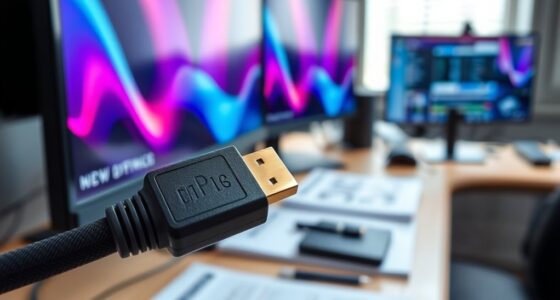
- Confirm the cable’s version—older cables may lack the bandwidth for modern 4K or HDR signals.
- Check cable quality—poorly made cables often have reduced cable longevity, leading to signal inconsistencies.
- Ensure the cable supports high-speed data transfer and HDCP compliance, as incompatible cables can prevent proper device recognition.
- Additionally, using certified high-quality cables can help prevent handshake failures caused by subpar materials or construction. Investing in properly rated cables ensures they meet the necessary standards for reliable performance.
Using cables that meet the latest standards and maintaining good cable longevity helps guarantee seamless handshake performance. Compatibility issues often stem from outdated or low-quality cables, so investing in certified, high-quality options can save you headaches.
Device Firmware Bugs
Device firmware bugs are a common culprit behind HDMI handshake failures, as outdated or flawed firmware can disrupt communication protocols between devices. When firmware bugs exist, devices may struggle to correctly recognize or negotiate settings during handshake processes. To resolve this, you should check for firmware update procedures specific to your equipment. Updating firmware often fixes known bugs, improves compatibility, and restores smooth communication. Be sure to follow manufacturer instructions carefully, as improper updates can cause further problems. Regularly updating device firmware ensures your HDMI devices stay current and reduces the risk of handshake failures caused by software issues. Additionally, understanding the importance of device maintenance plans in the creative process highlights how regular upkeep can prevent technical issues, which can be useful when troubleshooting problems like HDMI handshake failures. Maintaining proper hardware health is also crucial, as physical issues can sometimes mimic firmware-related problems. Implementing a routine system checkup can help identify and address underlying hardware or software concerns before they escalate, and staying informed about firmware updates can further prevent compatibility issues.
Recognizing Symptoms of Handshake Issues
Have you noticed your HDMI connection flickering, freezing, or failing to display the expected picture? These are common signs of handshake issues. To identify them, look for:
- Audio delay – when sound doesn’t sync with the picture, indicating handshake problems affecting audio processing.
- Color calibration issues – colors appear washed out or overly vibrant, suggesting communication hiccups between devices.
- Picture flickering or blackouts – intermittent loss of image, often caused by handshake failures disrupting signal stability.
- Emerging vulnerabilities – such as security concerns related to HDMI handshakes, which can be exploited if not properly managed.
- Regularly monitoring connection stability and understanding signal integrity can help prevent ongoing issues and ensure consistent performance.
If you experience any of these symptoms, it’s a clear sign that your HDMI handshake needs attention. Recognizing these signs early can help you troubleshoot effectively before they worsen.
Diagnosing Hardware Compatibility Problems

Diagnosing hardware compatibility problems requires a systematic approach to identify which components might be causing handshake failures. Start by examining the cable length, as longer cables can weaken signals and lead to handshake issues. Keep cables as short as possible, ideally under 15 feet, to guarantee a strong connection. Next, consider device branding; some brands are known for better HDMI compatibility, so using reputable brands can reduce problems. Check if all devices support the same HDMI version and features. Incompatibilities between older devices and newer cables or hardware can cause conflicts. Additionally, test with different cables or devices to isolate the faulty component. By methodically verifying cable quality, length, and device compatibility, you can pinpoint the source of hardware-related handshake failures. You can also use a free online tool to quickly assess and improve hardware compatibility and signal quality. Staying informed about AI advancements can also help troubleshoot complex digital issues more effectively.
Troubleshooting Signal Resolution and Refresh Rates
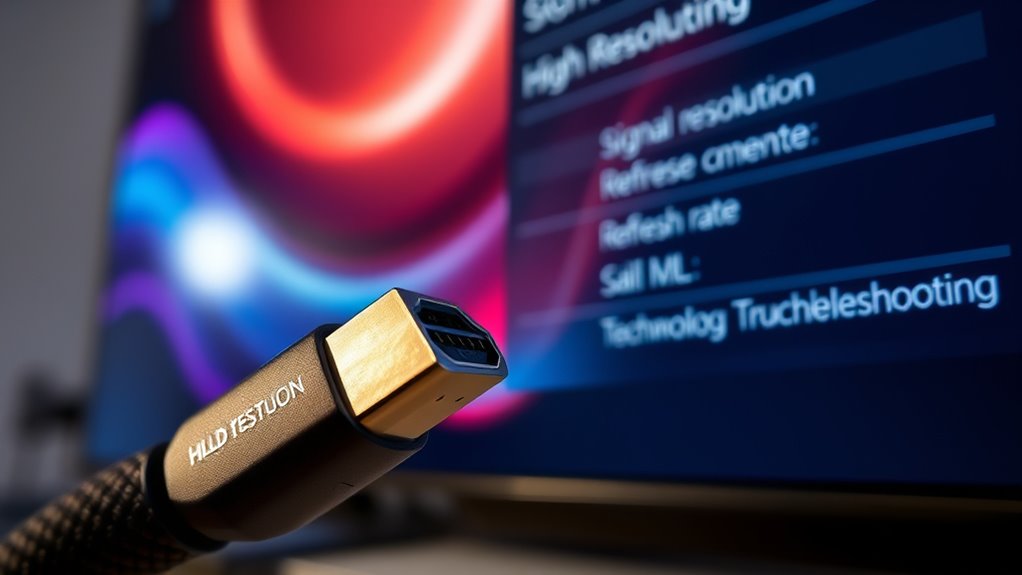
When your display isn’t showing the right resolution or refresh rate, start by adjusting the resolution settings on your device. Make sure the refresh rates are compatible between your source and display to prevent flickering or signal drops. If issues persist, troubleshoot signal drops by testing different cables or ports to identify the source of the problem.
Adjusting Resolution Settings
Adjusting resolution settings can often resolve HDMI handshake issues by ensuring your display and device communicate effectively. Focus on enabling dynamic resolution or auto adjustment features, which help devices negotiate ideal settings. To optimize your setup:
- Enable dynamic resolution or auto adjustment on both your source device and display.
- Manually set the resolution to a common standard, like 1080p, to improve compatibility.
- Test different resolutions to identify which provides the most stable connection.
This process helps prevent resolution mismatches that cause handshake failures. When auto adjustment is enabled, your device dynamically negotiates the best resolution, reducing conflicts. Keep in mind, selecting the right resolution can markedly improve signal stability and picture quality. Adjusting these settings is a quick way to troubleshoot and ensure seamless HDMI communication.
Refresh Rate Compatibility
Since incompatible refresh rates can cause HDMI handshake failures, guaranteeing your device and display support the same refresh rate is essential for a stable connection. Refresh rate mismatches are common compatibility quirks that lead to signal issues or flickering. Check your device’s settings and the display’s specifications to match the refresh rate precisely. Some displays have limited supported refresh rates, so selecting an unsupported value can trigger handshake problems. If you encounter issues, try manually setting a common refresh rate, such as 60Hz, to improve compatibility. Keeping refresh rates aligned helps prevent handshake failures and ensures smooth playback. Remember, even minor differences in refresh rates can cause problems, so always verify both device and display support the same settings.
Troubleshooting Signal Drops
Inconsistent signal drops often stem from mismatched resolution settings or refresh rates between your device and display. To troubleshoot, start by checking for wireless interference, which can disrupt the HDMI handshake and cause signal loss. Next, verify your power supply is stable; fluctuations can weaken signals and trigger drops. Lastly, consider these steps:
- Match your device’s resolution and refresh rate to your display’s native settings.
- Reduce wireless interference by relocating routers or turning off nearby wireless devices.
- Use high-quality HDMI cables and verify that your power source provides consistent voltage.
Managing HDCP and Content Protection Conflicts
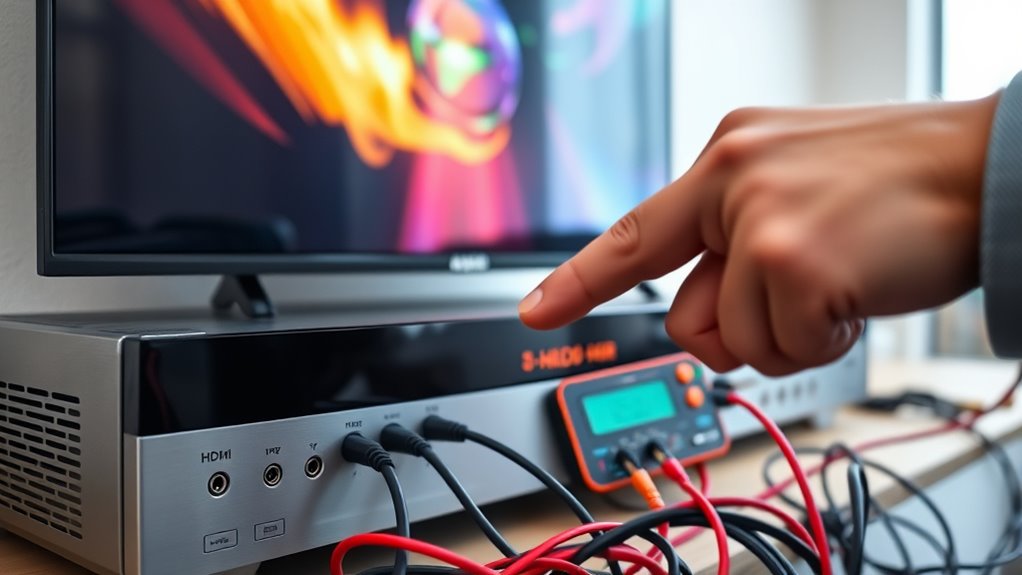
Managing HDCP and content protection conflicts can be challenging because these protocols are designed to prevent unauthorized copying but often interfere with smooth device communication. The core issue often lies in the HDCP key exchange, where devices authenticate each other to establish a secure connection. If this process fails, you’ll encounter content encryption conflicts that block the signal or cause blackouts. To resolve this, start by verifying all device connections and ensuring compatible HDCP versions. Sometimes, unplugging and reconnecting devices resets the handshake, clearing temporary issues. Avoid using splitters or adapters that may not support HDCP properly. If conflicts persist, check for firmware updates or reset devices to reinitiate the HDCP key exchange. Keeping firmware current helps guarantee seamless content encryption management.
Firmware and Driver Updates for Resolution

Updating your device firmware and drivers is often the simplest way to resolve HDMI handshake issues. Firmware updates fix bugs and improve driver compatibility, making sure your hardware communicates smoothly. To get started:
- Check your device manufacturer’s website for the latest firmware updates and install them following the provided instructions.
- Update your graphics card drivers through the manufacturer’s official support page to enhance driver compatibility.
- Restart all connected devices after updates to ensure changes take effect and test the HDMI connection.
Practical Tips for Preventing Future Handshake Errors

To prevent future HDMI handshake errors, establishing good connection habits and maintaining your equipment regularly is vital. Always use high-quality HDMI cables that are certified for your devices, as cheap or damaged cables can cause handshake issues. Keep your devices’ firmware updated; manufacturers often release updates that improve compatibility and fix bugs affecting connections. When connecting or disconnecting devices, handle cables carefully to avoid damage and ensure secure connections. Avoid plugging or unplugging cables while devices are powered on, which can disrupt the handshake process. Regularly check cables and ports for dust or damage, replacing worn or faulty HDMI cables promptly. These simple steps help maintain a stable connection and reduce the likelihood of handshake errors in the future.
Frequently Asked Questions
Can HDMI Handshake Issues Cause Audio-Only or No Video Output?
Yes, HDMI handshake issues can cause audio-only or no video output. When your devices fail to properly communicate due to incompatible cables or outdated device firmware, the handshake process breaks down. You might experience audio without video or no picture at all. To fix this, check cable compatibility, update your device firmware, and guarantee all connections are secure. These steps often resolve handshake problems and restore both audio and video.
How Does HDMI Cable Quality Influence Handshake Success?
Think of your HDMI cable as a sturdy bridge connecting your devices. Higher-quality cables with better shielding resist interference, ensuring a smoother handshake. Durable connectors prevent wear and maintain a solid connection, reducing handshake failures. When your cable boasts superior shielding and robust connectors, it’s like strengthening the bridge, allowing signals to pass effortlessly. This boosts the chances of a successful handshake, leading to reliable audio and video output every time.
Are There Specific Devices More Prone to Handshake Failures?
Certain devices, especially older models or those with limited device compatibility, are more prone to handshake failures. You should make sure your devices have the latest firmware updates, as these often fix compatibility issues. Smart TVs, gaming consoles, and AV receivers tend to experience more handshake problems if they’re outdated or incompatible with newer HDMI standards. Keeping firmware updated and checking device compatibility can considerably reduce handshake failures.
What Role Do HDMI Ports Versus Cables Play in Handshake Problems?
Think of your HDMI connection as a dance where the port design and cable shielding quality are the lead partners. If the port’s design is clunky or the cable’s shielding is flimsy, the handshake becomes a clumsy stumble. Ports with poor construction may not relay signals smoothly, while low-quality cables can introduce interference. Ensuring both are well-crafted helps your devices perform a seamless, harmonious dance without handshake hiccups.
How Long Does a Typical HDMI Handshake Negotiation Take?
A typical HDMI handshake negotiation takes just a few seconds, usually between 2 to 5 seconds. During this process, your device and display agree on settings like refresh rate and color depth to guarantee the best quality. If the handshake takes longer, it could indicate issues with compatibility or signal strength. You can often speed this up by updating firmware, checking connections, or adjusting display settings.
Conclusion
By understanding HDMI handshake basics and troubleshooting common issues, you can often resolve problems quickly. Keep in mind that some theories suggest handshake failures stem from digital handshake protocols struggling with increased data security measures like HDCP. Staying updated with firmware and drivers can prevent many conflicts. Remember, sometimes the root cause is complex, involving both hardware and software, so approach troubleshooting with patience and a willingness to explore potential underlying causes beyond surface symptoms.