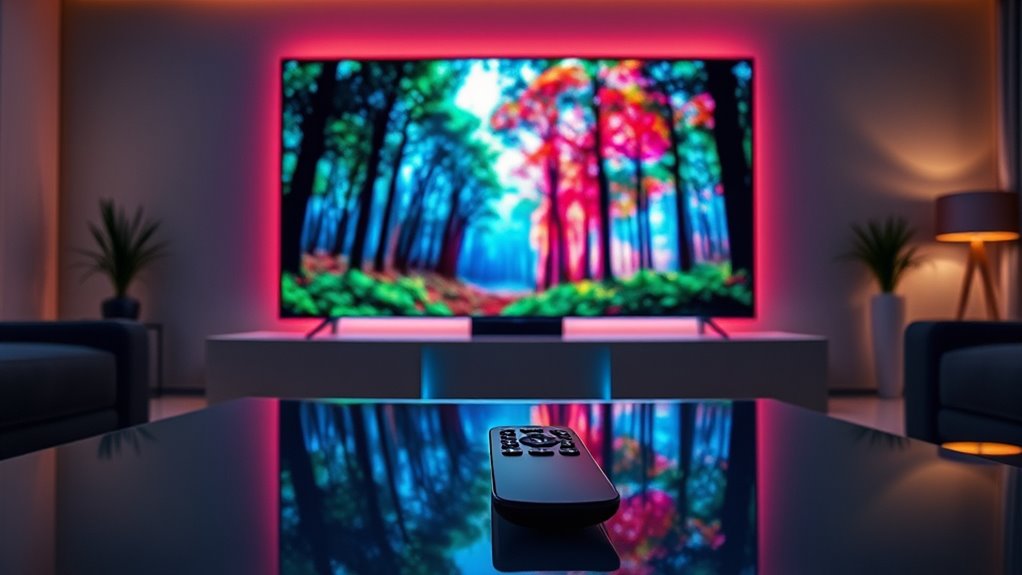
To stream Dolby Vision content, make certain you have a compatible device like an Apple TV 4K, Roku Ultra, or Fire TV Stick 4K, and connect it to a Dolby Vision-supported 4K TV using an HDMI 2.0 or newer cable. Confirm your internet is fast and stable, and update all device firmware and apps. Choose titles labeled with Dolby Vision on streaming platforms like Netflix or Disney+. If you stay tuned, you’ll discover how to optimize your setup for the best HDR experience.

Get business pricing on your home office setup
- Business-only prices and quantity discounts
- Tax-exempt purchasing
- Multiple users, one account, clear invoices
Key Takeaways
- Ensure your streaming device supports Dolby Vision, such as Apple TV 4K or Roku Ultra.
- Use a high-quality HDMI 2.0 or newer cable to connect your device to a Dolby Vision-compatible TV.
- Verify your internet connection is fast and stable to stream 4K HDR content smoothly.
- Update your device’s firmware and streaming apps to the latest versions for optimal Dolby Vision support.
- Select and stream titles explicitly labeled with Dolby Vision from compatible streaming services like Netflix or Disney+.
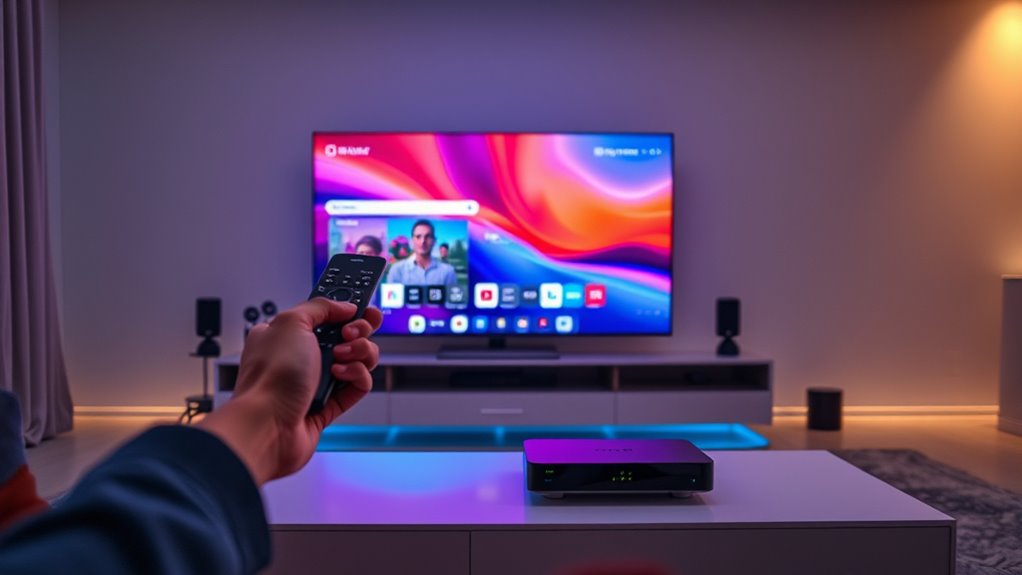
Streaming Dolby Vision content offers stunning picture quality with vibrant colors and impressive contrast, but you’ll need the right setup to enjoy it. To start, understanding HDR formats is essential because Dolby Vision is just one of many options available. HDR (High Dynamic Range) enhances your viewing experience by increasing contrast and expanding color range, but not all HDR formats are compatible with every device. Dolby Vision is a proprietary HDR format that provides dynamic metadata, optimizing picture quality scene by scene. However, other HDR formats like HDR10 or HLG may not deliver the same level of detail or color accuracy. Confirming your device supports Dolby Vision is vital; otherwise, you’ll be limited to standard HDR or SDR content.
Streaming Dolby Vision offers stunning visuals but requires compatible devices and proper setup.
Next, your streaming devices play a significant role in delivering Dolby Vision content. Not all streaming devices support this format, so check the specifications before purchasing or streaming. Devices like certain smart TVs, streaming sticks, and game consoles come equipped with Dolby Vision support. For example, Apple TV 4K, Roku Ultra, Amazon Fire TV Stick 4K, and some Chromecast Ultra models are compatible. When choosing a streaming device, verify that it explicitly states support for Dolby Vision and HDR formats. This guarantees the device can handle the dynamic metadata that Dolby Vision uses to optimize each scene.
Once you’ve confirmed your device’s compatibility, connect it to a high-quality HDMI cable rated for 4K HDR content, preferably HDMI 2.0 or newer. The cable quality matters because cheaper or older cables might not transmit the higher bandwidth needed for Dolby Vision. Make sure your TV also supports Dolby Vision to see the full benefits. Most modern 4K TVs specify Dolby Vision support in their specs, but double-check to avoid disappointment. Additionally, asset division considerations such as proper documentation and understanding of legal requirements can influence the overall setup if you need to troubleshoot or verify equipment compatibility.
After setting up your device and connecting the appropriate cable to a compatible TV, you’ll want to confirm your internet connection is fast enough for streaming 4K HDR content. A stable, high-speed connection minimizes buffering and maintains picture quality. Also, update your streaming device’s firmware and the streaming app to the latest version, as updates often improve HDR handling and compatibility.
Finally, select Dolby Vision content from your streaming service’s library. Platforms like Netflix, Disney+, and Apple TV+ offer a variety of titles in Dolby Vision. Make sure to choose titles labeled with Dolby Vision to enjoy the full spectrum of vibrant colors and detailed contrast. Once everything is set up correctly, you’ll be able to experience streaming Dolby Vision content with breathtaking clarity and color accuracy, transforming your viewing experience into something truly spectacular.
Frequently Asked Questions
What Devices Are Compatible With Dolby Vision Streaming?
You can stream Dolby Vision content on a variety of compatible devices like select smart TVs, streaming boxes, and game consoles. Verify your device supports HDR calibration and is compatible with Dolby Vision content formats for the best experience. Check your device specifications before streaming to confirm Dolby Vision support, as not all devices do. Using compatible hardware guarantees you’ll enjoy vibrant visuals and accurate color reproduction.
Is a High-Speed Internet Connection Necessary for Dolby Vision?
Like a painter needs vibrant colors, your internet speed needs to be high for Dolby Vision. A fast connection guarantees smooth streaming quality, preventing buffering and maintaining stunning visuals. Typically, a minimum of 25 Mbps is recommended for Dolby Vision content, especially in 4K. Without it, your experience may suffer, losing the vivid detail and contrast that make Dolby Vision exceptional. Keep your internet fast to fully enjoy the brilliance of Dolby Vision.
Can I Stream Dolby Vision on Older Televisions?
You can’t stream Dolby Vision content on older televisions unless they support the necessary display technology. Compatibility depends on your television’s hardware; if it lacks Dolby Vision support, upgrading to a newer model with compatible display technology is essential. Check your TV’s specifications to see if it’s Dolby Vision-enabled. Alternatively, consider external devices like certain streaming boxes that can add Dolby Vision compatibility if your TV supports HDR but not Dolby Vision directly.
Do Streaming Services Automatically Support Dolby Vision?
Don’t count on streaming services to automatically support Dolby Vision every time. You need compatible devices and proper content licensing to access full streaming quality. While many platforms now offer Dolby Vision, some still require manual settings adjustments or specific subscriptions. Keep an eye on supported titles and device requirements, because if you’re not careful, you might miss out on the stunning visuals Dolby Vision delivers.
How Do I Troubleshoot Dolby Vision Playback Issues?
If you’re experiencing Dolby Vision playback issues, start by checking your HDR calibration to guarantee your display is optimized. Then, verify your HDMI settings—make sure you’re using a high-speed HDMI cable and that your port supports Dolby Vision. Restart your device and update your firmware if needed. These steps often resolve playback problems, ensuring you enjoy your Dolby Vision content with the best picture quality.
Conclusion
Now that you know how to stream Dolby Vision content, you’re all set to enjoy stunning visuals right at home. Just guarantee your device, streaming service, and internet connection support Dolby Vision for the best experience. Isn’t it amazing how technology brings movies to life with vibrant colors and sharp details? So go ahead, upgrade your setup, and indulge in the cinematic magic of Dolby Vision—why settle for less when you can experience the best?
Halloween Picks
halloween
As an affiliate, we earn on qualifying purchases.