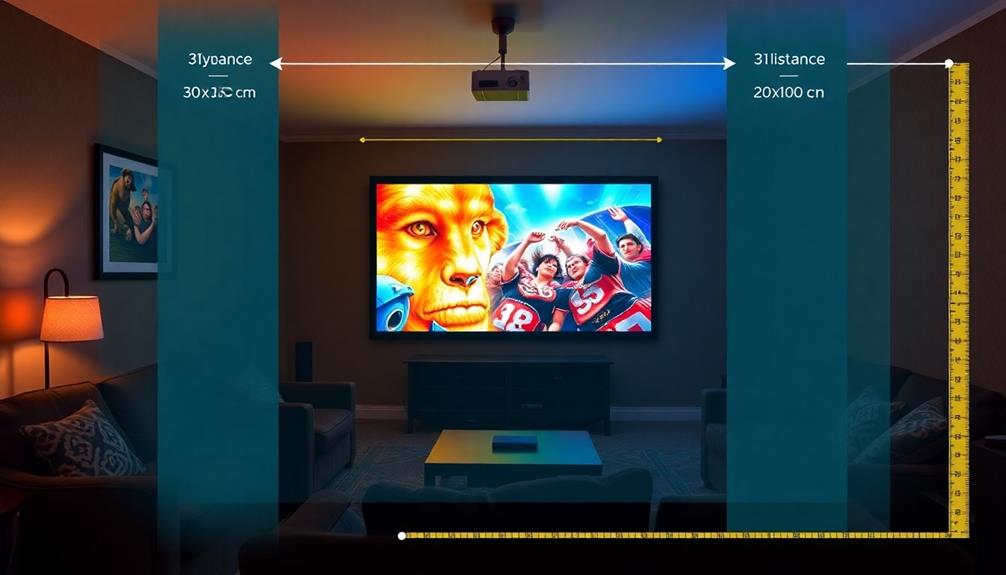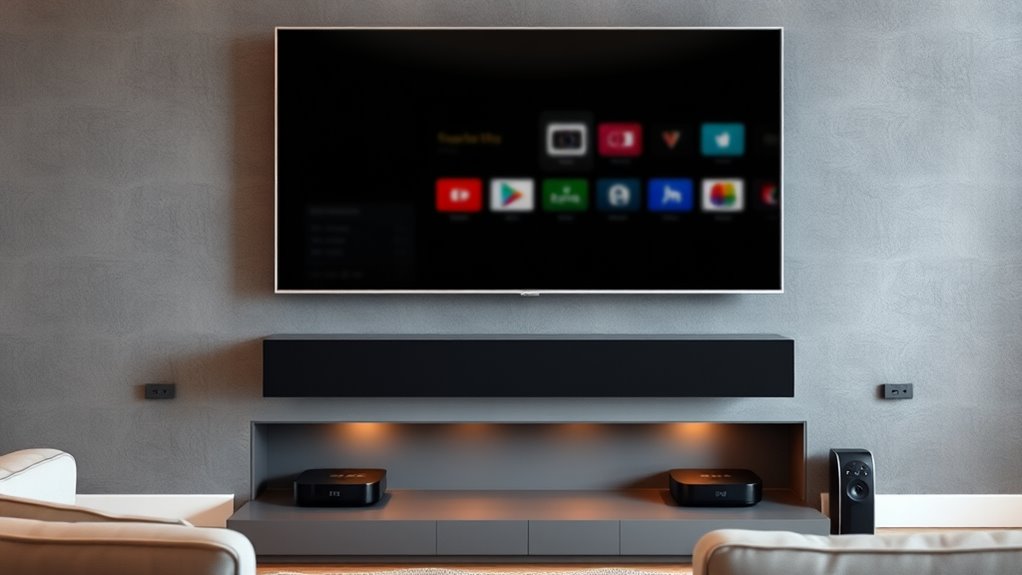

To integrate streaming boxes seamlessly, connect your device to your TV and Wi-Fi for a stable setup. Link your streaming accounts like Netflix or Hulu during setup and organize your home screen for quick access to favorite apps. Use voice control features and parental controls to enhance safety and convenience. Keep your firmware updated for peak performance. If you want to learn how to make all these steps work perfectly together, keep exploring more tips and tricks.
Key Takeaways
- Connect the streaming box to your TV and Wi-Fi, ensuring a stable and reliable internet connection.
- Link all your streaming accounts and customize the home screen to prioritize frequently used apps.
- Enable voice control features during setup for easy navigation and hands-free operation.
- Configure parental controls and set up PINs to ensure a safe and family-friendly viewing environment.
- Regularly update the device firmware and organize your interface for optimal performance and user convenience.
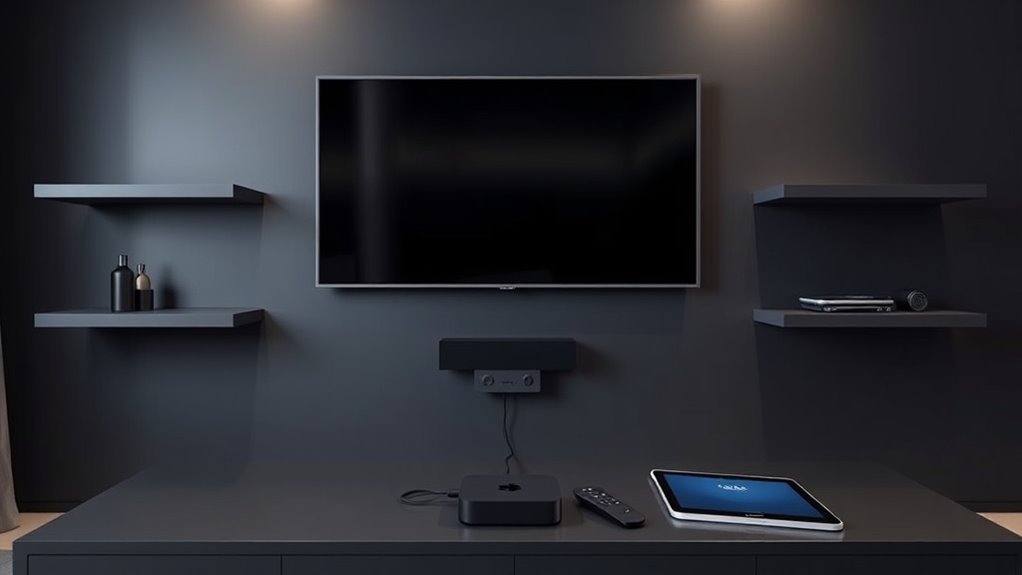
Streaming boxes have become essential tools for accessing a wide range of digital content, but integrating them seamlessly into your home entertainment setup can be challenging. To make the process smoother, start by connecting your streaming box to your TV and Wi-Fi network, ensuring a stable connection. Once connected, use the device’s setup process to link it to your accounts, such as Netflix, Hulu, or Amazon Prime, for quick access to your favorite content. Modern streaming boxes often come with voice control features, which can greatly enhance your user experience. With voice commands, you can search for shows, adjust volume, or even control playback without needing to pick up a remote. To activate this feature, ensure your device supports voice control and set up the voice assistant during initial setup. This not only simplifies navigation but also makes it more intuitive, especially if you have a busy household.
Integrating parental controls is another indispensable step to guarantee safe viewing for children and to manage what content is accessible. Most streaming boxes include parental control settings that allow you to restrict access based on age ratings, set viewing time limits, or block specific content. Take the time to explore these options and customize them according to your family’s needs. You might want to set a PIN to prevent children from changing control settings or accessing restricted content. These controls give you peace of mind, especially if your kids are using the device independently. Once configured, make sure to communicate the restrictions clearly, so everyone understands what’s available and what’s off-limits. Properly setting up parental controls also helps prevent accidental exposure to mature content, making your entertainment experience safer and more manageable. Additionally, understanding how angel number soulmate signals relate to relationships can help you create a more harmonious environment, reflecting positive energy in your shared space.
To further streamline integration, organize your remote controls and app interfaces. Many streaming boxes allow you to control multiple devices from a single remote or app, reducing clutter and simplifying navigation. You can customize your home screen to prioritize your most-used apps, making access quicker and more efficient. Regular updates to your streaming box’s firmware are also indispensable for smooth operation, bug fixes, and the latest features, including improved voice control capabilities. By taking these steps—connecting properly, setting up voice commands, configuring parental controls, and organizing your interface—you guarantee your streaming box blends seamlessly into your entertainment ecosystem. The goal is to create a user-friendly environment where technology works effortlessly for you, providing endless entertainment with minimal fuss.

Marantz AV7706 11.2Ch 8K Ultra HD AV Surround Pre-Amplifier with HEOS Built-in and Voice Control
CINEMATIC EXPERIENCE & LAG-FREE GAMING - The Marantz 11.2 Channel Preamplifier delivers extraordinary visuals in latest 8K UHD...
As an affiliate, we earn on qualifying purchases.
Frequently Asked Questions
How Do I Troubleshoot Connectivity Issues With My Streaming Box?
To troubleshoot connectivity issues with your streaming box, start by checking your network troubleshooting steps—restart your router and make certain your Wi-Fi signal is strong. Verify device compatibility to make sure your streaming box supports your network. If issues persist, reconnect your device, update its firmware, and test on different networks if possible. These steps help identify whether the problem lies with your network or the device itself.
Can I Connect Multiple Streaming Boxes to One TV?
You can connect multiple streaming boxes to one TV with a multi-device setup, but you’ll need an HDMI switch. It’s true that HDMI switching allows you to toggle between devices easily. Make certain your TV has enough HDMI ports or use a switch to expand connectivity. This setup lets you enjoy multiple streaming options without constantly plugging and unplugging, providing a seamless viewing experience.
What Security Settings Should I Enable for Streaming Boxes?
You should enable privacy settings and parental controls on your streaming boxes to keep your content secure. Adjust privacy settings to limit data sharing and prevent unauthorized access. Turn on parental controls to restrict content and manage screen time for kids. Regularly review these settings to make sure they align with your preferences. Doing so helps protect your personal information and creates a safer viewing environment for everyone in your household.
How Do I Update My Streaming Box’s Firmware?
Think of your streaming box as a garden needing regular care. To keep it thriving, navigate to the settings menu and select “System” or “About.” From there, choose “Firmware updates” and follow prompts to install the latest version. As you do this, review your security configurations to guarantee protections are current. Updating firmware keeps your device secure and smooth, like watering a garden to prevent weeds and foster growth.
Are There Compatibility Issues With Different Streaming Services?
You might encounter service compatibility issues or app restrictions when using your streaming box with various streaming services. Some apps may not be available or optimized for your device, leading to limited functionality. To avoid this, check the app store for compatibility before purchasing, keep your firmware updated for better support, and consider using alternative streaming devices that support more services seamlessly. This guarantees smooth access and fewer restrictions during streaming.

Yamaha RX-A6A AVENTAGE 9.2-Channel AV Receiver – 8K and 4K/120 HDMI, eARC, Dolby Atmos, DTS:X, Auro-3D, Surround:AI, Wi-Fi, Bluetooth, MusicCast
AVENTAGE: our top-tier line featuring premium build quality and sound performance
As an affiliate, we earn on qualifying purchases.
Conclusion
Now that you’ve got the tools to connect your streaming box smoothly, think of it as opening a door to endless entertainment. With a few simple steps, you transform your living room into a hub of endless stories and adventures. Just like a skilled conductor guiding an orchestra, you orchestrate a seamless flow of content. So, go ahead—dive in and enjoy the symphony of streaming bliss, all at your fingertips.
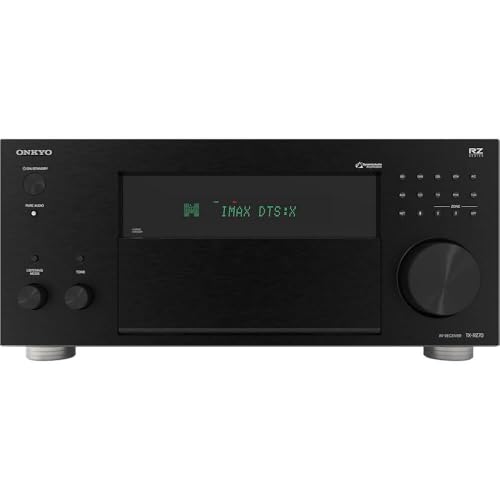
Onkyo TX-RZ70 11.2-Channel AV Receiver - 140 Watts Per Channel, Dirac Live Out of Box, Works with Sonos Certified, THX Certified and More
11 CHANNELS, 140 WATTS: Home theater buffs rejoice! The Onkyo TX-RZ70 is our most powerful AVR yet, giving...
As an affiliate, we earn on qualifying purchases.
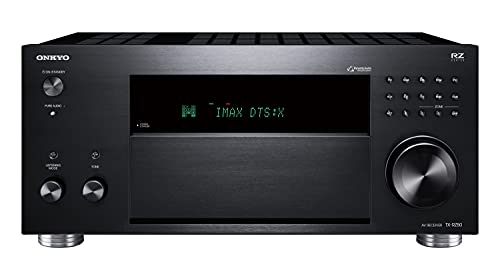
Onkyo TX-RZ50 9.2-Channel AV Receiver - 120 Watts Per Channel, Dirac Live Out of Box, Works with Sonos Certified, THX Certified and More
TAKE THE ROOM OUT OF THE EQUATION: Dirac Live automatically calibrates sound in your room using either your...
As an affiliate, we earn on qualifying purchases.