
To set up parental controls on streaming devices and services, start by accessing your device’s settings menu—look for options like “Parental Controls” or “Restrictions.” Enable these features and create a PIN or password to prevent changes. For streaming platforms, sign into your account and set restrictions based on age ratings or create kid-specific profiles. Adjust screen time limits and filtering options so your children enjoy safe, age-appropriate content. Keep exploring to learn more tips and tricks.

Get business pricing on your home office setup
- Business-only prices and quantity discounts
- Tax-exempt purchasing
- Multiple users, one account, clear invoices
Key Takeaways
- Access device settings (e.g., Roku, Fire TV, Apple TV) and enable parental controls or Kids Mode, setting a PIN to restrict changes.
- Use streaming platform profiles (Netflix, Disney+, Hulu) to create kids-only profiles with age-appropriate content filters.
- Set content restrictions based on maturity levels and enable PIN protection for added security.
- Enable screen time limits within device or platform settings to promote healthy viewing habits.
- Regularly update and review restrictions to ensure consistent enforcement of safe, age-appropriate viewing.
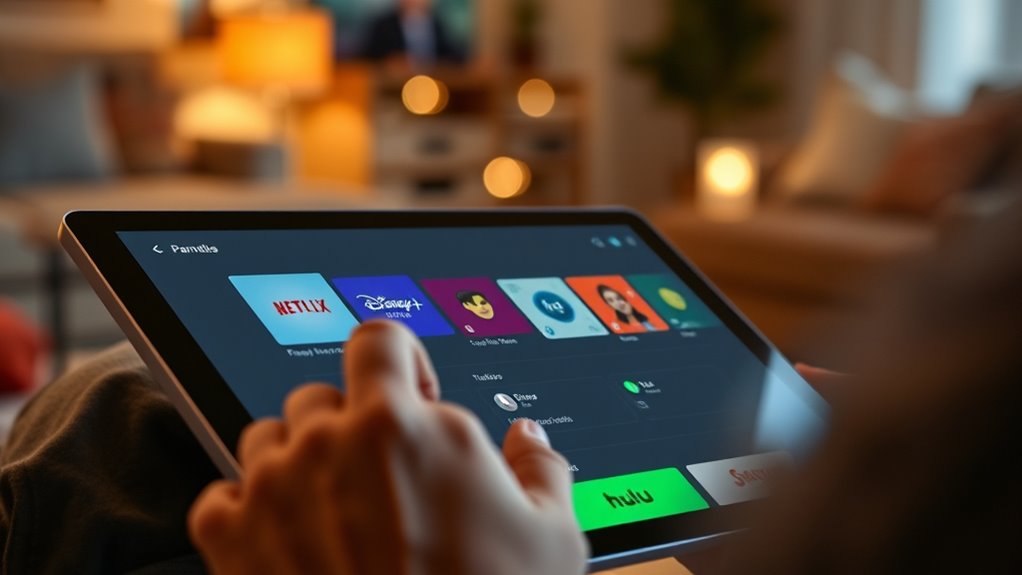
With the rise of streaming devices, parents have more control than ever to protect their children from inappropriate content. You can set up parental controls directly on devices or through streaming service accounts, giving you peace of mind while your kids explore their favorite shows. The first step is to familiarize yourself with the device’s settings menu. Most streaming devices, like Roku, Amazon Fire TV, and Apple TV, have built-in parental control options that are straightforward to enable. Access the settings, look for sections labeled “Parental Controls,” “Restrictions,” or “Kids Mode,” and follow the prompts to activate them. You’ll typically need to create a PIN or password that prevents children from changing these settings later, ensuring your restrictions stay in place.
Once you’ve enabled device-level controls, it’s essential to set restrictions on individual streaming platforms. Popular services like Netflix, Disney+, Hulu, and Amazon Prime Video all include parental control features. Log into each account through a parent’s profile and navigate to the account or settings menu. Here, you can set maturity level restrictions, ensuring your children only see content appropriate for their age. Many platforms allow you to create separate profiles for kids, which automatically restrict content based on age ratings. This way, your child can enjoy a curated selection without accidentally stumbling onto inappropriate material. Additionally, understanding the importance of content filtering can help you better tailor restrictions to your child’s viewing habits.
In addition to content restrictions, consider enabling features that limit screen time. Some streaming services have built-in timers that automatically log kids out after a set period, helping you enforce healthy viewing habits. It’s a good idea to set clear boundaries—for example, limiting streaming to certain hours of the day or specific days of the week. You can also pair these controls with physical timers or use device-specific parental controls to enforce time limits effectively. Moreover, understanding the importance of contrast ratio in projectors can help create an optimal viewing environment, making the experience more engaging and comfortable for children during their screen time.
Products Worth Considering

Levoit Vital 100S-P Air Purifier with Washable Pre-Filter

Bose TV Speaker Compact Soundbar with Bluetooth and HDMI-ARC, Black

Shark Rocket Pet Plus Corded Stick Vacuum, Lightweight, Bordeaux, HV322
As an affiliate, we earn on qualifying purchases.
Frequently Asked Questions
Can Parental Controls Be Bypassed on Streaming Devices?
You might wonder if parental controls can be bypassed on streaming devices. While some tech-savvy users might find ways around restrictions, most controls are designed to be secure. To keep your kids safe, you should regularly update passwords, choose strong PINs, and enable all available security features. Staying vigilant and monitoring usage helps prevent children from accessing content you want to restrict, giving you peace of mind.
How Do Parental Controls Affect App Updates and New Content?
Coincidences happen when you least expect them, just like how parental controls can influence your app experience. They often delay or restrict app updates and new content until you enter the right passcode or disable controls. This means your streaming options are sometimes limited, and new features might not appear immediately. So, while parental controls protect your kids, they also shape how and when you get fresh content.
Are Parental Controls Customizable for Different Age Groups?
You can customize parental controls for different age groups, tailoring restrictions to suit each child’s needs. Many streaming platforms let you set specific content filters, time limits, and access permissions based on age categories. This flexibility guarantees that younger kids see age-appropriate content, while older children can explore more options within safe boundaries. By adjusting these settings, you maintain control and promote a safer viewing experience for everyone.
Can Multiple Profiles Have Separate Parental Control Settings?
They say “variety is the spice of life,” and that’s true for parental controls too. Yes, multiple profiles can have separate settings, giving you control over what each user sees based on age or maturity. You can customize restrictions for different family members, ensuring everyone’s experience is appropriate. This flexibility helps you manage content without over-restricting, making streaming safe and enjoyable for everyone in your home.
Do Parental Controls Work Across All Streaming Platforms Simultaneously?
Parental controls don’t automatically work across all streaming platforms at once. Each service sets its own rules and limitations, so you need to enable and customize controls on every platform your kids use. To guarantee consistent protection, you should review and adjust parental settings individually on each streaming service. This way, you can better manage what your children access, no matter which platform they’re using.
Conclusion
By setting up parental controls, you’re not just restricting content—you’re fostering a safer environment where kids can explore responsibly. Some believe that strict controls limit creativity, but in truth, guiding their viewing habits helps them develop healthy boundaries and critical thinking. Think of it as planting a seed: with careful guidance, your child can grow into a confident, responsible viewer who navigates the digital world wisely. Your proactive steps truly shape their digital future.