To fix audio delay issues, first make certain your Bluetooth device is properly connected and within range. Re-pair your device to clear glitches, and check if it supports low-latency codecs like aptX or AAC—upgrading if needed. Adjust your device settings to enable low-latency or sync modes, and keep firmware updated for peak performance. When possible, switch to wired connections for minimal delay. If these steps don’t help, exploring further solutions could improve your experience.
Key Takeaways
- Ensure Bluetooth devices are properly paired, within range, and support low-latency codecs like aptX or AAC.
- Enable Bluetooth device settings such as “low latency mode” or prioritize audio sync options.
- Update device firmware or software to fix bugs affecting audio delay and improve performance.
- Use wired connections like HDMI or auxiliary cables to eliminate wireless latency issues.
- Switch to newer Bluetooth devices designed for low latency to improve audio-video synchronization.
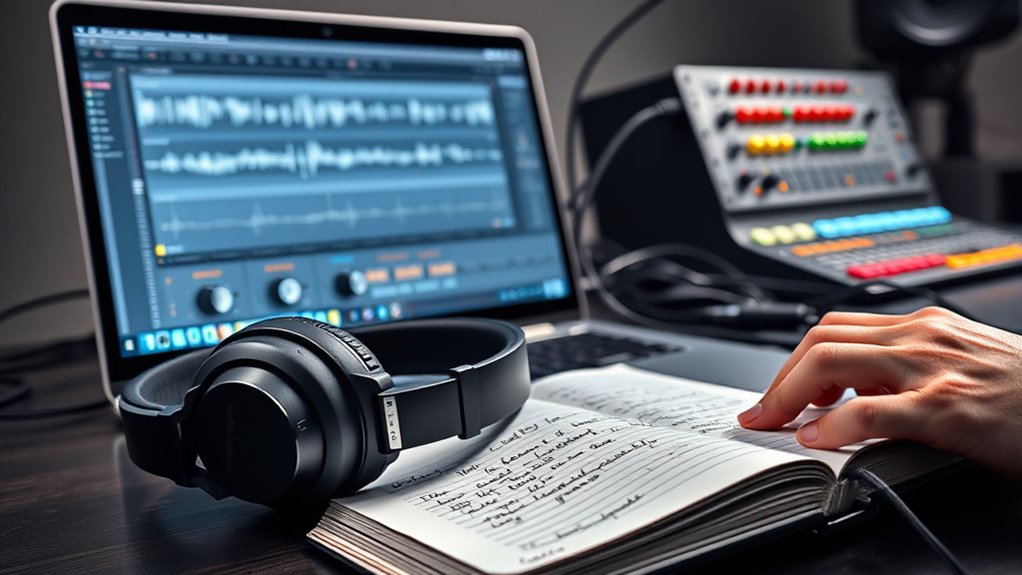
Audio delay issues can be frustrating, especially when synchronization between sound and video is essential. One of the most common causes of these delays is related to Bluetooth pairing. When your device connects wirelessly via Bluetooth, it’s designed to prioritize convenience, but it can introduce audio latency that disrupts your viewing or listening experience. You might notice that the sound doesn’t match the on-screen action, or that voices are out of sync with the visuals. This delay often stems from how Bluetooth transmits data, which can inherently introduce lag due to the time it takes to encode, transmit, and decode audio signals.
To troubleshoot this, start by checking your Bluetooth pairing. Ensure your device and Bluetooth headphones or speakers are properly connected and within the suitable range. Sometimes, disconnecting and re-pairing your devices can resolve minor glitches that cause audio latency. Also, verify if your device supports Bluetooth codecs like aptX or AAC, which are designed to reduce latency. If your hardware supports these codecs, make sure they’re enabled, as they can substantially improve synchronization. Keep in mind that some older Bluetooth devices or lower-quality accessories might not handle high-quality audio streams efficiently, leading to noticeable delays.
Check Bluetooth connections and codecs; re-pair devices to fix audio sync issues.
Another step is to examine your device’s audio settings. Many smartphones, computers, and media players offer adjustable audio latency options or settings that can help diminish delay. For example, some devices have a “low latency mode” or an option to prioritize audio synchronization over other features. Adjust these settings if available, and test if it improves the timing between sound and video. Additionally, updating your device’s firmware or software can sometimes fix bugs related to Bluetooth audio processing. Manufacturers often release updates that address latency issues, so keeping everything current is a good idea.
Being aware of the My Dogs’ Names can help you better understand and manage your pet’s health, including potential issues related to audio and environment. If the delay persists, consider switching to wired connections where possible. Wired audio cables, such as HDMI or auxiliary cords, transmit data directly without the buffering or encoding delays associated with wireless Bluetooth connections. This can drastically reduce audio latency and restore proper sync. However, if wireless is necessary, you might explore alternative wireless protocols or newer Bluetooth devices designed specifically to minimize delay.
Frequently Asked Questions
Can Audio Delay Be Caused by Network Congestion?
Yes, audio delay can be caused by network congestion. When your network is overloaded, it slows down data transfer, leading to increased audio buffering. This buffering delays the audio stream, causing noticeable lag. To fix this, you should reduce network traffic, connect via a wired connection, or prioritize your device’s bandwidth. These steps help minimize network congestion, ensuring smoother audio playback with less delay.
How Do External Sound Cards Affect Audio Sync?
External sound cards can impact audio sync by introducing additional audio latency. When you connect an external sound device, it may process audio signals slower than internal sound cards, causing delays. This added latency can make your audio feel out of sync with visuals or other audio sources. To minimize this, choose high-quality external sound cards designed for low latency, and guarantee your drivers and software are up to date for peak performance.
Is There a Difference in Delay Between Wired and Wireless Devices?
A picture is worth a thousand words, so think of wired devices as a direct, clear stream, offering less delay. You’ll notice less Bluetooth latency with wired connections, which means audio sync stays tight. Wireless devices tend to have more delay due to data transmission, so if timing matters, wired advantages make your audio experience more synchronized and reliable. For minimal delay, stick with wired whenever possible.
Can Software Updates Fix Audio Lag Problems?
Yes, software updates can fix audio lag problems. They improve software compatibility, fixing bugs that cause delay. Sometimes, updates also optimize hardware performance, reducing lag. If you’re experiencing audio delay, make sure your device’s software is current. If issues persist, consider hardware upgrades, like better audio cards or cables, to further minimize lag. Regularly updating your system keeps everything running smoothly and helps resolve audio delay issues effectively.
What Is the Typical Latency Range for Gaming Headsets?
Think of gaming headset latency as a tightrope walk—aiming for just enough tension. Typically, you’ll see a latency range of 20-40 milliseconds, which keeps your game sound synchronized with visuals. Beware of Bluetooth interference and verify driver compatibility; these can cause delays, making your audio feel out of sync. To stay on the safe side, pick headsets with low latency specs to keep your gaming experience smooth as butter.
Conclusion
Now that you’ve navigated the maze of audio delays, you’re armed with the tools to restore harmony. Think of your audio setup as a symphony—when one instrument lags, the melody falters. But with patience and these fixes, you’ll tune each component until the sound flows seamlessly, like a gentle river in full flow. Keep troubleshooting, and soon your audio experience will be smooth sailing, a perfect rhythm that keeps you immersed in every beat.