To troubleshoot Wi-Fi dropouts, start by placing your router in a central, elevated spot away from metal objects and electronic devices like microwaves or cordless phones. Reduce interference by switching to the 5 GHz band or changing channels manually. Make sure your router has the latest firmware and consider upgrading if your device is outdated. Small adjustments in placement and reducing obstacles often solve most issues. For more detailed tips, you’ll find helpful solutions below.

Get business pricing on your home office setup
- Business-only prices and quantity discounts
- Tax-exempt purchasing
- Multiple users, one account, clear invoices
Key Takeaways
- Ensure the router is centrally located on a high shelf, away from walls, metal objects, and electronic devices that cause interference.
- Switch to the 5 GHz band or change router channels to reduce congestion and interference from other devices.
- Reposition antennas and avoid large metal appliances or reflective surfaces that can weaken or reflect Wi-Fi signals.
- Regularly update router firmware and consider upgrading to a higher-quality router for better stability and coverage.
- Monitor network usage and minimize interference sources to maintain consistent Wi-Fi connection.
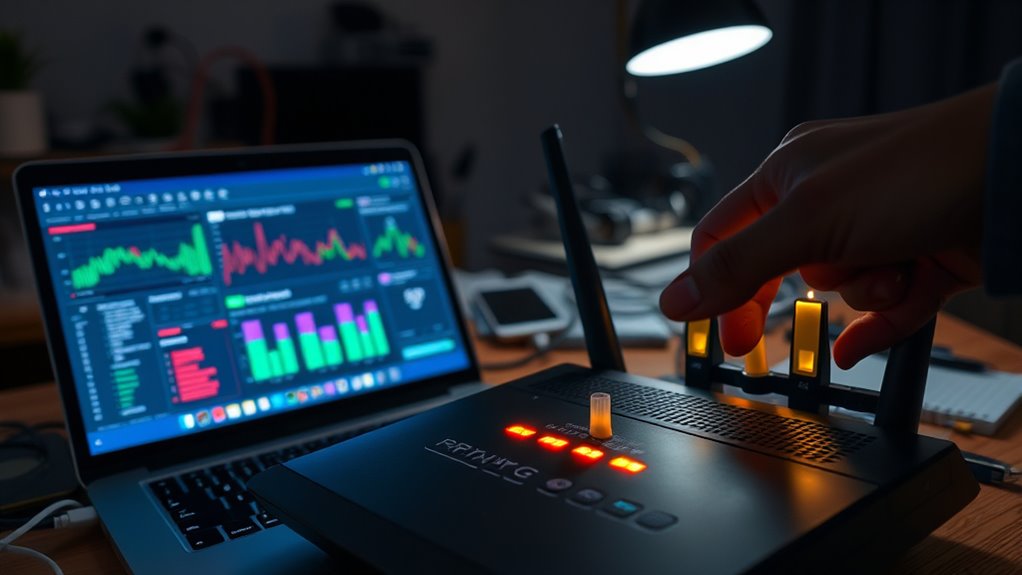
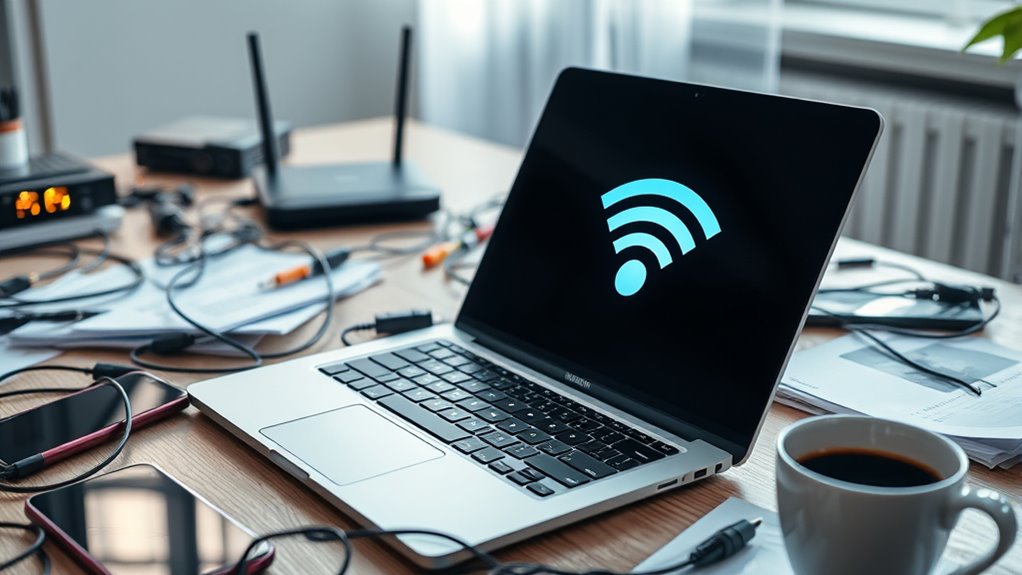
Wi-Fi dropouts can be frustrating, especially when you’re in the middle of an important task or streaming your favorite show. One of the most common reasons for these interruptions is poor router placement. If your router isn’t positioned correctly, it can notably weaken your Wi-Fi signal. To improve your connection, place your router in a central location within your home, ideally on a high shelf or elevated surface. Avoid placing it near walls, metal objects, or thick furniture, as these can block or weaken the signal. Keep it away from electronic devices like cordless phones, microwave ovens, or baby monitors, which can cause interference. Proper placement ensures that your Wi-Fi signal reaches all parts of your home more evenly, reducing the chances of dropouts. Additionally, the use of high-quality routers can significantly enhance signal strength and stability, especially in larger homes or spaces with challenging layouts.
Proper router placement and reducing interference can significantly improve Wi-Fi stability.
Interference sources are another major contributor to Wi-Fi instability. Many household devices operate on overlapping frequencies, especially in the 2.4 GHz band, which most routers use. Common interference sources include Bluetooth gadgets, wireless cameras, and neighboring Wi-Fi networks. If your home has multiple Wi-Fi networks close by, they can compete for the same channel, causing congestion and dropped connections. You can try changing your router’s channel to a less crowded one—most routers offer an auto-select feature, but manually selecting a channel often yields better results. Additionally, switching to the 5 GHz band can help, as it’s less congested and less susceptible to interference from household devices.
Another way to reduce interference is to keep your router away from large metal objects or appliances that emit electromagnetic signals. For example, placing your router near a refrigerator or a large metal filing cabinet can create signal reflection and absorption, weakening your Wi-Fi. If you notice persistent dropouts, check for nearby sources of interference and reposition your router accordingly. Sometimes, simple adjustments like moving it further away from electronic devices or repositioning antennas can make a noticeable difference.
Ultimately, troubleshooting Wi-Fi dropouts involves making sure your router is ideally placed and minimizing interference sources. Regularly updating your router’s firmware can also improve stability and performance. By paying attention to where your router sits and what devices might be causing interference, you can notably enhance your Wi-Fi reliability. This proactive approach helps you enjoy seamless browsing, streaming, and working from home without constant interruptions. Being aware of network congestion and taking steps to mitigate it can make a significant difference in your overall Wi-Fi experience.
Top picks for "troubleshoot dropout"
As an affiliate, we earn on qualifying purchases.
Frequently Asked Questions
Can Wi-Fi Dropouts Affect All Devices Equally?
Wi-Fi dropouts may not affect all devices equally because of device compatibility and signal congestion. Some devices might struggle with older Wi-Fi standards or weaker antennas, causing more frequent drops. Additionally, crowded networks with many devices can lead to signal congestion, impacting some devices more than others. To improve stability, make sure your devices support current standards and reduce network congestion by limiting connected devices or upgrading your router.
How Does Router Placement Influence Wi-Fi Stability?
Proper placement of your router profoundly influences Wi-Fi stability. Placing your router in a central, elevated position enhances signal strength, reducing dropouts. Avoid hiding it behind furniture or near metal objects that can block signals. Clear, unobstructed router positioning minimizes interference, ensuring a stronger, steadier connection. Remember, strategic router positioning promotes superior signal strength, which directly stabilizes your Wi-Fi, helping you stay seamlessly connected.
Are There Specific Devices That Cause Wi-Fi Interference?
Certain devices can cause wireless interference and device conflicts, disrupting your Wi-Fi. For example, cordless phones, baby monitors, microwave ovens, and Bluetooth devices often operate on similar bands as your router, creating interference. Additionally, other electronics like wireless cameras or neighboring Wi-Fi networks can interfere with your signal. To minimize issues, keep such devices away from your router and select less crowded channels for your Wi-Fi network.
What Is the Impact of Firmware Updates on Wi-Fi Connection?
Firmware updates can substantially improve your Wi-Fi connection by fixing bugs and enhancing device compatibility. When you update your router’s firmware, you often get better performance and stability, reducing dropouts. However, if the update isn’t compatible with your device, it might cause issues. Always verify your firmware is from a trusted source and check compatibility before updating to maintain a reliable Wi-Fi connection.
How Can I Identify if My ISP Is Causing Dropouts?
You can identify if your ISP is causing dropouts by checking for service outages in your area or contacting their support. Look for signs like internet disconnects at specific times, slow speeds, or inconsistent connectivity. Use your ISP’s status webpage or social media updates to see if there are ongoing ISP issues. If outages persist, it’s likely that your ISP’s service disruptions are behind your Wi-Fi dropouts.
Conclusion
Don’t let Wi-Fi dropouts keep you frustrated. With these simple troubleshooting tips, you can quickly identify and fix common issues. Even if you’re not tech-savvy, following these steps will help stabilize your connection. Remember, sometimes a quick router restart or repositioning your device makes all the difference. So go ahead—give these solutions a try, and enjoy a smoother, more reliable Wi-Fi experience without the hassle.
Fall Picks
fall essentials
As an affiliate, we earn on qualifying purchases.