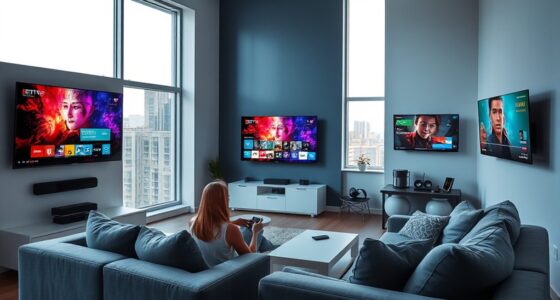

If you’re having trouble with a streaming app, start by checking if your device supports the app and update both the app and your device’s software. Make certain your internet connection is fast and stable—aim for at least 5 Mbps for HD. Position your Wi-Fi router closer or switch to Ethernet if possible. Adjust network settings like channel or QoS to improve performance. Keep troubleshooting tips in mind to fix common issues and enjoy smooth streaming.
Key Takeaways
- Verify device compatibility and ensure both OS and app are updated to the latest versions.
- Test your internet speed; aim for at least 5 Mbps for HD and 25 Mbps for 4K streaming.
- Improve network stability by positioning your router closer, using wired connections, or upgrading your equipment.
- Restart your device, modem, and router to resolve temporary software or connection glitches.
- Adjust Wi-Fi settings such as changing channels or enabling QoS to prioritize streaming traffic.
Streaming app issues can be frustrating, but many problems are easy to fix with simple troubleshooting steps. When your stream stalls or refuses to load, the first thing to check is device compatibility. Not all devices support every streaming app, and outdated software can cause conflicts. Make sure your device meets the app’s minimum requirements and that both your operating system and the app itself are up to date. Updating your device’s firmware or operating system often resolves compatibility issues, ensuring the app runs smoothly. If your device isn’t compatible or is running an outdated version, consider switching to a different device or updating the current one to improve performance.
Next, focus on network optimization. Streaming heavily relies on a stable and fast internet connection. If your network isn’t optimized, you’ll experience buffering, low video quality, or disconnects. Start by testing your internet speed with a dedicated speed test tool. For high-quality streaming, you typically need at least 5 Mbps for HD and 25 Mbps for 4K content. If your speeds are lower, consider restarting your modem and router to clear any temporary glitches. Position your Wi-Fi router closer to your device to strengthen the signal, or switch to a wired Ethernet connection if possible, as wired connections tend to be more reliable than Wi-Fi. Additionally, limit other devices from using bandwidth-intensive activities like downloads, online gaming, or video calls while you’re streaming. These activities can hog bandwidth and cause your stream to lag or buffer.
Another aspect of network optimization involves adjusting your Wi-Fi settings. Switching your router to a less congested channel or enabling quality of service (QoS) features can prioritize streaming traffic, improving your overall experience. If your Wi-Fi network continues to be problematic, consider upgrading your router or subscribing to a higher-speed internet plan. Many internet providers also offer Wi-Fi extenders or mesh networks to improve coverage in larger homes, reducing dead zones where streaming quality drops. Being aware of device compatibility and ensuring your hardware supports the streaming app can prevent many common issues.

VCE HDMI Ethernet Wall Plate, (UL Listed) RJ45 CAT6 Keystone Jack and 4K HDMI Female to Female Keystone Jack Insert, 2-Port Wall Plate for HDTV
Cat6 and HDMI wall plate: Provide a clean and simple way to connect your wall-mounted HDTV, projector, router...
As an affiliate, we earn on qualifying purchases.
Frequently Asked Questions
Can Streaming Apps Work Offline?
Streaming apps can work offline if they offer offline functionality, allowing you to download content beforehand. However, this feature often has download limitations, such as a time frame for access or a cap on the number of downloads. You need to verify your app supports offline use and that you’ve downloaded the content you want to watch. Keep in mind, not all streaming services provide offline functionality, so check the app’s features.
How Do I Improve Streaming Quality on Slow Internet?
To improve streaming quality on slow internet, you should lower your video quality settings. This reduces the demand on your internet speed, helping to minimize video buffering. Additionally, close other apps using bandwidth and connect your device directly to Wi-Fi if possible. These steps guarantee your connection is optimized, resulting in smoother playback despite slower internet speeds.
Are There Legal Restrictions on Streaming Content?
You might find that streaming content is subject to certain copyright restrictions and regional licensing agreements, which can influence what’s available in your area. While enjoying your favorite shows, remember that these legal considerations help protect creators’ rights. So, although some content may be limited or unavailable, using authorized platforms guarantees you’re staying within the law and supporting the artists and studios that produce the content you love.
How Do I Update My Streaming App?
To update your streaming app, go to your device’s app store, like Google Play or Apple App Store. Search for your app, then tap “Update” if it appears. If it doesn’t, check for app updates in your device’s settings or troubleshoot steps like restarting your device or clearing cache. Keeping your app updated guarantees smoother streaming and access to the latest features.
Why Does My App Keep Crashing Unexpectedly?
If your app keeps crashing unexpectedly, it’s likely due to app crash causes like outdated software, insufficient memory, or conflicting background apps. To troubleshoot app crashes, start by updating your app and device software, then clear cache or restart your device. Confirm your device meets the app’s requirements. If the issue persists, uninstall and reinstall the app. These steps often resolve common causes behind app crashes.

BUPLDET 4K/8K HDMI and Ethernet CAT6 Port Keystone Insert Wall Plate White - HDTV Cable RJ45 Keystone Insert Plate for Midsize/Oversize Cover Plate
Fit with single gang, 2 gang or multi-gang standard size, midway/oversized cover plate(for extra large hole on the...
As an affiliate, we earn on qualifying purchases.
Conclusion
If you follow these simple troubleshooting steps, you’ll likely fix your streaming app issues quickly. Did you know that over 60% of users experience buffering problems at least once a week? Staying patient and checking your connection can make a big difference. Remember, keeping your app updated and restarting your device can prevent many common issues. With a few quick tips, you’ll be back to enjoying your favorite shows in no time.

Electrical Cabinet Cooling Fan and Thermostat Set for Electrical Box Enclosures
【Easy to Install】We have connected the cables, you just need to put it to the right position you...
As an affiliate, we earn on qualifying purchases.
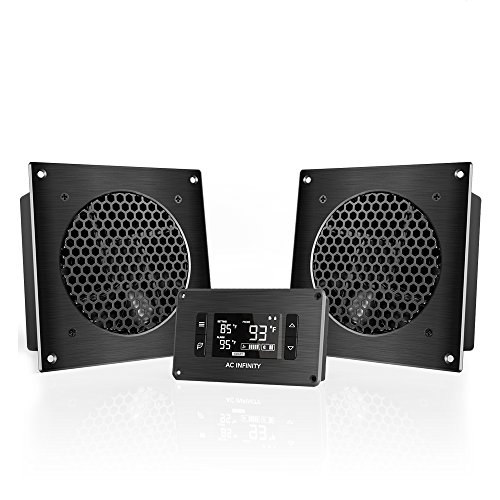
AC Infinity AIRPLATE T8, Quiet Cooling Dual-Fan System 6" with Thermostat Control, for Home Theater AV Cabinets
An ultra-quiet UL-certified dual fan system designed for cooling cabinets that requires minimal noise.
As an affiliate, we earn on qualifying purchases.