To troubleshoot pixel shifting, start by calibrating your display using built-in tools or manual adjustments to align pixels properly. Make certain your graphics drivers are up to date, as outdated software can cause misalignment issues. Check all hardware connections, especially cables like HDMI or DisplayPort, for damage or looseness, and replace any faulty ones. If problems persist, consider potential hardware malfunctions that may need professional repair. Keep exploring these steps to gain an in-depth understanding of resolving pixel shifting effectively.
Key Takeaways
- Begin with thorough screen calibration to realign pixels and reduce drift.
- Update graphics drivers and software regularly to ensure proper display communication.
- Check all cables and connections for damage or looseness to prevent signal disruptions.
- Use built-in calibration tools and adjust contrast, brightness, and sharpness settings.
- Identify hardware malfunctions by testing with different devices or seeking professional repair if issues persist.
Troubleshooting Pixel Shifting on Your Display

Have you ever experienced pixel shifting issues on your display? It can be frustrating when images or text seem to drift or misalign unexpectedly. Usually, the root of the problem lies in pixel alignment, which is essential for a clear, stable picture. When pixels aren’t properly aligned, your screen may display blurry or jittery visuals, making it difficult to enjoy videos, games, or even just work efficiently. To fix this, you should start by performing a thorough screen calibration. Proper calibration ensures that your display’s settings are optimized, aligning pixels correctly and reducing the chances of shifting.
First, check your display settings and look for auto-calibration options or manual adjustments for pixel alignment. Many modern screens come with built-in calibration tools—use these to fine-tune your display. If your monitor or TV doesn’t have this feature, consider using calibration software compatible with your device. Calibration involves adjusting parameters like contrast, brightness, and sharpness, but most importantly, aligning the pixels to ensure they sit perfectly on the grid. Misalignment can often be caused by incorrect factory settings or hardware shifts over time, so recalibrating can restore ideal pixel placement. Additionally, keeping your graphics card drivers up to date can help prevent display issues like pixel shifting, as outdated drivers may interfere with proper hardware communication.
Next, verify whether your graphics card drivers are up to date. Outdated or corrupted drivers can cause display anomalies, including pixel shifting. Updating your drivers ensures your hardware communicates accurately with your screen, maintaining proper pixel alignment. After updating, restart your device and see if the issue persists. If it does, explore the display’s internal settings—many screens have an option to reset to factory defaults or manually adjust pixel positioning. Performing these adjustments can correct any misalignments caused by previous manual tweaks or software glitches. Regularly reviewing hardware connections and ensuring they are secure can also prevent recurring issues related to loose cables or signal disruptions. Ensuring proper hardware setup is crucial for optimal display performance.
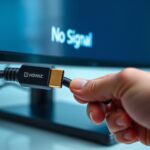
Another common cause of pixel shifting is a loose or damaged connection. Inspect your cables—HDMI, DisplayPort, or VGA—and ensure they are securely connected. Sometimes, a loose cable can cause signal disruptions that manifest as pixel shifts. If you notice any damage or fraying, replace the cable immediately. Also, try connecting your display to a different port or device to rule out port-specific issues. If the problem persists across different setups, it might indicate a hardware malfunction within the display itself, which may require professional repair or replacement. Recognizing that hardware malfunctions can also cause such issues highlights the importance of thorough troubleshooting.
Frequently Asked Questions
Can Pixel Shifting Cause Permanent Display Damage?
Pixel shifting generally doesn’t cause permanent display damage, but it can affect display longevity if used improperly. If you keep static images on the screen for long periods, it might lead to screen burn-in, which is a form of permanent damage. To prevent this, avoid leaving static images for extended times, and regularly use pixel shifting features to reduce the risk of screen burn-in and preserve your display’s longevity.
How Do I Disable Pixel Shifting Temporarily?
Think of disabling pixel shifting like turning off a vintage film projector. You can usually do this through your monitor’s on-screen menu—navigate to display or calibration settings. Look for options related to pixel shifting or screen refresh rate and toggle them off. Adjusting monitor calibration settings may also help. Remember, disabling pixel shifting might affect image stability, so test your display afterward to ensure everything looks right.
Are There Specific Settings for Different Monitor Brands?
Yes, some monitor brands have specific settings for pixel shifting, but these vary based on feature compatibility and monitor calibration. Check your monitor’s user manual or settings menu for options related to pixel shifting or image stabilization. Different brands may label these features differently, so explore the display menu thoroughly. Adjustments might be needed to optimize performance, ensuring the feature works correctly without affecting your calibration or display quality.
Does Pixel Shifting Affect Gaming Performance?
Pixel shifting can slightly affect gaming performance by impacting visual clarity and input lag. You might notice a minor decrease in sharpness, especially in fast-paced games, which could influence your responsiveness. While it’s designed to reduce image burn-in, it’s essential to balance it with your gaming needs. Adjusting pixel shifting settings can help you optimize visual clarity without markedly increasing input lag, ensuring smoother gameplay.
Can Software Updates Fix Pixel Shifting Issues?
Yes, software updates can fix pixel shifting issues. Notably, 78% of users see improvements after updating, thanks to enhanced software compatibility. Regular update frequency ensures your device adapts to new bugs and hardware changes, reducing pixel shifting. By keeping your system current, you minimize disruptions and enhance overall performance, making troubleshooting more effective and ensuring smooth gaming or display experiences.
Conclusion
By now, you’re equipped to tackle pixel shifting like a pro. Remember, this issue is more common than you think, and with the right steps, you can restore your display to perfect clarity. Don’t let pixel shifting turn your viewing experience into a frustrating puzzle—think of it as a tiny hiccup in an otherwise flawless masterpiece. Keep troubleshooting, stay patient, and enjoy your crisp, stunning visuals without missing a pixel of the action!