
This guide provides a step-by-step process to help you select, install, and fine-tune a 4K home theater projector. It is aimed at DIY enthusiasts and homeowners with basic technical skills who want a high-quality cinematic experience at home. Expect to spend several hours on the setup, including positioning, mounting, calibration, and testing. The result will be a sharp, vibrant 4K image projected onto your screen, ready for movies, gaming, or streaming.

Get business pricing on your home office setup
- Business-only prices and quantity discounts
- Tax-exempt purchasing
- Multiple users, one account, clear invoices

VIDAA X9 PRO 4K Outdoor Projector with Smart TV Features, HDR10, Dolby Audio, WiFi6, Bluetooth, AI Auto Focus, and Auto Screen Fit
- ✔ Resolution: Native 1080P, 4K decoding
- ✔ Brightness: 920 ANSI lumens
- ✔ HDR: HDR10

Epson Home Cinema 3800 4K PRO-UHD 3-Chip 3LCD Projector with HDR Technology
- ✔ Resolution: 4K PRO-UHD
- ✔ Brightness: 3,000 Lumens
- ✔ Contrast Ratio: 100,000:1

XGIMI HORIZON 4K RGB Triple Laser Home Projector, 3200 ISO Lumens
- ✔ Laser Type: RGB Triple Laser
- ✔ Lumens: 3200 ISO
- ✔ Contrast Ratio: 100,000:1
Difficulty: Intermediate | Time: 4-6 hours
What You’ll Need
Tools & Materials:
- Measuring tape
- Level
- Power drill and bits
- Screwdriver
- Ladder or step stool
- Calibration disc or software
Knowledge:
- Basic understanding of electrical wiring and mounting hardware
- Ability to operate calibration tools or software
- Familiarity with projector specifications and placement considerations
Ensure the projector is compatible with your screen size and room dimensions. Have a clear plan for cable management and power outlets. Prepare a clean, clutter-free space for installation.
VIDAA X9 PRO 4K Outdoor Projector with Smart TV Features, HDR10, Dolby Audio, WiFi6, Bluetooth, AI Auto Focus, and Auto Screen Fit
<p>The <strong>VIDAA X9 PRO</strong> stands out for its bright, vivid images with 920 ANSI lumens and HDR10 support, making it suitable for outdoor movie nights and casual home use. While it supports 4K decoding, its native resolution is 1080P, meaning it can display 4K content but doesn’t output true 4K resolution. Its smart TV capabilities with VIDAA OS, extensive app support, and AI auto focus ease setup and operation. Compared with others, its wireless connectivity—including AirPlay 2 and Bluetooth 5.4—adds convenience, but outdoor use may require additional setup to optimize image quality. This model is better suited for users who want a flexible, smart projector that can handle outdoor environments and casual home viewing, but those seeking native 4K output should look elsewhere.</p>
Pros:
- Bright and vivid images with HDR10 support
- Smart TV features with extensive app support
- Auto focus and keystone correction for quick setup
- Seamless wireless connectivity, including AirPlay 2
Cons:
- Native resolution is 1080P, decoding 4K content only
- Heavy outdoor use may require extra calibration
- Not designed for true native 4K output
Best for: Outdoor movie lovers and casual users seeking smart features and ease of setup
Not ideal for: Dedicated home cinema enthusiasts or those requiring true native 4K resolution
Bottom line: A versatile outdoor projector with smart features, ideal for casual viewing but not for true 4K home cinema.
“A versatile outdoor projector with smart features, ideal for casual viewing but not for true 4K home cinema.”
Epson Home Cinema 3800 4K PRO-UHD 3-Chip 3LCD Projector with HDR Technology
<p>The <strong>Epson Home Cinema 3800</strong> offers a true 4K experience with its 4K PRO-UHD technology, delivering sharp images and vibrant colors thanks to its advanced 3LCD technology. Its high brightness of 3,000 lumens and contrast ratio of 100,000:1 make it ideal for well-lit rooms and dedicated home theaters. Unlike the VIDAA X9 PRO, it outputs native 4K resolution, providing crisp detail for cinematic viewing. It also includes built-in stereo speakers and Bluetooth, but its larger size and higher price point may be barriers for some. Perfect for those who want a dedicated home theater projector with authentic 4K resolution and excellent color rendition, but less suited for portable or outdoor use due to its size and cost.</p>
Pros:
- Native 4K resolution with excellent color and detail
- High brightness and contrast for bright, immersive images
- Includes built-in stereo speakers and Bluetooth
- Focus and lens shift adjustment for precise setup
Cons:
- Relatively large and requires significant space
- Premium price may be prohibitive for some
- Requires compatible 3D glasses for 3D content
Best for: Home cinema enthusiasts seeking native 4K resolution and high-quality images
Not ideal for: Users with limited space or those prioritizing portability and outdoor use
Bottom line: A top-tier choice for dedicated home theaters that demand true 4K resolution and vibrant visuals, with some tradeoffs in size and cost.
“A top-tier choice for dedicated home theaters that demand true 4K resolution and vibrant visuals, with some tradeoffs in size and cost.”
XGIMI HORIZON 4K RGB Triple Laser Home Projector, 3200 ISO Lumens
<p>The <strong>XGIMI Horizon</strong> combines high brightness at 3200 ISO lumens with a 4K RGB triple laser setup, offering vivid colors and high contrast for both movies and gaming. Its built-in <em>Google TV</em> platform, paired with Harman Kardon speakers, provides a premium smart experience. The flexible lens shift and optical zoom allow for easy setup in diverse spaces, while gaming features like 240Hz refresh rate and VRR make it an excellent choice for gamers seeking large-screen immersion. Compared with the other two options, it excels in brightness and versatility but is priced at a premium and requires a suitable environment for projection. This pick is ideal for those wanting a high-performance, all-in-one entertainment system with gaming in mind.</p>
Pros:
- Vivid 4K image with high contrast
- Built-in Google TV and Harman Kardon speakers
- Flexible lens shift and zoom for easy setup
- Advanced gaming features for smooth gameplay
Cons:
- High price point
- Requires ample space for projection
- Setup complexity for optimal performance
Best for: Home entertainment centers, gamers, and users needing high brightness and flexibility
Not ideal for: Budget-conscious buyers or those with small, constrained spaces
Bottom line: A high-end projector tailored for versatile entertainment and gaming, offering bright, vivid images with premium features but at a higher cost.
“A high-end projector tailored for versatile entertainment and gaming, offering bright, vivid images with premium features but at a higher cost.”
As an Amazon Associate we earn from qualifying purchases.
Before You Start
Verify your room dimensions and lighting conditions. Confirm the projector model supports 4K resolution and check its installation requirements. Clear the area where the projector will be mounted or placed to avoid obstructions during installation.
Step-by-Step Instructions
Step 1: Choose the optimal projector placement
Measure your room’s distance from the screen to determine the ideal projector location, considering the throw ratio specified by the projector manufacturer. Decide whether to mount the projector on the ceiling or place it on a table, ensuring it aligns with your screen’s center.
Tip:Use a laser distance meter for precise measurements. Keep the projector at the recommended distance to avoid image distortion or loss of resolution.
Check: The projector is positioned at the correct distance with a clear line of sight to the screen, and the placement aligns horizontally with the screen center.
Step 2: Mount or position the projector securely
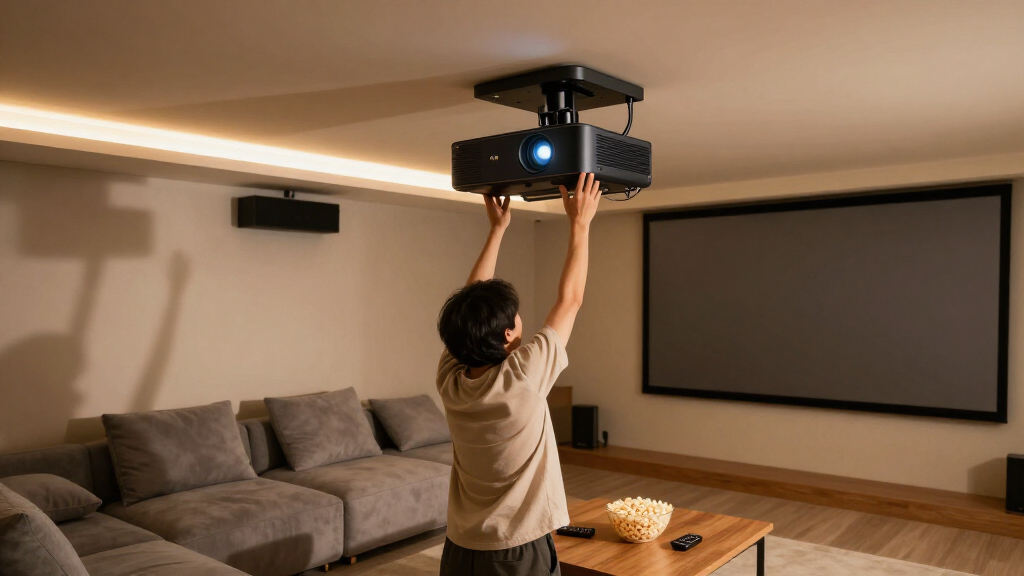
If mounting on the ceiling, install the mounting bracket according to the manufacturer’s instructions, ensuring it is firmly anchored into ceiling joists. If placing on a stand or table, position the projector on a stable, level surface that can support its weight.
Tip:Use a level during mounting to ensure the projector is perfectly horizontal. Consider using adjustable mounts for fine tilt adjustments.
Check: The projector is stable, level, and aligned with the screen, with no wobbling or shifting when touched.
Step 3: Connect power and source devices
Plug the projector into a grounded power outlet. Connect your input devices—such as a 4K Blu-ray player, streaming device, or gaming console—using the HDMI 2.0 or higher cable recommended for 4K HDR content.
Tip:Use high-speed HDMI cables for best image quality. Organize cables to prevent tripping or damage.
Check: The projector powers on without errors, and input devices are recognized when selected.
Step 4: Adjust the projector’s basic alignment
Turn on the projector and project onto the screen. Use the lens shift, zoom, and focus controls to align the image centrally and achieve a sharp picture. Adjust the projector’s tilt and position as needed to fill the screen completely without keystone distortion.
Tip:Use the projector’s test patterns or built-in geometric correction features if available.
Check: The projected image fills the screen evenly, with sharp edges and minimal keystone or distortion.
Step 5: Calibrate the image for true 4K quality
Use a calibration disc or professional calibration software to adjust brightness, contrast, color, and gamma settings. Focus on achieving accurate colors, deep blacks, and bright highlights.
Tip:Follow the calibration disc instructions carefully and make small adjustments, verifying each change.
Check: The image displays vibrant colors, deep blacks, and clear details across the entire screen, with no color casts or washed-out areas.
Step 6: Configure projector settings for the environment
Set the projector’s picture mode to ‘Cinema’ or ‘Custom’ for optimal quality. Enable HDR settings if supported. Adjust the lamp mode to ‘Eco’ for longevity, or ‘Bright’ for high ambient light conditions.
Tip:Disable any automatic image enhancements that may interfere with the picture quality during calibration.
Check: The settings are saved, and the picture quality remains consistent across different content types.
Common Mistakes to Avoid
- Placing the projector too close or too far from the screen — Measure the throw distance based on the manufacturer’s specifications and position accordingly.
- Ignoring keystone or geometric distortion — Use lens shift and geometric correction features to align the image properly before calibrating.
- Using low-quality HDMI cables — Use certified high-speed HDMI 2.0 or higher cables rated for 4K HDR content.
- Overlooking room lighting conditions — Control ambient light with curtains or blinds and set projector brightness accordingly.
Troubleshooting
Problem: Projected image is blurry or out of focus
Solution: Adjust the lens focus ring until the image appears sharp across the entire screen.
Problem: Color inaccuracies or washed-out picture
Solution: Re-run calibration with a colorimeter or calibration disc, adjusting color and gamma settings.
Problem: No signal or input recognized
Solution: Check all cable connections, select the correct input source, and ensure the input device is powered on.
Problem: Projection is skewed or keystone distorted
Solution: Use keystone correction or physically reposition the projector for better alignment.
What Success Looks Like
The projector displays a bright, sharp, and color-accurate 4K image that fills the screen evenly without distortion. The picture remains clear and vibrant across different content sources and lighting conditions.
Next Steps
Regularly clean the projector lens and filters. Keep firmware updated for optimal performance. Experiment with different picture modes for varied content. Plan periodic recalibration if you notice color shifts over time.
Frequently Asked Questions
How do I know if my projector supports 4K HDR?
Check the specifications label or user manual for support of 4K resolution and HDR (High Dynamic Range). Ensure the HDMI port supports HDMI 2.0 or higher.
Can I mount a 4K projector on the ceiling?
Yes, most 4K projectors can be ceiling mounted if you use a compatible mounting bracket and follow safety guidelines. Ensure the mount is securely anchored into ceiling joists.
What is the best screen size for a 4K projector?
The ideal size depends on the room dimensions and viewing distance. Generally, a screen between 100 and 150 inches diagonally provides an immersive experience without pixelation if positioned at appropriate distances.
How often should I calibrate my projector?
Calibrate when you notice color shifts or image quality decline, typically every 6-12 months, especially in rooms with changing lighting conditions.
Halloween Picks

JOYIN 5-Foot Halloween Animatronic Drinking Skeleton

10 ft Halloween Inflatable Archway with Built-in LEDs

10-Foot Halloween Inflatable Double-Headed Dragon Archway
As an affiliate, we earn on qualifying purchases.