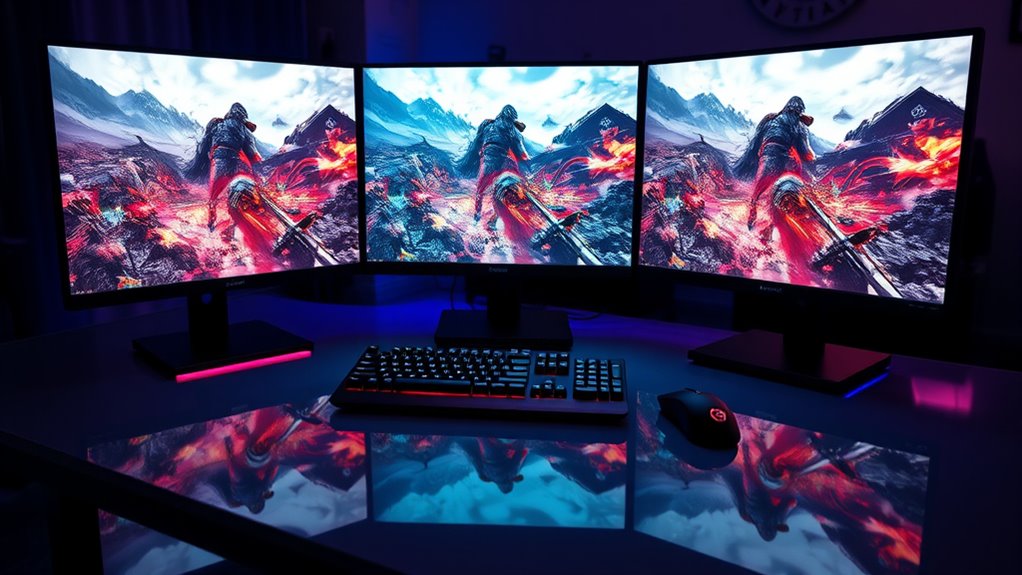
To create a multi-screen gaming setup, start by ensuring each monitor is properly calibrated with consistent colors, brightness, and contrast for seamless visuals. Adjust their positioning to be at eye level and about an arm’s length away, angling screens inward to reduce neck strain. Use adjustable stands or mounts to maintain ergonomic comfort, supporting good posture during long sessions. Mastering both calibration and ergonomic setup enhances your gaming experience—keep exploring to learn more about optimizing your environment.

Get business pricing on your home office setup
- Business-only prices and quantity discounts
- Tax-exempt purchasing
- Multiple users, one account, clear invoices
Key Takeaways
- Choose monitors with matching resolution, size, and refresh rates for seamless multi-screen visuals.
- Use adjustable mounts or stands to align screens at eye level and minimize gaps.
- Calibrate each monitor individually for consistent color, brightness, and contrast across all displays.
- Arrange monitors in a slight curve and position them at an optimal viewing distance for immersion.
- Incorporate ergonomic furniture and proper setup to reduce strain and enhance comfort during extended gaming sessions.
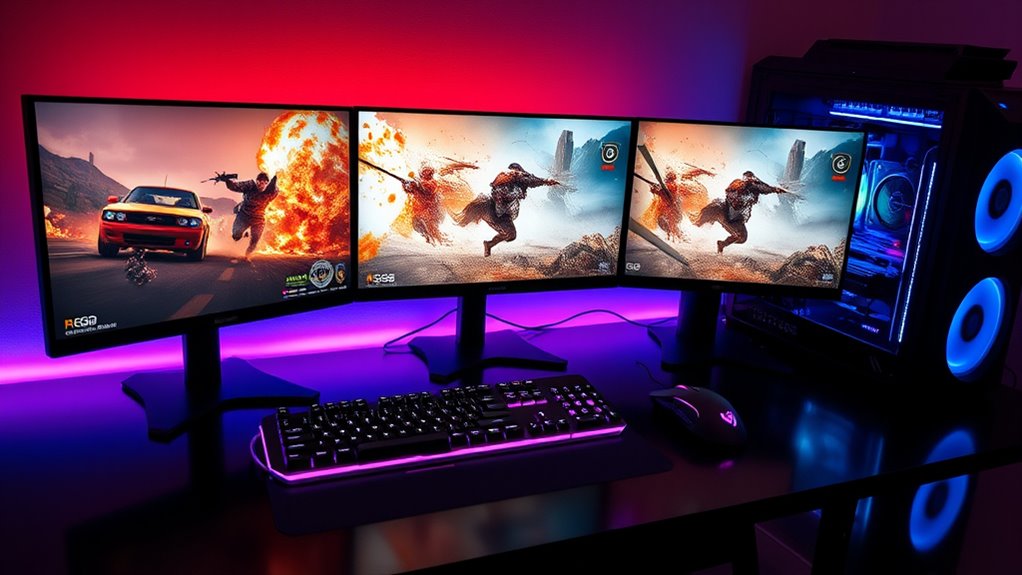
Ever wondered how to elevate your gaming experience with a multi-screen setup? The key to making it truly immersive starts with proper monitor calibration. When your screens are calibrated correctly, colors appear vibrant and consistent across all displays, preventing eye strain and guaranteeing you see every detail as intended. Take the time to adjust brightness, contrast, and color balance for each monitor, so they match seamlessly. This step is essential, especially if you’re using different brands or models. Once calibrated, your gaming environment feels more natural, making every scene more engaging and less fatiguing over long sessions. Additionally, monitor calibration enhances overall visual accuracy, ensuring that in-game colors and details are represented faithfully, which can give you a competitive edge.
Now, aside from calibration, desk ergonomics plays an indispensable role in creating a comfortable and efficient gaming station. A well-designed setup minimizes strain on your neck, shoulders, and eyes, allowing you to play longer without discomfort. Position your monitors at eye level, so you don’t have to tilt your head up or down constantly. Keep the screens about an arm’s length away, and angle them slightly inward to form a gentle curve, reducing the need for excessive neck movement. Use adjustable monitor stands or mounts to customize the height and angle for each display, ensuring a natural, relaxed posture. Good desk ergonomics also involve having a supportive chair that keeps your back straight and feet flat on the floor, which helps maintain proper alignment during intense gaming sessions.
Integrating monitor calibration with ergonomic principles creates a balanced environment that enhances visual clarity and physical comfort. When your screens are correctly calibrated, you won’t strain your eyes trying to discern details or compensate for color inaccuracies. Proper desk positioning guarantees you maintain good posture, preventing fatigue and discomfort that can distract from gameplay. Both elements work together to give you a more immersive experience, allowing you to focus fully on the game without being hindered by physical or visual stress.
Products Worth Considering

Hisense 85 U6 Pro Series Mini-LED ULED 4K UHD HDR Gaming AI Smart Fire TV (85U6SF Pro)

Dyson Big Ball Multi Floor Canister Vacuum, Yellow
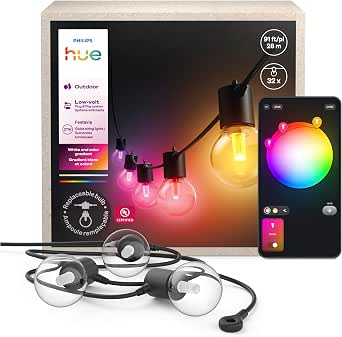
Philips Hue Festavia Globe Outdoor String Lights, 32 Bulbs, 91 ft
As an affiliate, we earn on qualifying purchases.
Frequently Asked Questions
What Is the Ideal Monitor Size for a Multi-Screen Gaming Setup?
The ideal monitor size for a multi-screen gaming setup is typically 24 to 27 inches. This size offers a good balance for monitor alignment, ensuring seamless visuals across screens without gaps. It also allows for easier color calibration, so your display remains consistent. Larger screens might be impressive, but they can cause alignment issues and make color calibration more challenging. Stick with 24-27 inches for *best* immersion and setup harmony.
How Do I Synchronize Refresh Rates Across Multiple Monitors?
Don’t worry about refresh rate compatibility; syncing your monitors is easier than you think. To achieve proper monitor synchronization, make certain all your monitors support the same refresh rate or use software like NVIDIA G-SYNC or AMD FreeSync. Adjust settings in your graphics card control panel to match refresh rates across screens. This prevents screen tearing and ensures a seamless gaming experience, giving you smooth, synchronized visuals.
What Graphics Card Specifications Are Necessary for Multi-Screen Gaming?
You need a graphics card with enough power to handle multiple high-resolution displays smoothly. Look for one with at least 8GB of VRAM and a powerful GPU like an NVIDIA GeForce RTX 30 series or AMD Radeon RX 6000 series. make sure it has multiple video output ports—HDMI, DisplayPort, or USB-C—so you can connect all your monitors simultaneously. This setup guarantees ideal performance and seamless gaming across screens.
How Can I Reduce Bezel Distraction in a Multi-Monitor Setup?
Imagine your screens as a panoramic canvas—bezel width can act like jagged edges breaking the flow. To reduce bezel distraction, opt for monitors with thinner bezels and guarantee precise monitor alignment. Use adjustable stands and mounting options to create a seamless shift across screens. Carefully calibrate each monitor’s height and angle, so the gaps vanish, turning your multi-screen setup into a smooth, immersive landscape where distractions fade into the background.
What Are the Best Cable Management Tips for Multi-Screen Gaming Stations?
To keep your multi-screen gaming station tidy, start with cable labeling to easily identify each wire. Use cable routing techniques like zip ties or cable sleeves to organize cables along your desk or behind your setup, preventing tangles and clutter. Secure cables to the monitor stands or desk edges to minimize movement. Regularly check and adjust your cable management to maintain a clean, distraction-free gaming environment.
Conclusion
Now that you know how to set up multiple screens, you’ll enjoy an immersive gaming experience like no other. Did you know that gamers with multi-screen setups report 30% more engagement and faster reaction times? By investing a little effort, you’ll boost both your performance and enjoyment. So, go ahead—expand your view, enhance your gameplay, and feel the difference a multi-screen setup can make. The game’s better when you see it all.