If your 4K streams keep buffering or lag, your network might be the culprit. Check your internet speed—most 4K content needs at least 25 Mbps. Confirm your Wi-Fi signal is strong and stable, especially near your router. Watch out for multiple devices hogging bandwidth during peak hours, and run ping tests to detect latency or packet loss. Router settings and interference can also limit performance. Keep exploring to uncover more ways to optimize your network for smooth streaming.

Get business pricing on your home office setup
- Business-only prices and quantity discounts
- Tax-exempt purchasing
- Multiple users, one account, clear invoices
Key Takeaways
- Frequent buffering and low-quality 4K streams indicate insufficient bandwidth or network congestion.
- Running speed tests below 25 Mbps download speed suggests a network bottleneck for 4K content.
- High latency, packet loss, or ping spikes during streaming point to network performance issues.
- Multiple devices active simultaneously can saturate bandwidth, causing 4K buffering problems.
- Weak Wi-Fi signals or outdated router hardware can limit data flow, leading to streaming bottlenecks.
How Can You Tell If Your Network Is Causing 4K Buffering?
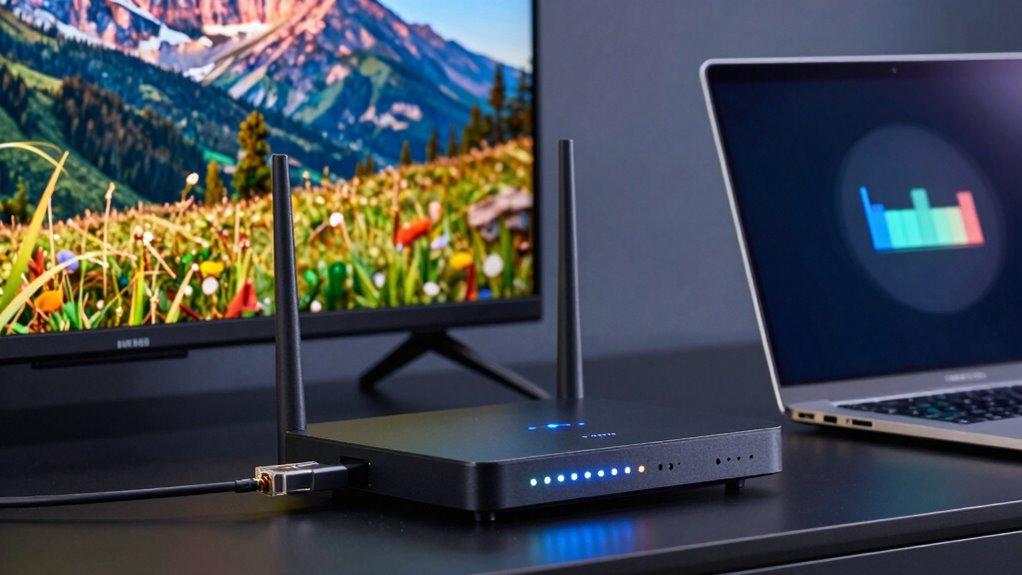
If you’re experiencing frequent buffering while streaming 4K content, your network might be the culprit. One common sign is bandwidth issues, where your internet connection isn’t fast enough to handle the high data demands of 4K streams. Check if multiple devices are using bandwidth simultaneously, causing congestion. Signal interference is another red flag; wireless signals can be disrupted by nearby electronics, thick walls, or overlapping Wi-Fi channels. If your device shows a weak or inconsistent connection, that’s a strong indicator of interference. Additionally, sudden drops in streaming quality or frequent buffering pauses often point to a network problem. Recognizing these signs helps you determine whether your network is causing the buffering, so you can take targeted steps to improve your setup. Bandwidth management and understanding network congestion can further help optimize your streaming experience. Monitoring your network performance can also reveal underlying issues affecting streaming quality.
How to Test Your Internet Speed for 4K Streaming

To make certain your internet connection can handle 4K streaming, start by testing your current speed with a reliable online tool. Bandwidth testing gives you an accurate measurement of your download and upload speeds, helping you determine if your connection meets the recommended requirements for 4K content. Conduct multiple tests at different times to get a clear picture of your typical speeds. Use a speed comparison to see if your results align with the streaming service’s guidelines—generally, at least 25 Mbps for 4K. If your speeds are below this threshold, you may experience buffering or poor quality. Regular testing can also reveal whether your network is consistently underperforming or if issues are sporadic, guiding your next steps for improvement. Additionally, consider how your network setup might be affecting your bandwidth and overall streaming quality. Optimizing your Wi-Fi router placement and reducing interference can significantly enhance your streaming performance, especially if you utilize mesh networking to improve coverage.
Is Your Wi-Fi Signal Strong Enough for Smooth 4K Playback?
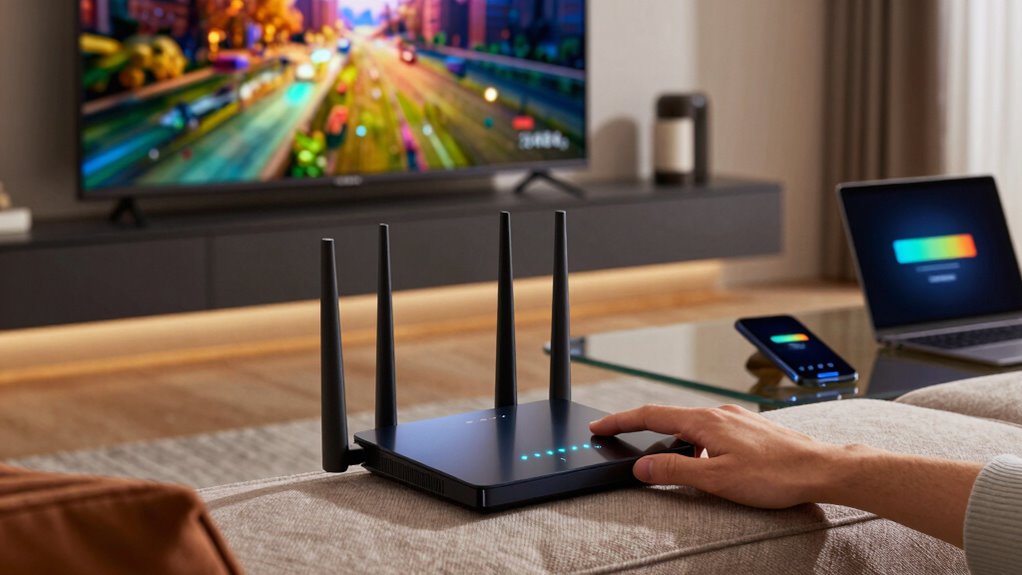
A strong Wi-Fi signal is essential for smooth 4K playback, as a weak connection can lead to buffering and lowered video quality. If your signal isn’t robust, your device may struggle with sufficient bandwidth allocation, causing interruptions. Signal interference from nearby devices or thick walls can weaken your Wi-Fi, making it harder to stream high-resolution content seamlessly. To check if your Wi-Fi is strong enough, ensure your device is close to the router and free from obstructions. Consider switching to a less congested channel or upgrading to a dual-band router to reduce interference. A stable, high-quality Wi-Fi signal guarantees your device gets the bandwidth it needs for uninterrupted 4K streaming, preventing frustrating pauses and pixelation. Additionally, understanding your Wi-Fi signal strength can help you identify and address potential issues before they impact your viewing experience. Regularly monitoring your network’s bandwidth capacity can help optimize your setup for better streaming performance. Moreover, checking your router placement can significantly improve overall signal quality and streaming stability. Ensuring that your network congestion remains low during peak hours can also make a noticeable difference in streaming quality. Properly managing your microplastics in dust levels in your environment can also contribute indirectly to better indoor device performance by maintaining cleaner air and reducing dust interference that might impact sensitive electronics.
Could Multiple Devices Be Slowing Down Your Network?
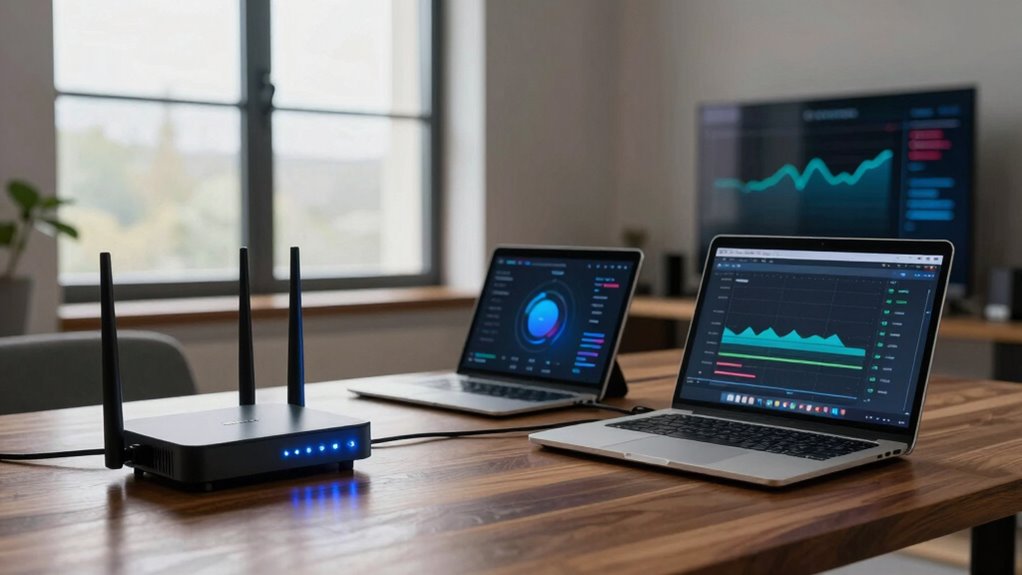
Having a strong Wi-Fi signal is just one part of ensuring smooth 4K streaming; multiple devices connected to your network can also slow things down considerably. When several gadgets are online simultaneously, they compete for bandwidth, causing buffering and lag. To prevent this, consider device prioritization, where your router assigns higher bandwidth to your streaming device. Additionally, managing bandwidth allocation guarantees that no single device monopolizes the network, leaving enough resources for your 4K content. Some routers let you set these preferences easily, while others require more advanced settings. Understanding network bandwidth can help you make better decisions about managing your devices. Knowing how network congestion impacts your connection can further assist in optimizing your setup. Implementing Quality of Service (QoS) settings allows you to control which devices and applications receive priority, improving your streaming experience. By controlling which devices get priority and how bandwidth is distributed, you can improve your streaming quality and reduce interruptions, making sure your 4K content plays smoothly despite multiple devices being connected. Being aware of network traffic patterns can also help you identify times when congestion is highest and adjust your usage accordingly. Monitoring traffic flow can give you insights into peak usage times and help you plan your streaming sessions more effectively.
How to Detect Network Congestion During Peak Hours
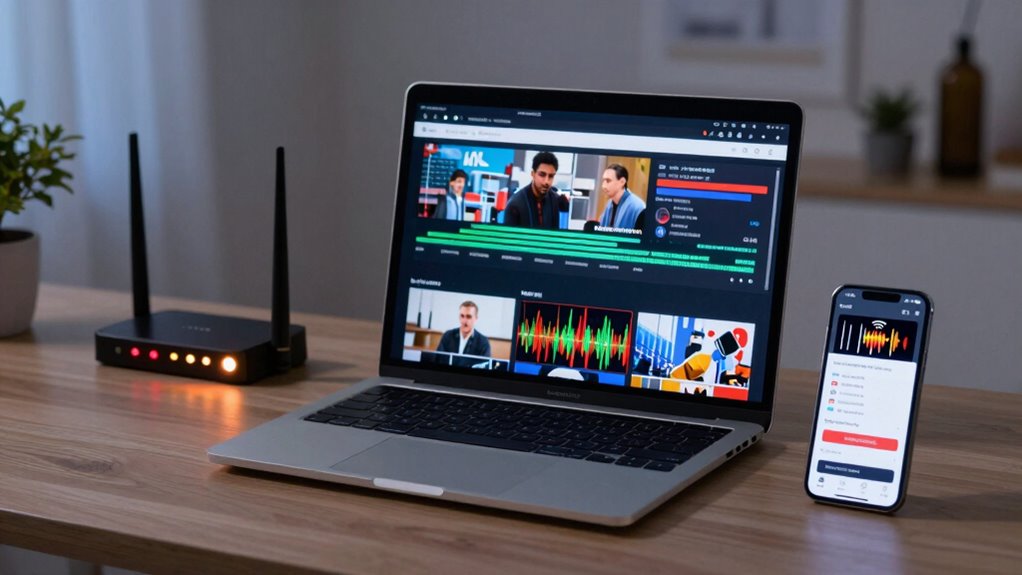
To spot network congestion during busy times, start by monitoring your traffic patterns closely. Pay attention to when your network slows down most often, which helps identify peak usage periods. Recognizing these times allows you to take steps to reduce strain and improve your connection during high-demand hours. Additionally, understanding the importance of work-life harmony can help you manage your digital environment more effectively. Implementing network management tools can also assist in pinpointing specific devices or applications that consume the most bandwidth, further optimizing your network performance. Using bandwidth monitoring techniques can provide real-time insights into traffic flow, aiding in more precise adjustments. Being aware of time zone considerations can help you plan your network usage more strategically, especially if you work with remote teams across different regions. Moreover, tracking peak activity times regularly provides insights that enable more proactive adjustments to your network settings.
Monitoring Network Traffic Patterns
Monitoring network traffic patterns is essential for detecting congestion during peak hours before it impacts performance. By conducting traffic analysis, you can identify unusual spikes or sustained high usage that signal potential bottlenecks. Pattern recognition helps you spot recurring trends, such as increased activity during specific times or from certain devices, which often precede network slowdown. Use tools like network analyzers or monitoring software to visualize traffic flow and pinpoint where congestion occurs. Pay attention to bandwidth utilization, packet loss, and latency, especially during busy periods. Recognizing these patterns early allows you to take proactive steps, like adjusting bandwidth allocation or scheduling heavy tasks outside peak times, ensuring smoother 4K streaming and better overall network performance. Additionally, understanding network congestion causes can help you implement more targeted solutions to mitigate recurring issues. Regularly reviewing historical traffic data can also reveal long-term trends that inform capacity planning and infrastructure upgrades.
Identifying Peak Usage Times
Peak usage times are when network congestion is most likely to occur, making it crucial to identify them accurately. By understanding peak hours and usage patterns, you can better manage your bandwidth and avoid buffering issues during 4K streaming. To pinpoint these times, monitor your network during different periods and note when speeds drop or latency spikes. Recognizing consistent patterns helps you plan activities around less congested times. Use the table below to visualize typical peak hours and their impact:
| Time of Day | Usage Pattern | Effect on Network |
|---|---|---|
| 8-10 AM | Morning rush, few users | Low congestion |
| 12-2 PM | Lunch breaks, many users | Moderate congestion |
| 6-9 PM | Evening, prime time | High congestion |
Tracking these patterns allows you to optimize your network use effectively.
Are Router Problems Causing Bandwidth Bottlenecks?
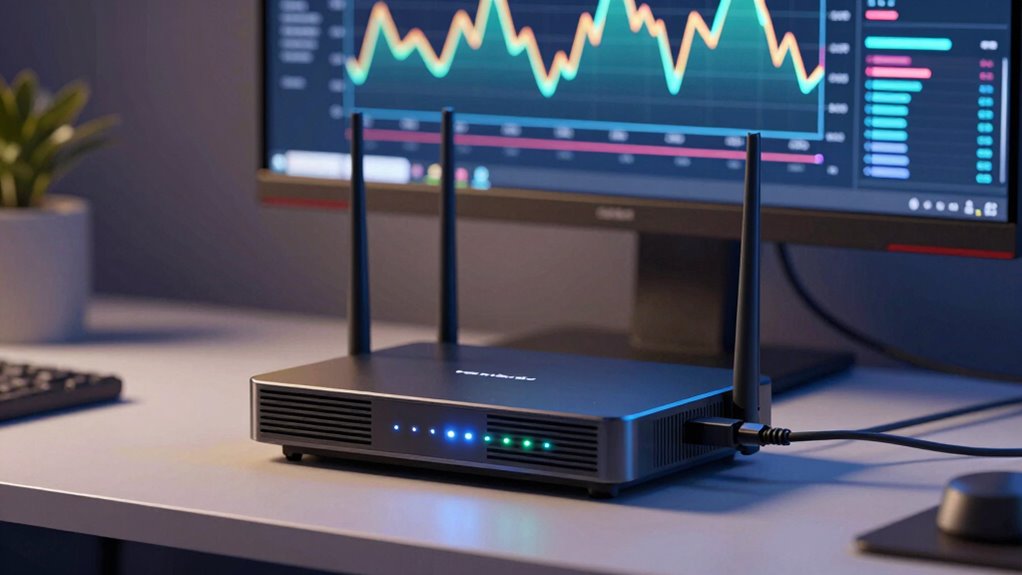
Your router plays a vital role in your network’s performance, but hardware limitations can cause slowdowns or bottlenecks, especially with 4K streaming. Outdated firmware or software can also lead to congestion issues that affect bandwidth. If you notice signs like frequent disconnects or sluggish speeds, it’s worth checking if your router is the root of the problem.
Router Hardware Limitations
Router hardware limitations can substantially impact your ability to stream 4K content smoothly. If your router’s hardware capacity is low, it may struggle to handle multiple high-bandwidth devices simultaneously, leading to buffering and lag. Processor speed is critical; a slower processor can’t efficiently manage data traffic, causing delays and bottlenecks. Older routers often lack the power needed for modern streaming demands, especially when multiple devices compete for bandwidth. Even if your internet plan provides enough speed, outdated hardware can bottleneck performance. Upgrading to a router with higher hardware capacity and a faster processor can markedly improve your 4K streaming experience. Ensuring your router’s hardware is capable enough is essential for eliminating bottlenecks and achieving smooth, high-quality playback.
Firmware and Software Updates
Outdated firmware and software can substantially hinder your router’s ability to manage high-bandwidth tasks like 4K streaming. When firmware updates aren’t installed, your router may miss vital performance improvements and security patches that enhance data flow. Similarly, neglecting software patches can leave vulnerabilities that slow down your network or cause instability. Regularly check for firmware updates from your router manufacturer and apply them promptly to guarantee your device runs smoothly. Updated firmware enhances compatibility with modern devices and improves bandwidth management, reducing bottlenecks. Likewise, keeping your router’s software current helps prevent crashes and maintains peak performance. Don’t ignore updates—they’re essential for making sure your network can handle the demands of 4K streaming without unnecessary interruptions.
Network Congestion Signs
When network congestion strikes, it often shows up through slow loading times, buffering interruptions, or sudden drops in internet speed. These signs can indicate your router isn’t effectively managing bandwidth or prioritizing traffic. If multiple devices are streaming or gaming simultaneously, you might notice performance issues. Check if your router supports bandwidth management features or network prioritization, which help allocate resources efficiently. Without proper prioritization, high-bandwidth activities can hog the connection, causing bottlenecks for 4K streaming. Also, look for signs like lag spikes during peak usage times. Identifying these congestion signs early allows you to optimize your network settings, ensuring smoother 4K experiences and reducing the chances of bandwidth bottlenecks caused by router problems.
How to Check for Latency and Packet Loss on Your Network
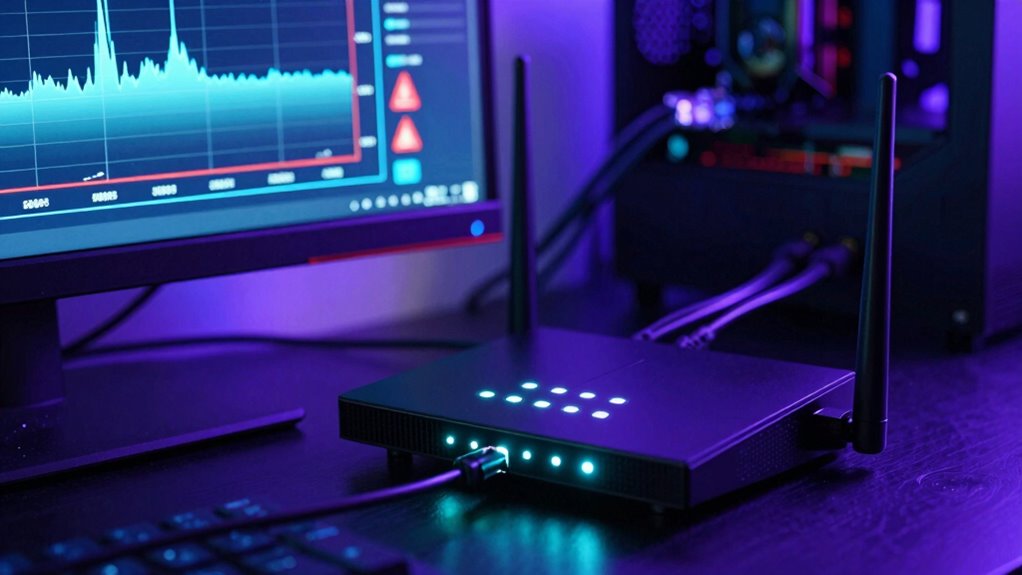
Wondering if your network’s causing lag during 4K streaming? The first step is performing network diagnostics to check for latency and packet loss. Open a command prompt or terminal and run ping tests to your internet provider’s server or a reliable public server like Google’s (ping google.com). Consistent, low ping times indicate good connection stability, while spikes suggest lag issues. You can also use tools like traceroute to identify where delays occur. For packet loss, run continuous ping tests and watch for dropped packets or high response times. Additionally, specialized network diagnostic tools can provide visual insights into latency and packet loss. Regularly checking these metrics helps you determine whether your network is the bottleneck affecting your 4K streaming quality.
Are Your Router Settings Limiting Streaming Quality?
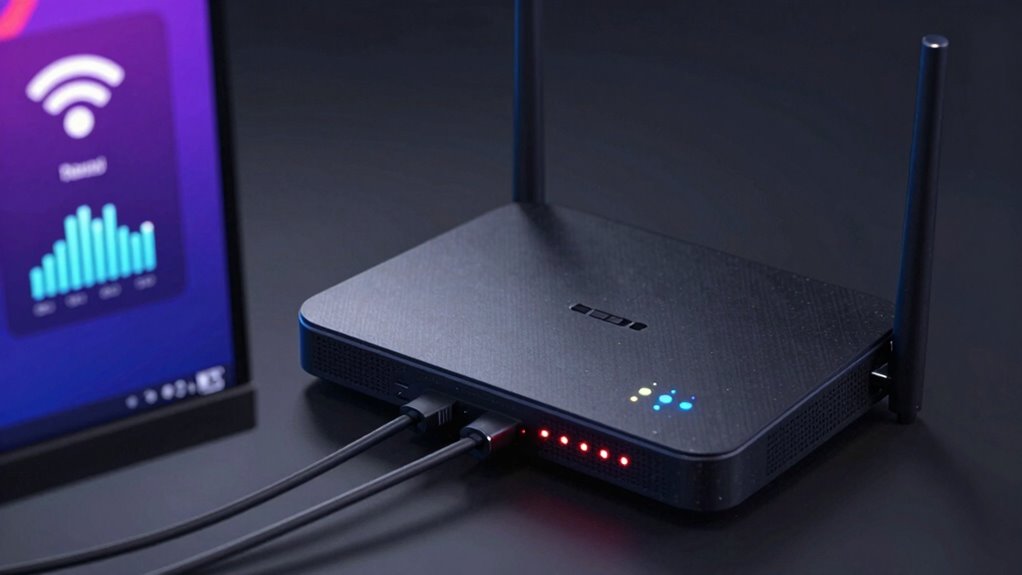
Your router settings play a crucial role in streaming 4K content smoothly, and misconfigurations can considerably limit your quality. Check your router’s security features to ensure unauthorized devices aren’t hogging bandwidth, which can lower streaming quality. Also, review your network topology—an inefficient layout might cause congestion, especially if multiple devices compete for bandwidth. Ensure your router firmware is up to date, as outdated firmware can restrict performance or introduce bugs that limit streaming quality. Adjust Quality of Service (QoS) settings to prioritize your streaming device, giving it better bandwidth allocation. Proper security and optimized network topology help prevent unnecessary traffic and interference, making sure your router isn’t unintentionally bottlenecking your 4K streams. This keeps your connection fast, stable, and capable of handling high-quality content.
How External Factors and Interference Affect Your Wi-Fi
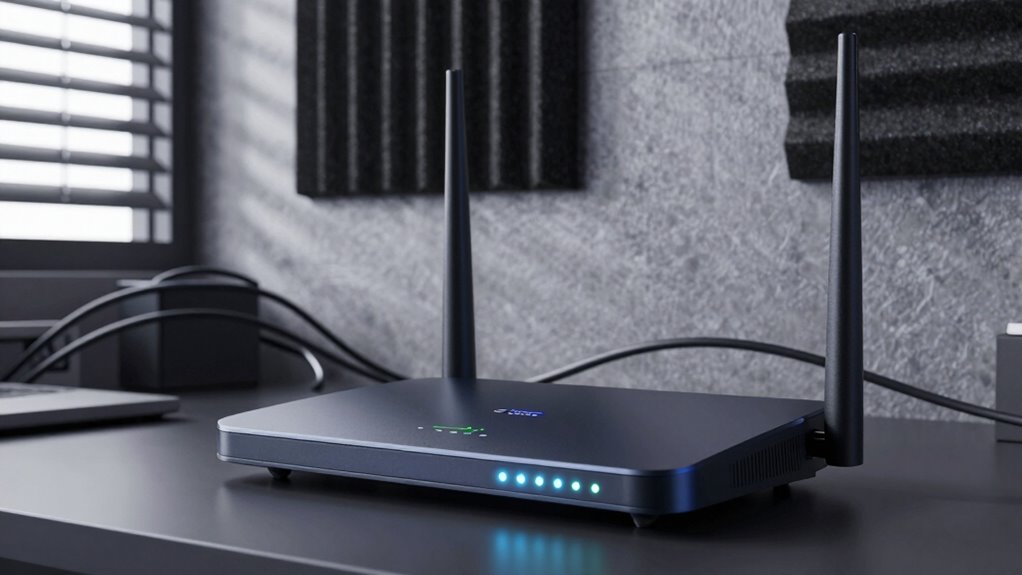
While optimizing your router settings can improve streaming performance, external factors and interference often have a considerable impact on Wi-Fi quality. Interference sources like cordless phones, microwave ovens, and neighboring Wi-Fi networks can cause external disruptions, leading to buffering or reduced resolution. These external disruptions weaken signal strength and cause data loss, especially in crowded environments. To understand this better, consider the table below:
| Interference Sources | External Disruptions | Impact on Wi-Fi |
|---|---|---|
| Cordless phones | Neighboring Wi-Fi | Signal degradation |
| Microwave ovens | Physical obstacles | Reduced speed |
| Bluetooth devices | Structural interference | Increased latency |
| Other wireless networks | Environmental factors | Connection drops |
Identifying and minimizing these interference sources can considerably improve your Wi-Fi stability.
Practical Tips to Boost Your Network Speed for Seamless 4K Streaming
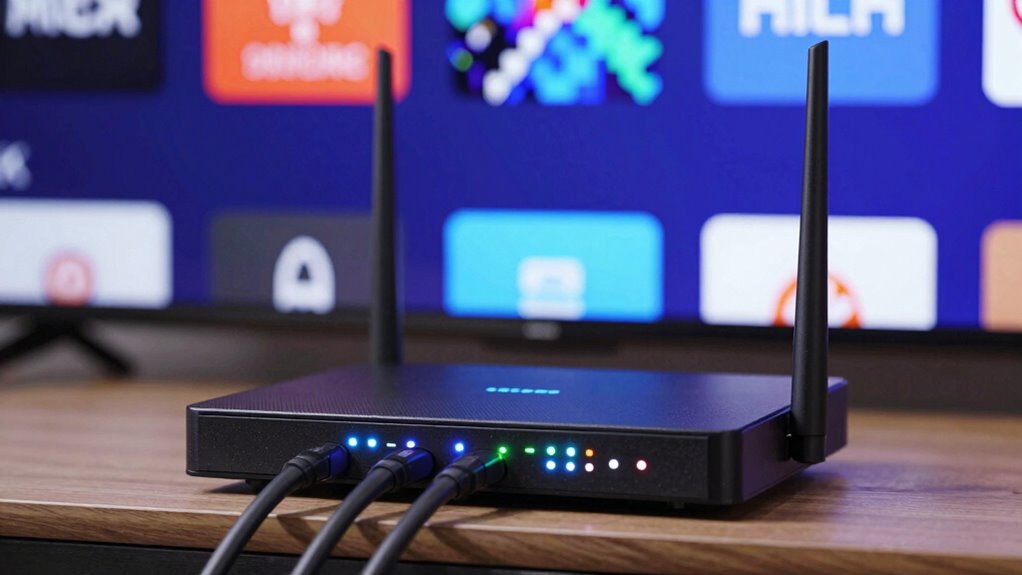
To guarantee smooth 4K streaming, optimizing your network speed is essential. Start by securing your network with strong passwords and updated firmware to enhance network security, reducing interference risks. Next, prioritize bandwidth allocation for streaming devices through Quality of Service (QoS) settings, ensuring they get enough resources. Consider upgrading your router to a dual-band or Wi-Fi 6 model for faster speeds and better coverage. Reduce simultaneous device usage during streaming to free up bandwidth. Finally, position your router centrally and away from interference sources to improve signal strength.
- Enable QoS for prioritizing streaming traffic
- Use wired Ethernet connections when possible
- Update router firmware regularly
- Limit background app activity on devices
- Secure your network to prevent unauthorized access
Frequently Asked Questions
Can Upgrading My Internet Plan Improve 4K Streaming Quality?
Yes, upgrading your internet plan can improve your 4K streaming quality. Higher internet speed allows for smoother, more consistent streams without buffering or interruptions. When you increase your bandwidth, your connection can handle the data required for 4K content more efficiently. So, if you’re experiencing lag or buffering, boosting your internet speed is a smart move to enjoy clearer, crisper 4K videos without frustration.
How Does Ethernet Compare to Wi-Fi for 4K Streaming?
You’ll find Ethernet generally outperforms Wi-Fi for 4K streaming, offering about 10 times more stable connections. Ethernet stability reduces buffering and lag, ensuring smooth playback. In contrast, Wi-Fi provides flexibility and mobility, letting you stream from anywhere in your home. If you prioritize consistent quality, Ethernet’s wired connection is better, but if convenience matters most, Wi-Fi still does a good job. Your choice depends on your need for stability versus flexibility.
What Specific Router Features Enhance 4K Video Performance?
To boost 4K video performance, look for routers with quality prioritization features that give streaming traffic higher bandwidth. MU MIMO technology also plays a key role by allowing multiple devices to stream simultaneously without lag. These features guarantee your network handles 4K content smoothly, reducing buffering and improving stability. Investing in a router with both quality prioritization and MU MIMO will markedly enhance your 4K streaming experience.
Do VPNS Affect 4K Streaming Bandwidth and Quality?
Yes, VPN encryption can affect your 4K streaming bandwidth and quality. When you connect to a VPN, it encrypts your data, which sometimes causes bandwidth throttling, reducing your internet speed. This slowdown can lead to buffering or lower video quality during 4K streaming. To minimize these effects, choose a VPN with fast servers and strong encryption that doesn’t compromise your bandwidth, ensuring smoother 4K playback.
How Do Background App Updates Impact Network Bandwidth During Streaming?
Background updates love to sneak in and gobble up your bandwidth, turning your streaming session into a pixelated nightmare. They run quietly in the background, hogging bandwidth management resources and leaving your 4K content to buffer endlessly. If you want smooth streaming, pause those pesky updates or schedule them for later. Your network will thank you for prioritizing your bandwidth and keeping those updates at bay during prime viewing hours.
Conclusion
If your 4K streaming keeps buffering, don’t let your network be the bottleneck holding you back. By testing your speed, checking your Wi-Fi strength, and managing devices, you can clear the path for smooth playback. Think of your network as a race car—tune it up, remove obstacles, and you’ll race past buffering issues. Take control today, and enjoy stunning 4K visuals without interruptions.
Fall Picks
fall essentials
As an affiliate, we earn on qualifying purchases.