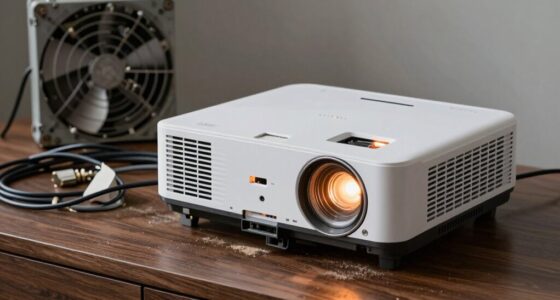
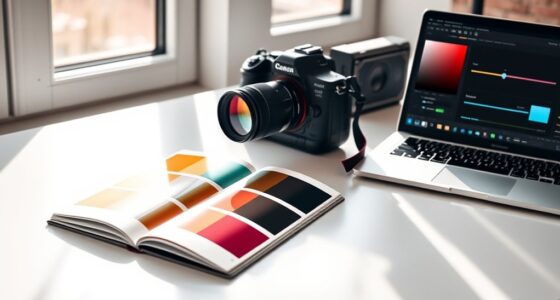
To fix flickering images in your projector, start by checking and replacing the lamp if it’s old, as degradation causes unstable brightness. Make certain your projector is properly calibrated for contrast and color settings. Also, verify that your power source is stable and plugged into a surge protector to prevent fluctuations. Clean the internal components or seek professional help if the flickering persists, especially if internal hardware issues are involved. More tips await to help you stabilize your projector’s image.

Get business pricing on your home office setup
- Business-only prices and quantity discounts
- Tax-exempt purchasing
- Multiple users, one account, clear invoices
Key Takeaways
- Replace the projector lamp if it shows signs of degradation or flickering persists after calibration.
- Run screen calibration and adjust contrast, brightness, and color settings for optimal image stability.
- Ensure the projector is connected to a stable power source and use a surge protector to prevent flickering.
- Clean or realign internal components like the color wheel in DLP projectors to eliminate internal hardware issues.
- If flickering continues, consult a professional technician for internal hardware inspection and repair.
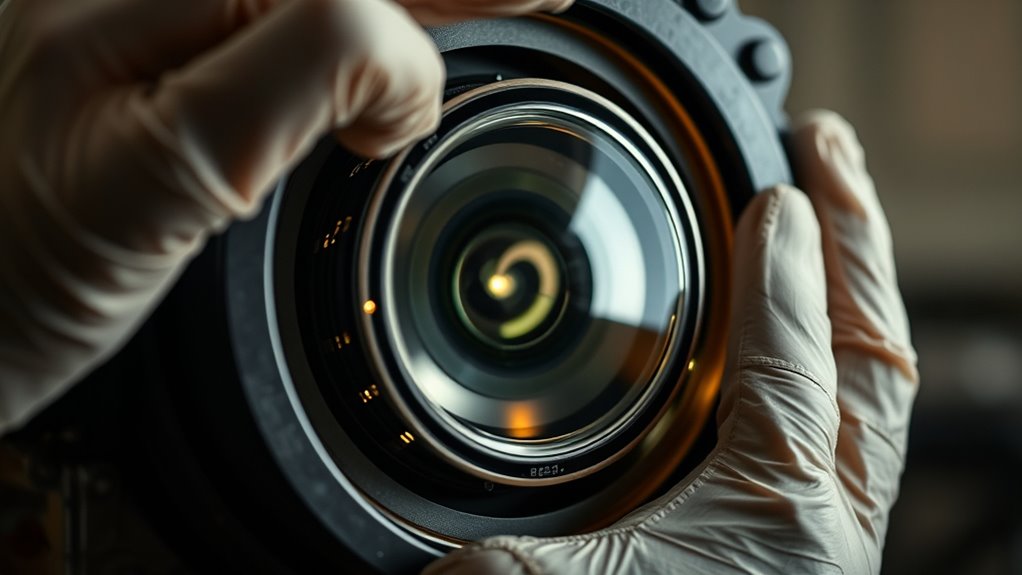
Flickering images can be frustrating, but fixing them is often straightforward with the right approach. When your projector’s picture flickers, the first step is to identify the cause. Sometimes, the issue stems from the lamp itself. Over time, projector lamps degrade and can cause inconsistent brightness, leading to flickering. If your projector has been in use for a while, consider performing a lamp replacement. Replacing the lamp is usually simple and can markedly improve image stability. Make sure to follow the manufacturer’s instructions carefully, as handling the lamp improperly can be unsafe. Once you’ve replaced the lamp, test the projector again to see if the flickering persists.
Another common culprit is improper screen calibration. Projectors rely on correct calibration to produce clear, stable images. If the settings are off, even slightly, you may notice flickering or unstable images. Access your projector’s menu and run a screen calibration. Adjust the contrast, brightness, and color settings as recommended. Many projectors have an auto-calibrate feature that makes this process easier. Proper calibration ensures the projector’s internal components work harmoniously, reducing the chances of flickering caused by misaligned settings. Keep in mind that environmental factors, like ambient light or unstable power sources, can also impact image stability. Using a surge protector can help prevent flickering caused by power fluctuations.
If your projector uses an internal color wheel, such as in DLP models, dust or misalignment inside the wheel can cause flickering. Carefully cleaning or realigning the color wheel may resolve the issue. Additionally, color accuracy can influence overall image quality and stability. In some cases, the problem may be more technical, involving the projector’s internal circuitry. If these steps don’t work, it might be time to consult a professional technician. They can diagnose hardware issues that you might not be able to see or fix on your own.
Top picks for "flicker imag projector"
As an affiliate, we earn on qualifying purchases.
Frequently Asked Questions
Can Ambient Room Lighting Affect Projector Flickering?
Yes, ambient light interference can cause projector flickering because it affects viewer perception effects, making the flickering seem more noticeable. When your room lighting is too bright or inconsistent, it can strain your eyes and create the illusion of flickering, even if the projector is functioning properly. To reduce this, control ambient light by dimming or closing curtains, which helps guarantee a clearer, flicker-free viewing experience.
How Does the Projector’s Age Impact Image Stability?
Think of your projector like a vintage car; as it ages, its engine parts wear down, affecting image stability. The projector’s lifespan means aging components, like the lamp and color wheels, become less reliable, causing flickering or unstable images. Regular maintenance and timely replacements are essential to keep your device running smoothly. If your projector is old, expect more flickering, and consider upgrades to maintain clear, steady visuals.
Are There Specific Cables That Reduce Flickering?
Yes, using high-quality cables can substantially reduce flickering. Opt for cables with superior cable quality, such as gold-plated connectors or shielded cables, which minimize interference. Additionally, choose the right connector types—HDMI or DisplayPort are usually reliable for stable signals. Ensuring your cables are well-made and compatible with your projector helps maintain a steady image, preventing flickering caused by poor connections or signal disruptions.
Can Adjusting Projector Settings Prevent Flickering?
Think of your projector settings as the tuning of a musical instrument. By adjusting projector calibration and picture resolution, you can often prevent flickering. When you fine-tune these settings, you align the image more precisely, reducing interference that causes flickering. So, yes, tweaking your projector’s settings can make a significant difference, helping you achieve a steady, clear picture without flickering interruptions.
Is Flickering More Common With Certain Projector Brands?
Yes, flickering can be more common with certain projector brands due to brand compatibility and model variations. Some brands or models might have design features or components that make them more prone to flickering issues. When choosing a projector, consider how well it aligns with your specific needs and check reviews for flickering reports. Regular maintenance and proper setup can also help reduce flickering regardless of the brand.
Conclusion
Remember, flickering images often signal underlying issues like loose connections or outdated bulbs. While some believe flickering is just a minor glitch, it’s worth investigating further—sometimes, it points to deeper problems that could damage your projector long-term. By addressing these issues promptly, you not only fix the flicker but also extend your device’s lifespan. So, stay vigilant and don’t dismiss subtle signs; they might be trying to tell you something more significant.
Fall Picks
fall essentials
As an affiliate, we earn on qualifying purchases.